How to Find Telegram Downloaded Files on Android: Complete Guide to Locating Your Downloads
Have you ever had trouble finding an important file, picture, or video you downloaded from Telegram on your Android device? You’re not the only one. Many people have trouble finding telegram files they’ve downloaded on their Android phones. This is usually because the files are saved in different places based on what kind of file it is and how it was downloaded. This full guide will show you all the ways to find downloaded files on Telegram, tell you where Telegram files are stored on your Android device, and give you tips on how to better organize your Telegram downloads so you can find them more easily in the future.
Where Does Telegram Store Downloaded Files on Android?
The app doesn’t keep everything in one place when you download files from Telegram. Depending on what you’re downloading, the telegram app puts its folders in different places. To find your files on your Android phone quickly, you need to know how this system works.
Telegram downloads files to your device’s internal storage by default, and they are kept in certain folders.When you first use Telegram and start downloading things, the app usually makes a folder for you. Most of the time, pictures and videos go to the gallery or files app on your device. On the other hand, PDFs and other types of files go to a download folder or a custom telegram directory.
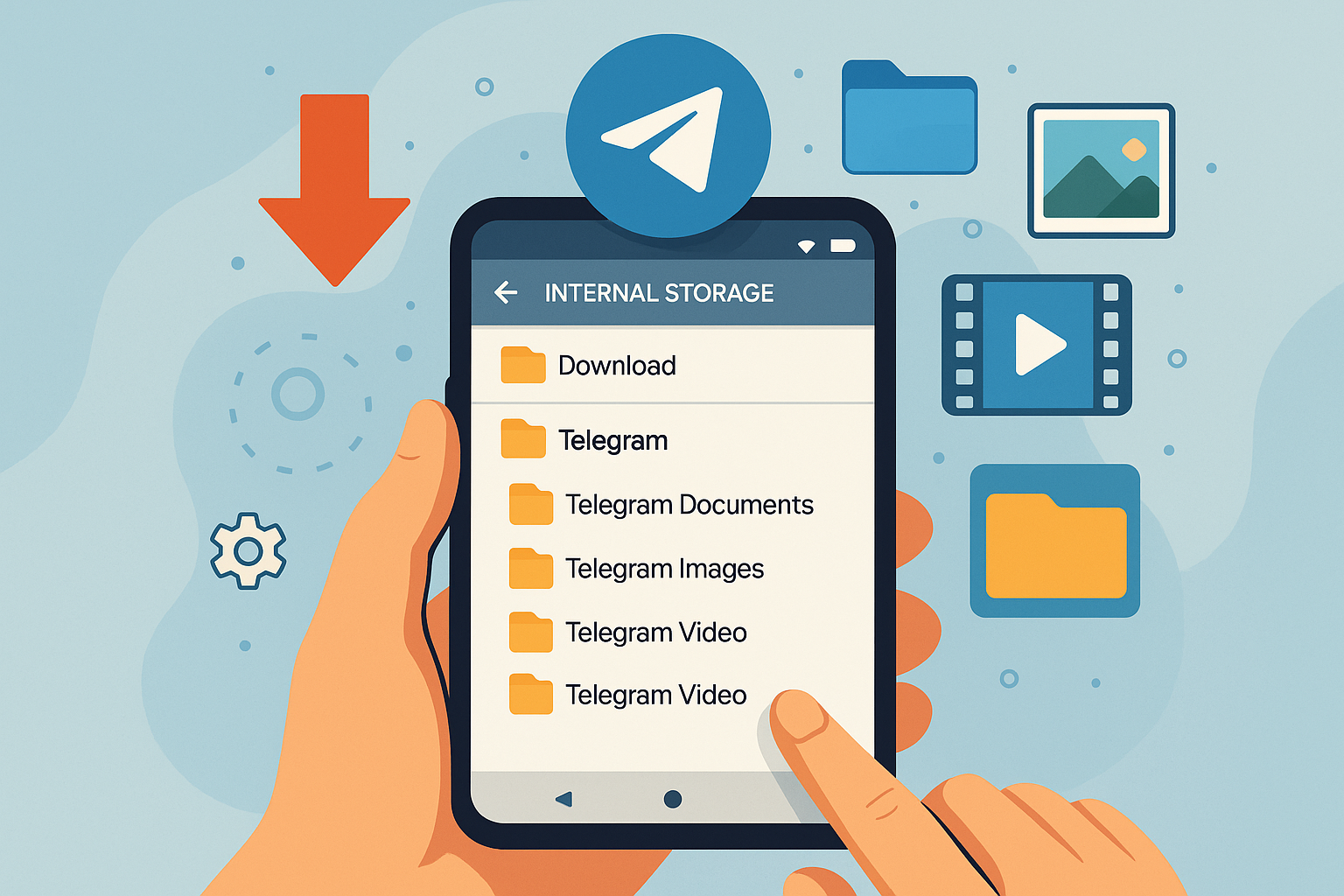
Most of the time, files you download are saved in your phone’s main telegram folder, the standard downloads folder, or even the gallery app on your Android phone. Telegram makes its own folder structure on your Android phone to organize different types of media and documents. This makes it easier to keep track of a lot of downloaded content from telegram channels and groups.
How to Find Telegram Downloaded Files Using File Manager?
The best way to find your telegram downloads on your Android device is to use the file manager app. Every Android phone has a file manager app built in, but the way it looks may vary from brand to brand. To find telegram downloaded files, you need to know how to use your device’s storage system well.
To get to these files, open the file manager on your Android device and go to internal storage. Your Android phone’s telegram files will mostly be in a folder called “Telegram.” Most of the time, you’ll find subfolders in this telegram folder that are organized by type of content, like telegram photos, telegram documents, and other types of files that you’ve downloaded from telegram.
If you can’t find the main telegram folder right away, look in the standard download folder first. Some people find that the files they downloaded from Telegram end up here, especially if they changed their download settings or chose a specific folder you chose during the download process. The file manager method shows you all of your downloaded files in one place and lets you move them to better places if you need to.
How to Find Telegram Downloaded Files on Apple iPhone IOS
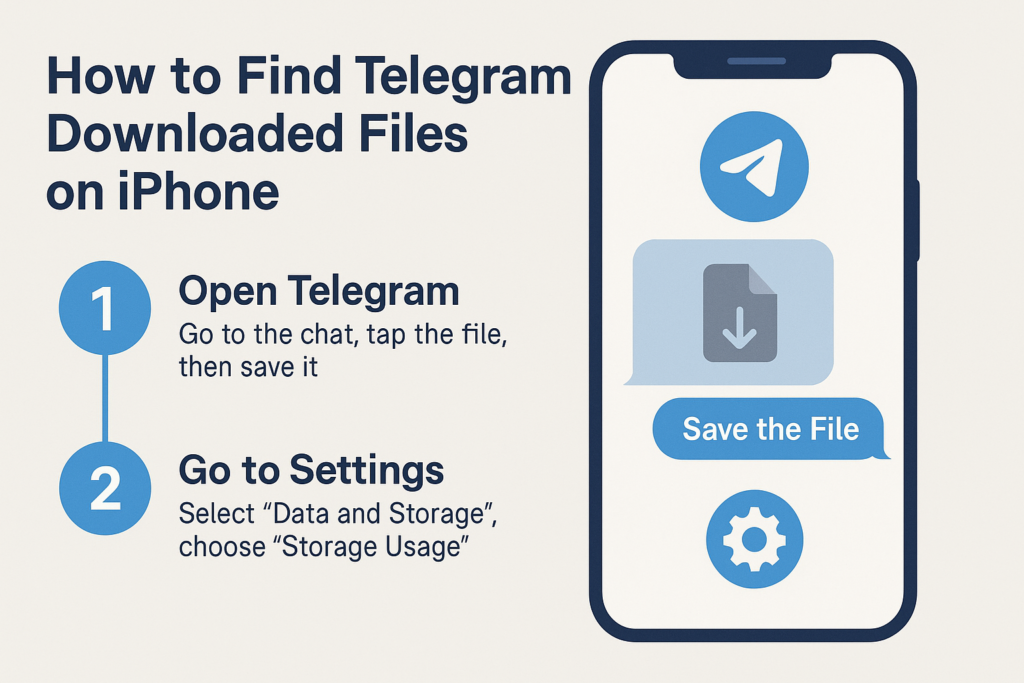
In the iOS operating system, due to security issues, you cannot directly access the downloaded files. There are two suggestions and solutions:
1- First, “Open Telegram” and then “Go to the Chat” and find the message containing the file you downloaded. Tap on it to open or preview it and then “Save the File” so that you can access it in the files.
2 – Enter Telegram and click on “Settings” in the menu, look for “Data and Storage” and after finding it, click on it and enter, then click on “Storage Usage” which is one of the first options to Enter the new page.
Then by scrolling the list of all the chats, channels, groups from which you have downloaded a file can be displayed and it also shows the amount of storage used, you can delete them separately if needed. Make files related to a conversation.
How to Find Telegram Downloaded Files on PC (Windows)
First, open “File Explorer“, if you don’t find it, you can open it using the Win + E buttons on the keyboard, then to open “Download Folder“, just enter the following path. (You can find the folders in order or copy it in the address bar)
C:\Users\YourUsername\Downloads\Telegram DesktopReplace “YourUsername” with your actual username on the PC. You can see all the downloaded files now.
What Happens When You Download Files from Telegram Automatically?
The automatic media download feature in Telegram can change where your files go on your Android device in a big way. When you turn on auto download, the telegram app will automatically save photos, videos, and other media files that come in to certain places. You don’t have to download each one separately.
You can change the settings for automatic media downloads based on the type of file and the type of connection. For instance, you could set your photos to download automatically when you’re connected to Wi-Fi but not when you’re using mobile data. These settings tell your device where to save files, like the telegram folder, the photos app, or other specific places. This will make it harder to get to your downloaded files.
You need to know what your current auto download settings are in order to find files that may have been downloaded without your knowledge. When you download files automatically, they usually end up in a different place than when you download them by hand. It might be hard to find the files later if this happens. The telegram app handles these automatic downloads in the background and saves files according to your data and storage settings.
How to Locate Telegram Photos and Videos on Android?
On Android devices, Telegram photos, images, and videos are saved in a certain way. When you download pictures or videos from Telegram, they usually go to one of two places: either to your phone’s gallery app or to a special telegram images folder in internal storage.
You can choose to save photos and videos you download to your phone’s gallery app next to photos and videos you took with your camera if you have the “save to gallery” option turned on in your Telegram settings. With this integration, you can easily get to telegram photos through your regular photos app. But it can also make it harder to tell the difference between pictures you’ve taken and files you’ve downloaded from Telegram.
For people who want to keep their telegram content separate, photos and videos are stored in their own subfolders inside the main telegram directory. Most of the time, these folders are in the main telegram folder on your internal storage. You can find these files in your file manager app or sometimes even in the gallery app, depending on how your Android phone organizes media files. When you want to automatically save photos from telegram channels and groups, these settings decide where the content will be saved: in the photos app or in separate telegram folders.
Where Are Telegram Documents and PDFs Stored?
Telegram stores files like PDFs, Word documents, spreadsheets, and other types of files that aren’t media in a different way than it stores photos and videos. In the main telegram directory, there is a special folder for telegram documents where these files are usually saved. Sometimes they go straight to the general download folder on your device.
When you download a file from Telegram by hand, you can usually choose where to put it. If you don’t choose a place, though, the file will go to the default place that your telegram app settings say it should go. The telegram documents folder is usually in the main telegram folder on your internal storage. This makes it easy to find the files you downloaded.
These folders keep track of the order in which files like PDFs and other documents were downloaded from telegram channels, groups, or individual chats. This way of organizing things helps keep things in order, especially for people who download a lot of files or a lot of different kinds of files from different telegram sources. When you need these files, knowing where they are will help you find them quickly.
How to Change Telegram Download Settings on Android?
You can change the settings for your telegram downloads to make it easier to find your files later and control where downloaded files are saved. To get to these settings, open the Telegram app and go to Settings > Data and Storage. This is where you can find all the ways to choose where and how files are downloaded to your Android device.
The download folder settings let you choose where to save different kinds of files on your computer. You can choose where to put different types of files, such as pictures, videos, documents, and more. You can always find the files you’ve downloaded from Telegram by changing where you want them to go. You can choose to save them to your downloads, gallery, files app, or a specific folder in Telegram.
You can also choose how to automatically download media for different kinds of connections. These settings determine whether or not files are automatically downloaded when you’re connected to Wi-Fi or using mobile data. This lets you keep track of how much space you have and how much data you’re using, and it makes it easy to get to important saved files. You can also turn on or off the option to save incoming photos and decide whether or not to save them to the gallery automatically.
What’s the Difference Between Auto Download and Manual Download in Telegram?
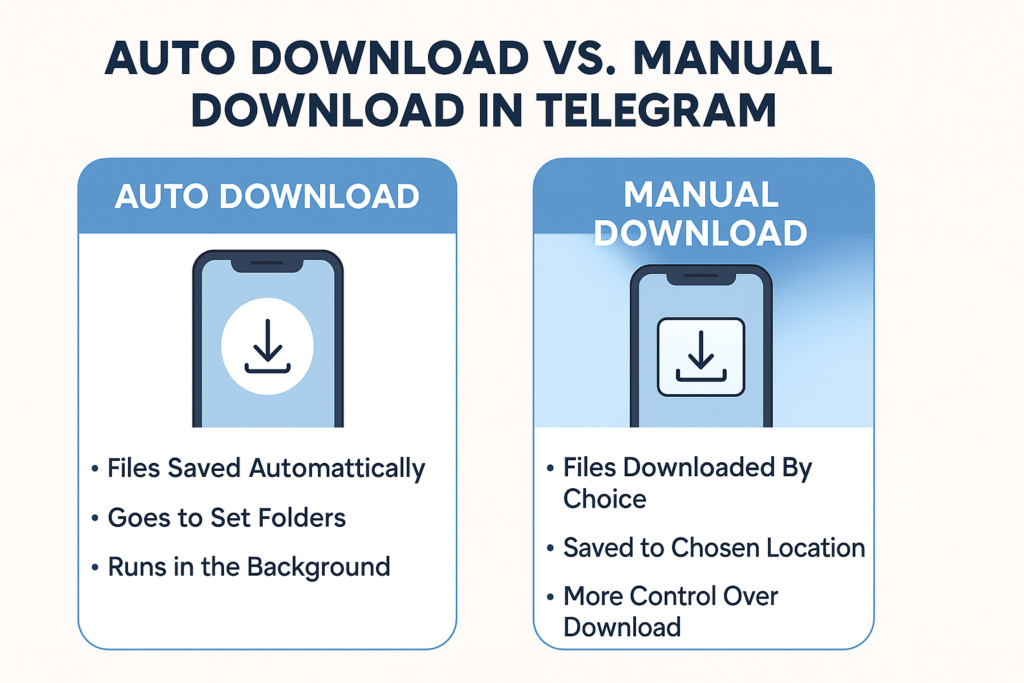
You need to know the difference between automatic and manual downloads in order to find your telegram files on Android. Telegram’s auto-download feature saves some types of media files as soon as they come in, so you don’t have to click a download button or download each file by hand.
When your computer automatically downloads files, they usually go to the folders you told it to in your data and storage settings. You could save pictures to the photos app, videos to a telegram videos folder, and documents to a special downloads folder. This process runs in the background and can make big files that you might not notice right away. These files use up space on your device.
When you tap on a media file and choose to download it, on the other hand, you do a manual download. You usually have more control over the folder you put something in when you download it yourself, and you’re more likely to remember doing it. When you download files yourself, it’s usually easier to find them because you know where they are and can choose where they go.
How to Find Telegram Downloads in Internal Storage?
You need to know how to move around the usual folder structure and how to quickly find the files in order to find telegram downloads on your Android device’s internal storage. Most of the files you send and receive on Telegram are stored in the main Telegram folder on your device’s internal storage.
To get to internal storage, open your file manager app and search for “Internal Storage” or “Device Storage.” To find the telegram folder, scroll down in this directory. There are usually a lot of subfolders in this folder, and they are all organized by the type of content they hold. This makes it easier to find the files you need, whether they are pictures, documents, or something else.
Each subfolder has files that are sorted by type and sometimes by date. This makes it easier to locate what you need. If you want to find a certain file, think back to when you downloaded it. This will help you navigate the content, which is organized by date. Some file manager apps let you look for certain types or names of files in the telegram folder. This makes it even easier to find and open these files.
Why Can’t I Find My Telegram Downloaded Files on Android?
There are a few things that can make it hard to find files you downloaded from Telegram on your Android phone. One common problem is that files might be saved in places you didn’t expect because of how you set up your downloads or how the telegram app stores files in different versions.
When people have more than one file manager app on their devices, they often run into another problem. The file system may look different in these apps. Some file managers may not show all of the folders or may organize files in a different way, which can make it hard to find where telegram files are really kept. Also, your files might be saved in different places if you open the Telegram app on different devices or use Telegram Desktop.
Storage permissions can also change how easy it is to see files and how easy it is to find downloaded files on Telegram. If the telegram app doesn’t have the right permissions to save files, they might not be where you think they are or be able to be opened with regular file browsers. Different versions of Android and custom device interfaces put files in different places. This can change how Telegram interacts with the system’s file management and where it keeps its files.
How to Better Organize Your Telegram Files for Easy Access?
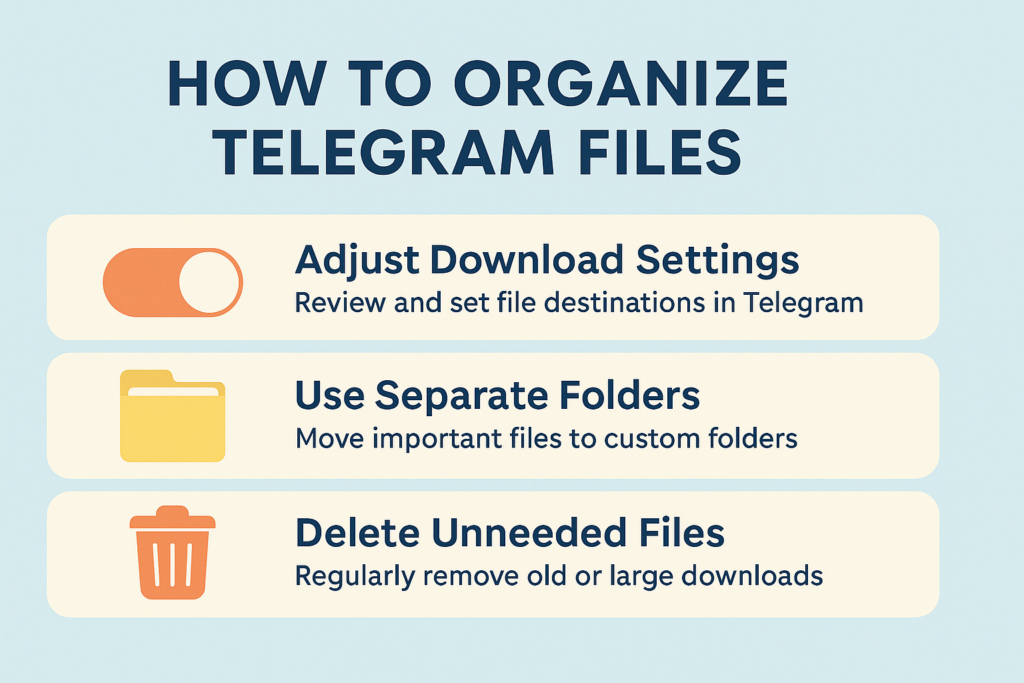
If you know how to organize your telegram downloads, you won’t have to spend as much time looking for files. Check your download settings often to make sure that files are going to the right places based on how you use them and the types of files you usually download from Telegram.
For important files, you might want to create a separate folder structure outside of the default telegram folders. You can move important documents, photos, or other media files from the telegram folders to folders that are better organized for certain tasks every now and then. By keeping temporary downloads and files you want to keep for a long time separate, this method makes it easier to find the files you really need.
It’s also important to clean up your system on a regular basis to keep it organized. Go through your telegram folder every so often and delete files you don’t need anymore. This habit not only frees up space on your hard drive, but it also makes it easier to find the files that matter to you. Telegram has built-in tools for managing storage that you can use to find and delete large files or old content that might be taking up space when you open the app. Knowing where files are downloaded and how they are organized in Telegram will help you keep better track of your device’s storage.
Key Takeaways
• Primary Storage Location: Most telegram downloaded files are stored in the telegram folder within your android device’s internal storage, organized by file type in subfolders where files are stored systematically.
• File Manager Navigation: Use your android file manager app to navigate to internal storage > telegram to find downloaded files, with separate folders for telegram photos, telegram documents, and other content types.
• Gallery Integration: Photos and videos may appear directly in your gallery app on your phone if save to gallery is enabled, making them accessible through your standard photos app where saved to the photos app content appears.
• Download Settings Control: Access Settings > data and storage in the telegram app to customize where different file types are saved and configure automatic media download preferences for your android phone.
• Auto vs Manual Downloads: Automatically downloaded files follow predetermined paths based on your settings, while files you manually download may offer location choice and are generally easier to track and find.
• Document Storage: Files like pdfs and other telegram documents are typically saved to a dedicated telegram documents folder or your device’s general download folder depending on your configuration.
• Storage Permissions: Ensure the telegram app has proper storage permissions to save files in expected locations and make them accessible through file managers and files app on your device.
• Regular Organization: Periodically clean up and organize your telegram downloads by moving important saved files to dedicated folders and deleting unnecessary content to maintain easy access.
• Search Functionality: Use your file manager app’s search feature to locate specific files by name or type when browsing through large amounts of files downloaded from telegram channels and groups.
• Cross-Platform Considerations: Remember that files downloaded from telegram may be stored differently if you also use telegram desktop or access telegram on other devices, so know how to find files across different platforms.

How to Run Multiple Telegram Accounts on One Device: Complete Guide to Managing Multiple Telegram Accounts
Users who need to keep their personal and professional communications separate now have to manage multiple telegram accounts. This complete guide will show you how to efficiently run multiple telegram accounts on one device, whether you want to add a second account for business purposes or manage up to three accounts at the same time. This messaging app lets users set up as many accounts as they want on the same device. By the end of this article, you’ll know every way to make and manage multiple telegram accounts without putting your privacy or productivity at risk.
Why Do You Need Multiple Telegram Accounts?

Managing multiple telegram accounts has become much more important in today’s digital world. A lot of people need more than one account for work and personal reasons. A work account lets you keep your business and personal conversations separate, which helps with organization and privacy. Telegram’s flexibility makes it the best way to manage multiple identities without needing more than one device.
Professional users often need three accounts: one for talking to clients, one for working with their team, and sometimes a third for managing a telegram channel or getting involved in a community. When using Telegram for personal reasons, you need to think about security differently than when using it for business. That’s why it’s important to have separate accounts to keep professional boundaries.
People who care about their privacy also benefit from having separate accounts for different online activities. You could have one telegram account for close friends and family and another for larger social networks or public communities. This separation makes it easier to keep track of multiple identities while still being in charge of your digital footprint and keeping chats separate for different parts of your life.
How Many Telegram Accounts Can You Have on One Device?
The official Telegram app lets users manage up to three Telegram accounts on one device. This limit on accounts applies to the mobile version as well, where you can run multiple accounts without having to install separate apps on your device. The limit of three accounts makes sure that everything runs smoothly while still giving most people who need more than one telegram account on one device enough room to do so.
You can do more with your Telegram accounts on your computer than you can on your phone. You can use both the desktop app and the web version of Telegram at the same time. The desktop app lets you use more than one account. This means that by using different ways to log in, you might be able to access more than three accounts. This gives you a full way to manage multiple telegram identities.
Telegram doesn’t limit the number of accounts you can make; instead, it limits the number of accounts you can make based on how many different numbers you can give them for verification. When you sign up for a new account, you need to use a different phone number each time. You can do this in a number of ways, such as by using virtual phone number services or by setting up one phone for each account.
What Are the Requirements for Creating Multiple Telegram Accounts?
To make more than one telegram account, you need to know how telegram’s verification system works. Telegram will send you a verification code to confirm that you own the account, so each account must be linked to a different mobile number. You can’t use the same phone number for more than one telegram account at the same time. This means that you’ll need a different phone number for each account you want to make.
The most important thing is that you can get different phone numbers for each account you want to make. This could be your personal cell phone number, a work phone, or a service that gives you a virtual phone number. Telegram will send you a verification code when you make a new account. You need to get this code to finish setting up your account.
If you have more than one account, it’s important to have a way to keep track of all the different numbers and the accounts they belong to. Some people keep a Canadian phone number for international calls, while others use different numbers for different parts of the world or for business. To create an account successfully, you need a phone number that can reliably get verification messages.
How to Add a Second Telegram Account on Mobile?
The telegram app makes it easy to add a second telegram account to your phone. Go to the app’s settings and look for the option to add an account. You can use the telegram app to set up multiple accounts in the same app, which lets you use more than one telegram account on your phone.
To add another account, open the telegram app and tap on the hamburger menu (three horizontal lines). Then, tap “Settings.” To add an account, look for an option that says “Add Account” or something like it. You will be asked to enter a second phone number by the app, and then you will get a verification code for the new account. Adding a second telegram account or making more accounts is the same process.
After you get the verification code, type it in to finish making your account. Your telegram app will now show a switcher that lets you switch between your accounts. You can tell which personal or work account is active by looking at the account selector, which is usually at the top of the settings menu or in the main navigation area. This system works great for telegram accounts on phones.
Can You Run Multiple Telegram Accounts Without a Phone Number?

Telegram’s normal process requires a phone number for each account, but there are legal ways to make more than one account using different verification methods. Virtual phone number services give you temporary or permanent numbers that can get verification codes. This lets you make accounts without having to use your personal mobile number for each one.
There are a number of online services that give you virtual phone numbers just for verifying accounts. These services give you numbers from different countries, including Canadian numbers and numbers from other specific areas. Make sure you can always get the verification code when you create an account with these services. Some people have had success with accounts that use virtual numbers for other things.
It’s important to remember that these methods work, but keeping access to the virtual phone number is very important for account security. You might have trouble getting your account back if you lose access to the number you used to verify it. So, think about only using virtual numbers for secondary accounts that don’t have important information in them. Your main personal account should still be linked to your real mobile number.
How to Manage Multiple Telegram Accounts on Desktop?
The desktop app makes it easy to manage more than one telegram account and has features that help you get more done. You can log in to your main account on the official Telegram desktop app and then use the web version in your browser for other accounts. This method lets you run more than one account at the same time on the same computer, which makes it easier to manage your Telegram accounts on your computer.
The desktop version of Telegram has the same account switching feature as the mobile version. To find options for managing your account, click the three-line menu button, go to settings, and then look for them. You can add more accounts right from the desktop interface. This makes it easy to switch between accounts without having to log out. This is especially helpful for people who need to have more than one profile for different reasons.
If you need to access more than three accounts, you might want to use more than one browser or browser profile. You can manage multiple accounts on your computer by keeping separate telegram web sessions in each browser or profile. You could also use telegram x with the regular telegram app to get to more accounts. This method is very helpful for community managers or business users who manage more than one telegram channel or group because it gives them access to multiple telegram accounts at once.
What’s the Best Way to Manage Notifications Across Multiple Accounts?
If you have more than one telegram account, you need to set up your notifications in a way that doesn’t overwhelm you with alerts. You can change the notification settings for each of your telegram accounts separately. This way, you only get alerts that are important to you and don’t get distracted by less important accounts. If you use Telegram with more than one account, this notification management system is very important.
Set up your main personal account to get all notifications, such as calls, messages, and group updates. If you use your work account, you might want to turn on notifications only during business hours or for certain chat conversations and channels. If you use your third account for less time-sensitive communications, it might not get any notifications at all. This method helps keep track of notifications across accounts in a single, well-organized system.
Telegram has advanced notification features, such as the ability to set different notification sounds for different accounts. This audio difference lets you tell right away which account got a message without having to check your phone. You can also set up the “Do Not Disturb” feature differently for each account. This way, work notifications won’t get in the way of your personal time, and your personal and professional chats will stay separate.
How to Switch Between Three Telegram Accounts Efficiently?

To switch between three telegram accounts quickly, you need to know how the interface works and make sure you always do things the same way. The account switcher is usually in the main menu of the mobile telegram app. If you use more than one Telegram account on a regular basis, get to know this area so you can quickly find and switch between accounts.
Make a plan for how to logically organize your accounts. A lot of people put their accounts in order of importance: their personal account first, their work account second, and their secondary or specialized accounts third. This consistent order makes it less confusing to switch between accounts quickly when things are busy. The telegram app makes it easy to see which of your two or three accounts is currently active.
To help you remember which account you’re using, you might want to give each one a different name and profile picture. When managing accounts with similar purposes or switching quickly between accounts during active conversations, this visual difference becomes even more important. You can make as many visual differences as you need to help you quickly find accounts. This makes it easier to manage accounts in the Telegram ecosystem.
Can You Use Multiple Telegram Accounts on Mobile and Desktop Simultaneously?
Yes, you can use more than one Telegram account at the same time on both your phone and your computer. You can be logged into different accounts on your phone and computer at the same time because each platform keeps its own sessions. One of the best things about Telegram for people who need multiple accounts is that it works on a lot of different platforms. You can access multiple accounts at the same time on different devices.
The syncing between devices works perfectly, so messages and updates show up the same way on all devices that are logged in. But managing notifications gets harder when you use accounts on the same device and on different platforms. If you have multiple accounts on one notification system, be careful how you set up your notifications so you don’t get the same message twice.
This ability to access multiple accounts at the same time is especially useful for people who need to be connected to different accounts all the time. You can keep an eye on your personal account on your phone while using your work account on your computer. This way, you’ll never miss important messages from any of your telegram accounts. Users can make a full communication system that works across all of their digital devices because of this flexibility.
What Are the Common Issues When Managing Multiple Accounts?
Managing more than one account can be hard for users a lot of the time. Sending messages from the wrong account by mistake is the most common problem. This can lead to awkward situations at work or in your personal life. Before you send any important or sensitive messages, make sure you know which account is active. This is especially important when you switch between your personal and business accounts.
Managing storage space is another common problem because each account stores media files, cached data, and chat histories. The telegram app keeps data for all accounts on the device itself, which can take up a lot of space over time. Clearing the cache and managing media on a regular basis helps all accounts work at their best. People who need more than one Telegram account should keep an eye on how much storage space they are using.
Managing more than one account can also raise security issues, especially when it comes to account recovery and two-factor authentication. Make sure that each account has the right security measures, such as different passwords and ways to get back in. For safety and recovery reasons, keep track of which email addresses and phone numbers are linked to each account. Some people also connect their accounts to their Google account for extra security.
Users also have a hard time keeping their persona management consistent across all of their accounts. Mixing personal and professional communications by mistake or using the wrong account settings can hurt your relationships or your professional reputation. Make clear rules about what kinds of messages should go in each account. This will help you keep your way of managing multiple identities professional and consistent.
Another problem is keeping track of the number of accounts without getting too stressed out. Some users say that having too many accounts makes them less productive instead of more productive. Think about whether you really need one account for each specific purpose, or if you can combine some functions into fewer accounts to make management easier.
Key Takeaways
• Account Limits: You can manage up to three telegram accounts on mobile devices and more on desktop by using multiple browsers or the web version for additional account access.
• Phone Number Requirement: Each account requires a unique phone number for verification, though virtual phone number services provide alternatives to using one phone number for multiple accounts.
• Cross-Platform Flexibility: Use different accounts simultaneously on mobile and desktop platforms for maximum productivity and accessibility across multiple devices.
• Notification Management: Configure notifications independently for each account to maintain focus and avoid overwhelming alerts from less important accounts, ensuring effective manage notifications across all accounts.
• Account Organization: Develop consistent systems for account switching, visual identification, and content management to avoid confusion and mistakes when you use multiple telegram accounts.
• Security Considerations: Implement proper security measures for each account, including unique passwords, recovery methods, and careful management of verification phone numbers for all accounts using your system.
• Storage Management: Monitor and manage storage usage across multiple accounts to maintain optimal app performance and device storage capacity, especially important for applications on your device.
• Professional Separation: Use multiple accounts strategically to separate personal and professional communications, maintaining appropriate boundaries and contexts between different aspects of your life.
• Desktop Advantages: Leverage desktop applications and web versions for enhanced multi-account management capabilities beyond mobile limitations, creating a comprehensive way to manage telegram usage.
• Best Practices: Always verify the active account before sending messages, maintain consistent visual identifiers, and develop clear usage guidelines for each account purpose to ensure effective management of your telegram ecosystem.