We have designed an exceptional bot for you that allows you to simultaneously place automatic view orders and automatic reaction orders for your Telegram channel posts.
This bot enables you to add your channel with the exact settings you need, and based on your preferences, every new post you publish will automatically receive views or reactions according to your selected configuration—completely hands-free.
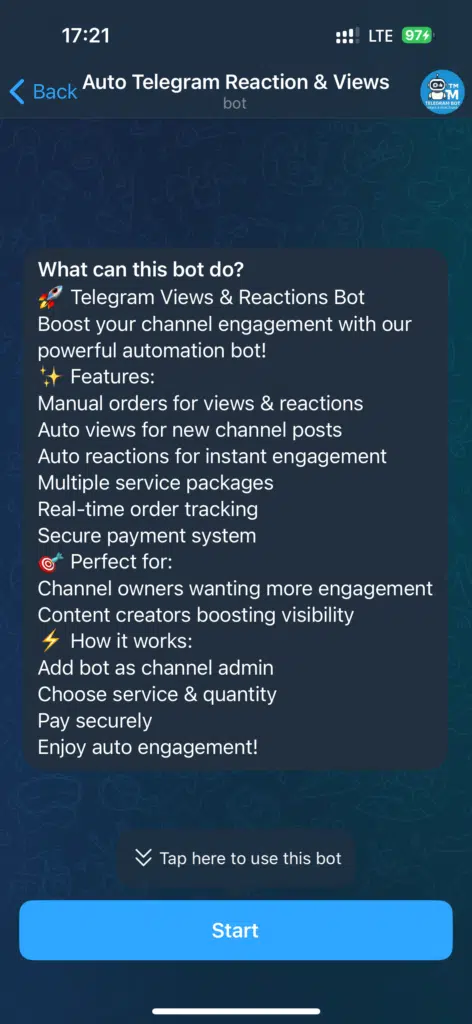
To get started, type “@Tmsmartbot” in the Telegram search bar or type it directly in any chat to open the bot. Then, press Start.
As shown in the images below, you’ll receive $0.05 of free initial credit, which you can use to test the bot — either manually or automatically — for adding reactions and views to your Telegram channel posts.
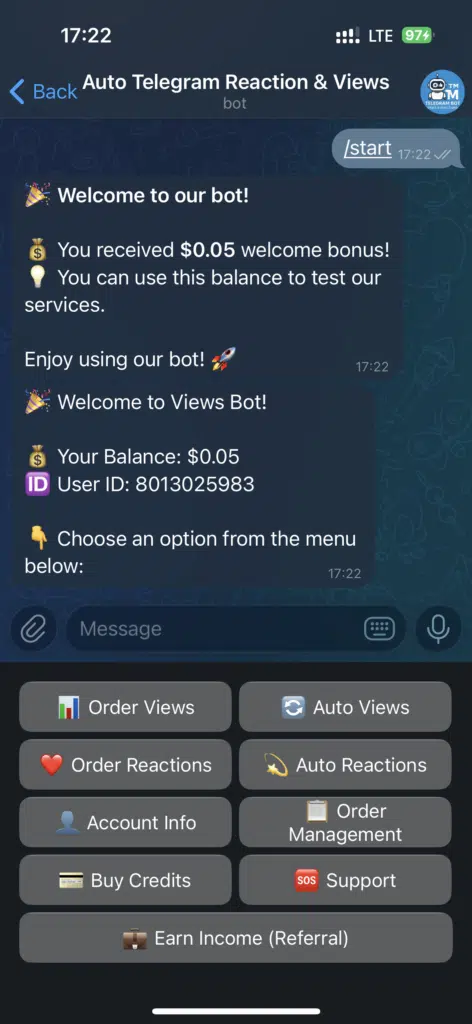
The bot offers four main services:
- 📊 Order Views – to send a one-time view order for a specific post.
- 🔄 Auto Views – to add your channels and automatically deliver views to any new posts you publish.
- ❤️ Order Reactions – to place a reaction order for a single post, choosing from the available reaction types.
- 💫 Auto Reactions – to add and manage your channels so that your selected reactions are automatically applied to every new post.
📊 Order Views
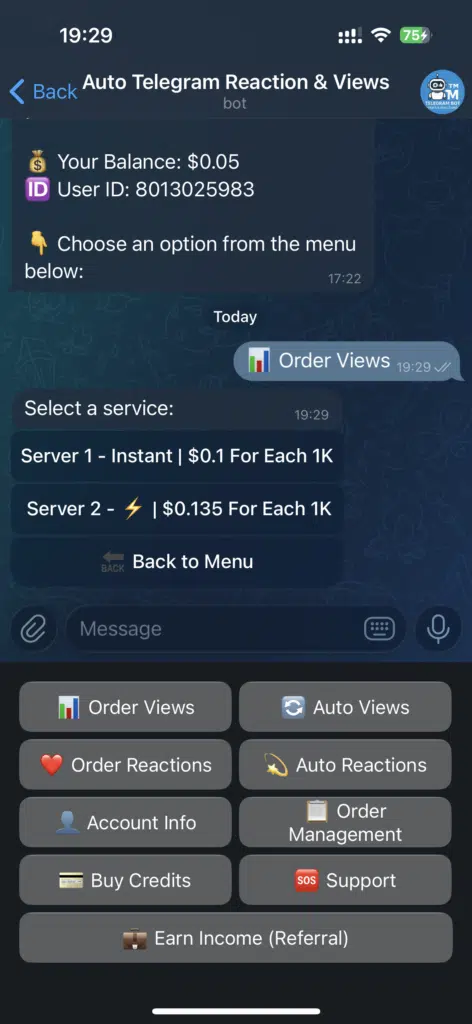
To order views for a single post, please first click on 📊 Order Views.
As shown in the image, you’ll see a list of available services along with their rates and speeds.
Please select the service you want based on your preferred speed and price. Then, enter the desired quantity — for example, type 100 — and send it.
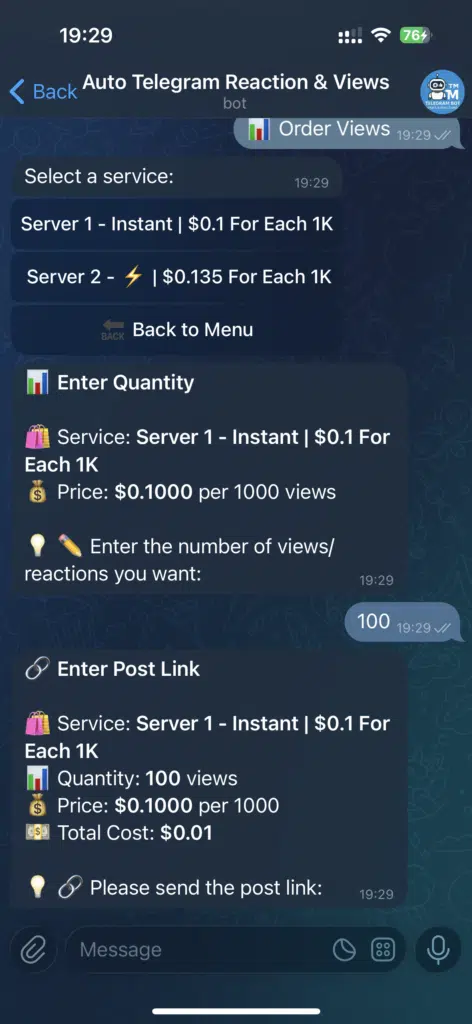
Next, you’ll enter the “🔗 Enter Post Link” stage. Copy the link of the post you want to send from your channel and send it to the bot. The link format should be:https://t.me/USERNAME/POSTNUMBER
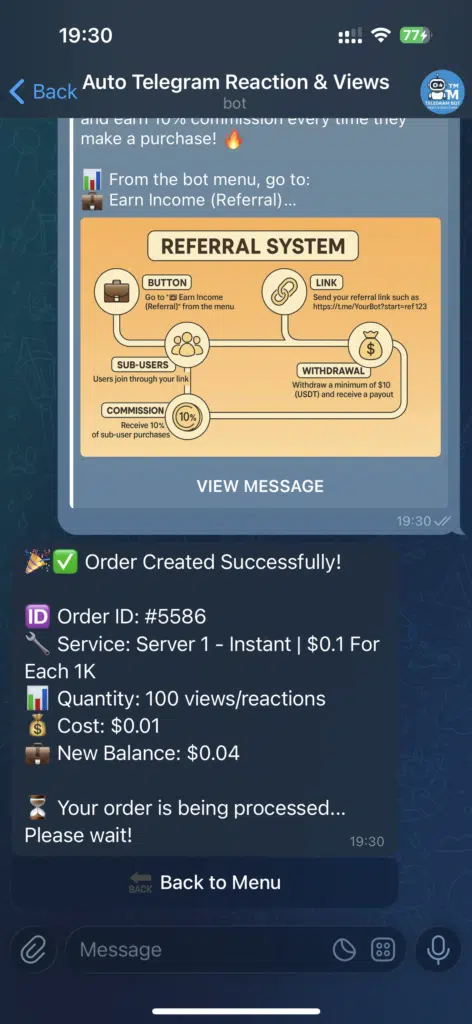
After that, the bot will confirm that your order has been successfully placed and display additional details such as the order cost and more.
(Note: This bot only works for public channels, and the post link must be public.)
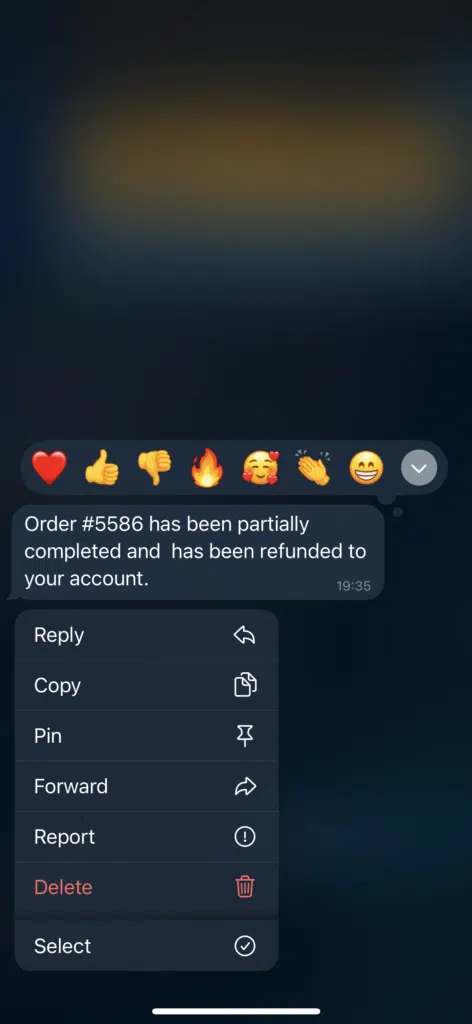
After the order is completed, you’ll receive a message showing the status of your order.
For example, the message shown here appears when an order is partially completed, and the remaining balance is automatically refunded to your account.
❤️ Order Reactions
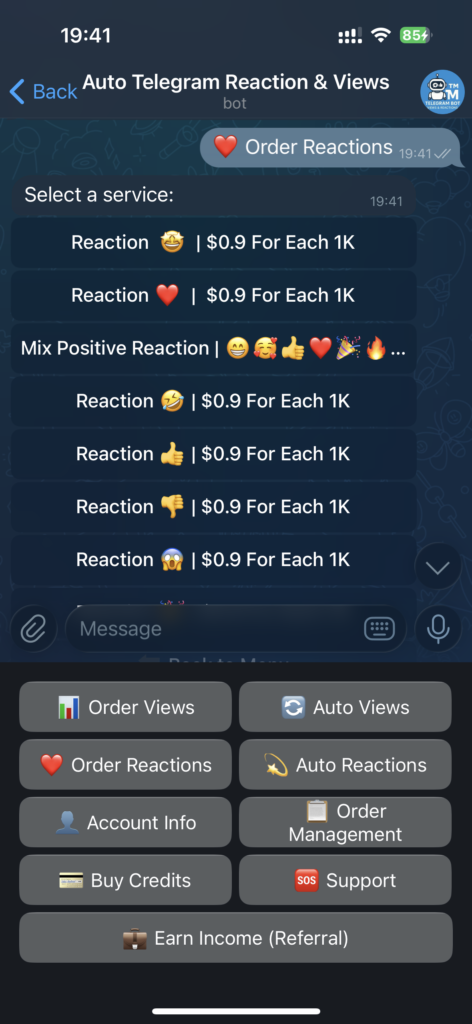
If you want to order reactions for a post in your channel, click on “❤️ Order Reactions.”
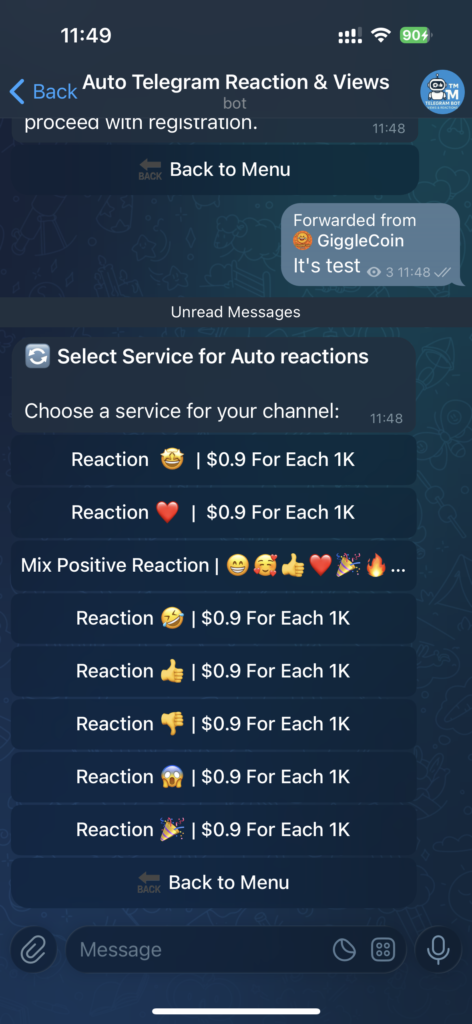
Then, select your preferred service from the list. Each service clearly shows the available reactions and the price per 1,000 reactions.
In the next step, enter the desired number of reactions — for example, 100.
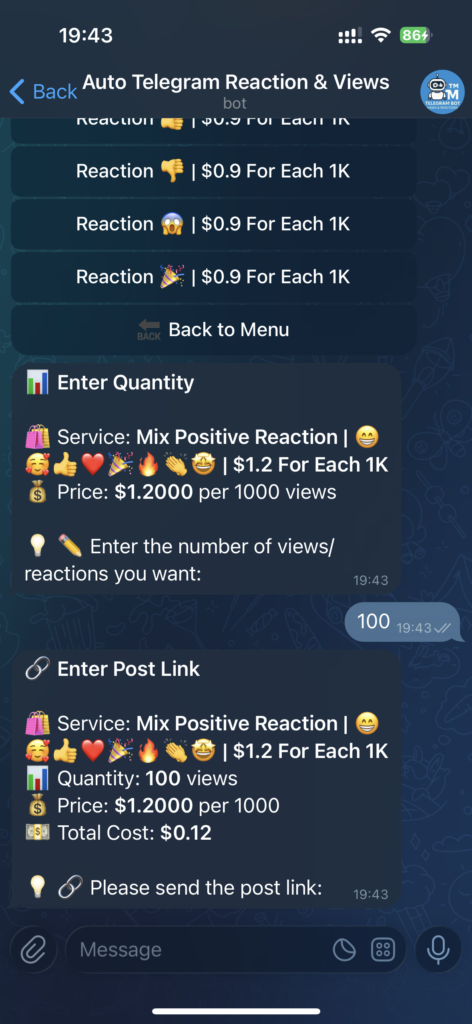
Next, send the link of the post you want to order reactions for to the bot. The link should follow this format:https://t.me/USERNAME/POSTNUMBER
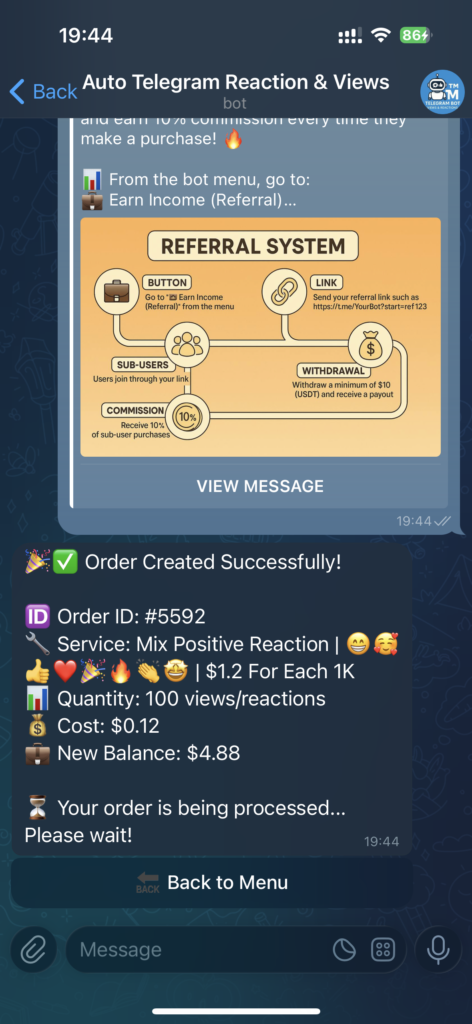
After sending it, the bot will confirm that your order was successfully placed and display details such as the order information and cost.
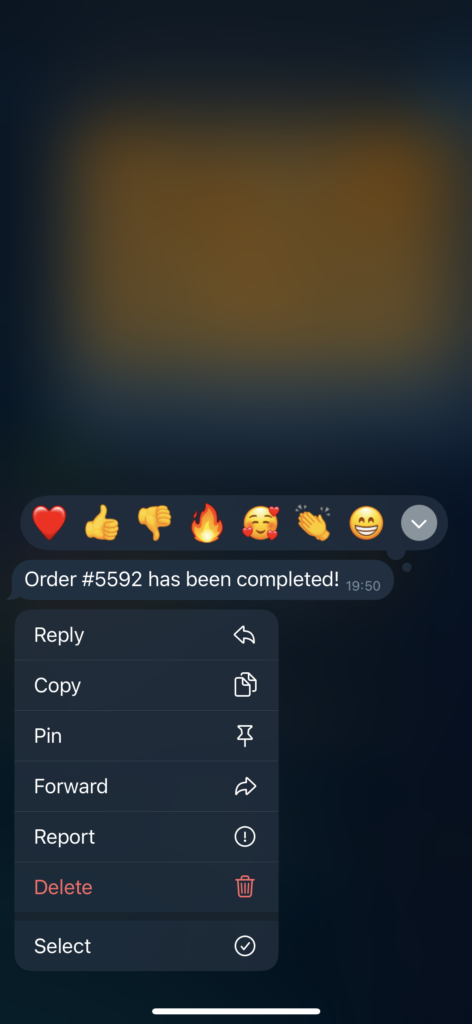
Once the order is completed, you’ll receive a final success message from the bot.
🔄 Auto Views
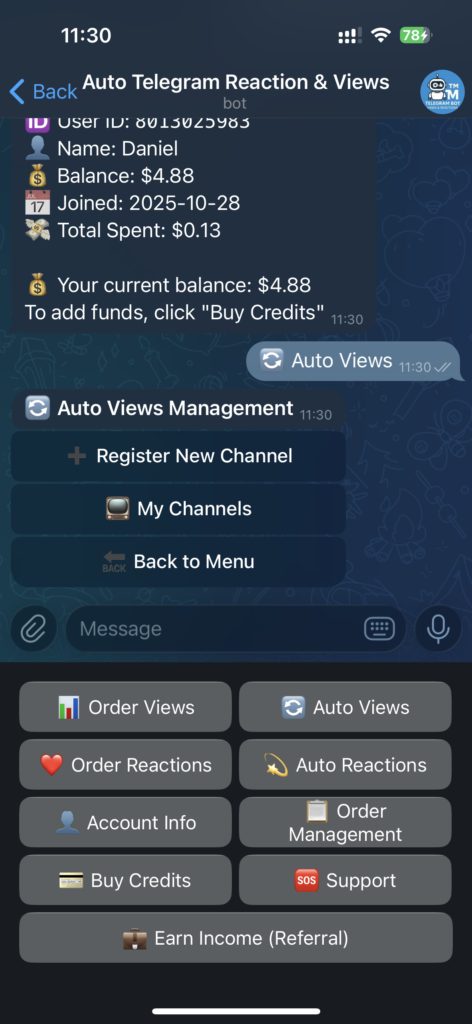
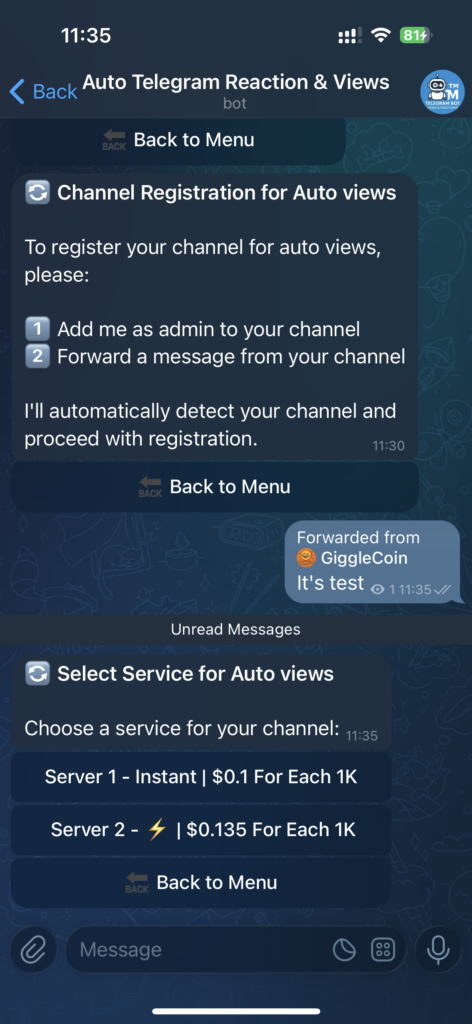
If you want to add a public channel so that view orders are automatically placed whenever a new post is published, simply click on 🔄 Auto Views.
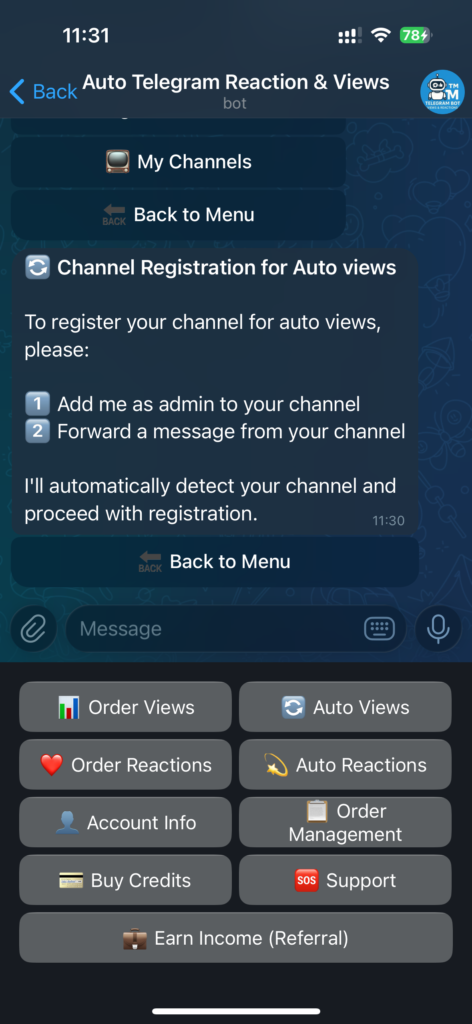
Then, click on ➕ Register New Channel. According to the bot’s instructions, first add the bot to your channel and make it an admin.
Make sure the bot’s username is @Tmsmartbot, and then forward a message (for example, the latest post in your channel) to the bot.
Next, select the service you want to use for automatic orders.
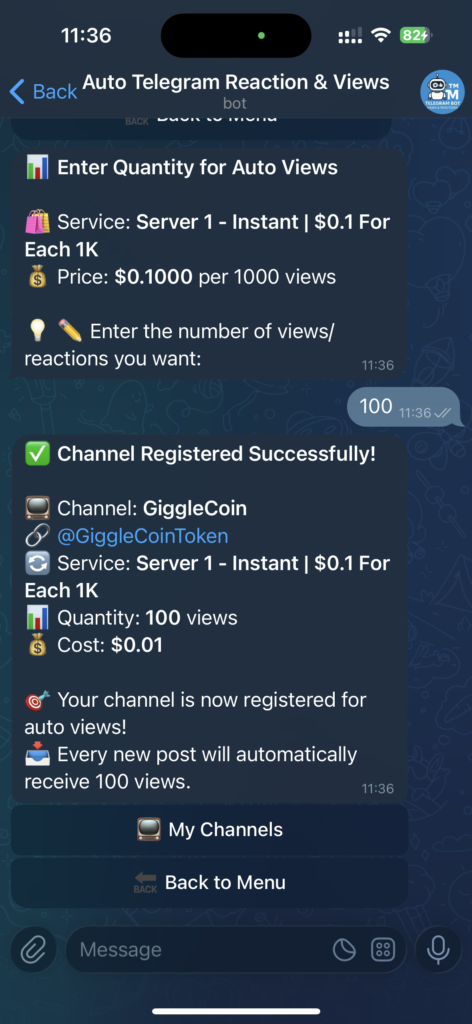
In the following step, enter the number of views you want to receive for each post.
The bot will then send you a message containing the details of your registration — including your channel information, selected service, quantity, and the cost per post.
From now on, every time you publish a new post in your channel, the order will be automatically placed.
💫 Auto Reactions
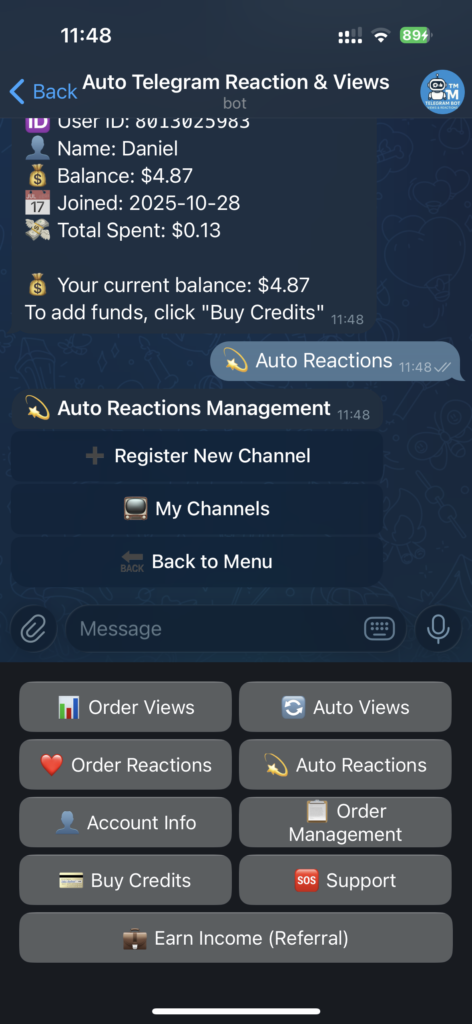
If you want automatic reactions to be added to every new post you publish in your channel, simply click on 💫 Auto Reactions to proceed.
Then, click on ➕ Register New Channel to register your channel.
As instructed, first add the bot to your channel and make it an admin.
Make sure the bot’s username is @Tmsmartbot, and then forward one of your posts — for example, the latest post in your channel — to the bot.
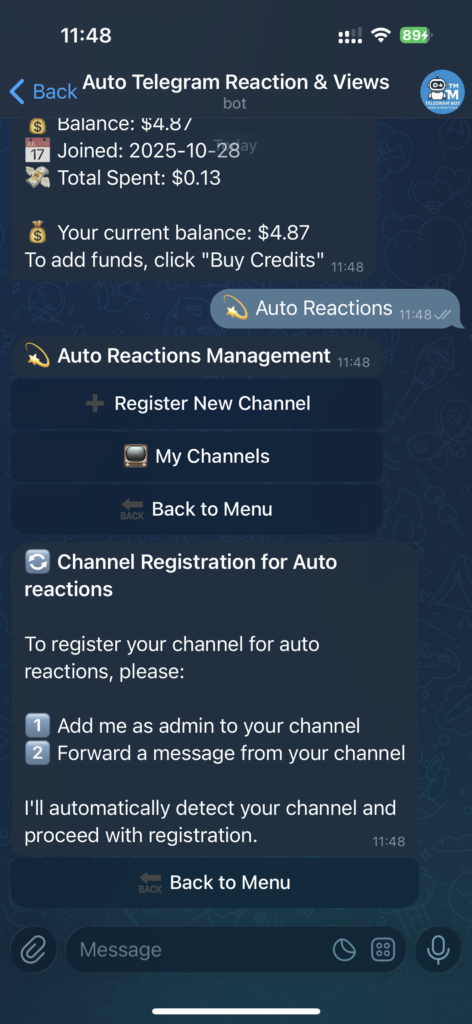
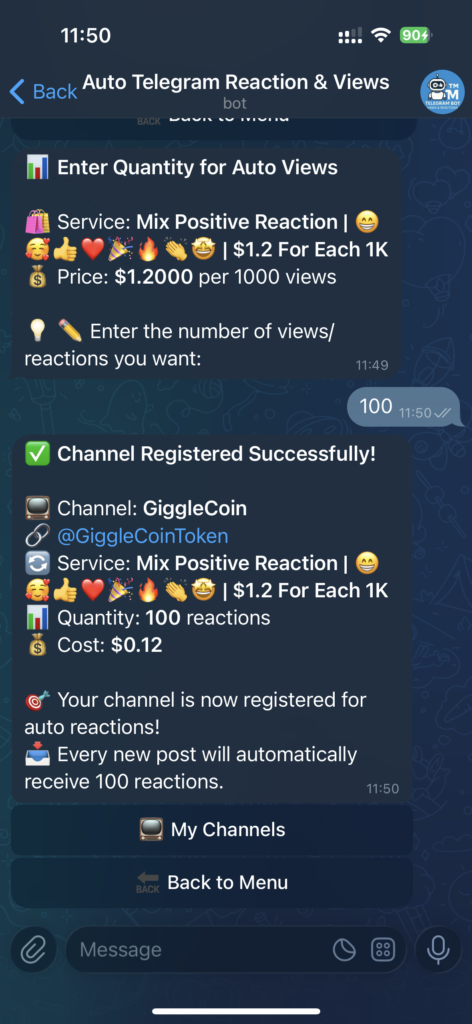
Next, choose your desired service from the available list and enter the number of reactions you want for each post.
After successful registration, you’ll receive a confirmation message showing your saved details — including the channel information, selected service, reaction quantity, and cost per post.
If you have any questions or don’t understand something, you can contact support directly inside the bot by clicking on 🆘 Support.

Related items

As we move into 2025, the world of digital communication has changed a lot, with more peop

Telegram has become one of the most powerful platforms for building engaged communities an

In 2025, you will need more than just views and subscribers to build a successful Telegram