
How to Enable Auto-Night Mode in Telegram: A Step-by-Step Guide
Telegram’s Auto-Night Mode simplifies the process of switching between light and dark themes by automatically activating the appropriate display based on specific conditions such as the user’s location, local time, ambient light levels, or mobile device system settings. This feature enhances user experience in low-light environments, supports users with extensive reading needs, and conserves battery life on OLED screens. Whether you’re exploring Telegram dark mode for visual comfort or looking to optimize your night mode Telegram experience, this comprehensive tutorial guides Android and iOS users step-by-step through enabling Auto-Night Mode and customizing it to suit their preferences.
Understanding Telegram’s Auto-Night Mode
With the Auto-Night Mode, Telegram provides its users with the capability of auto switching to the required theme by offering the following three options:
Scheduled Times: Automatic switch of light and dark modes based on fixed time frames.
Adaptive Mode (Ambient Light): Meets the light requirement of the surroundings automatically through the device.
System Default: The system would automatically set a compatible theme to the rest of the applications on the user’s device.
This feature comes in handy to users who prefer automatic adjustments of the theme without the constant need to change the settings.
Setting Up Auto-Night Mode on Android Devices
For Android owners, turning on Auto-Night Mode is very easy and may be modified to your liking. Kindly adhere to the procedures below:
Step-by-Step Guide for Android:
- Open Telegram: Go to the home screen of your Android device and start the Telegram app.
- Access Settings: Using your device, click on the menu three horizontal lines (hamburger menu), which can be found on the top left of the screen and click on Settings.
- Navigate to Chat Settings: Tap on Chat Settings to customize aspects of your chat experience.
- Configure Auto-Night Mode: Look for Auto-Night Mode and touch it to see the options.
- Select a Mode:
- Disabled: Disables the Automated Night Function.
- Scheduled: Lets you plan the time for the light and dark themes to be automatically switched.
- Adaptive: Automated-focus modes change the themes as per the level of light present in the room but this may need the user to use a bar to set the angel level.
- System Default: Follows the system-wide theme setting of your Android device.
Customizing Brightness Threshold in Adaptive Mode
In the event that Adaptive Mode is selected, it is feasible to define the light level which would be used as a switch, which will initiate the theme change. If the night level of the light is set too high, it will cause night mode to be turned on even in dark conditions, whereas lower settings will enable switching to night mode at lower levels of light.
Enabling Auto-Night Mode on iOS Devices
For the iPhones, Auto-Night Mode works in the same way and is found in the Settings of the Telegram application.
Step-by-Step Guide for iOS:
- Open Telegram: Launch Telegram on your iOS device.
- Access Settings: Tap the Settings tab at the bottom-right corner of the screen.
- Go to Appearance: Tap on Appearance to open theme customization settings.
- Configure Auto-Night Mode: In the Appearance section, select Auto-Night Mode to view the available options.
- Choose a Mode:
- Disabled: Turns off Auto-Night Mode.
- Scheduled: Allows you to set a time range for the theme switch.
- Adaptive: Adjusts the theme according to ambient light.
- System: Syncs with the system-wide theme preference set in iOS.
Using Brightness Settings in Adaptive Mode
In the same way as the adaptive mode users of Android devices, the adaptive mode users of iOS devices can also adjust the brightness range used to determine at what environment the night theme will be switched on. When you have a higher range, the theme will be switched on in dark places, but if the range is lower, the dark mode gets activated faster.
Customizing Themes for Auto-Night Mode
The users of Telegram can modify the appearance of how the app looks in the day or in the night. Therefore, users have the choice of how their app looks like in any mode.
Setting a Preferred Night Theme:
- Choose a Default Dark Theme: Telegram includes several pre-designed dark themes to choose from.
- Create Custom Themes: Users can create custom dark themes by adjusting colors and backgrounds to suit personal preferences.
Adjusting the Day Theme:
- Light Theme Selection: Pick a standard light theme for daytime use.
- Theme Consistency: Ensure the selected light and dark themes provide a comfortable experience and align with your aesthetic preferences.
For those theme settings you go in Chat Settings (Android) or Appearance (iOS): select desired themes and relate them to the Theme in your case – Preferred Night Theme.
Benefits of Using Auto-Night Mode
When it comes to using Telegram, there are numerous benefits that come with the use of Auto-Night Mode. There are a number of reasons why you should enable it out there as well -In the first place :
- Reduced Eye Strain: Both shallow and dark themes are easy on the eyes when a user is in a dark environment allowing him to stay comfortable at night.
- Battery Conservation on OLED Displays: Dark themes save battery on the devices such as OLED ones increasing the battery life.
- Enhanced Readability: While in the dark, Auto Night mode aids in enhancing the reading experience.
- Convenient Automation: One doesn’t have to get inside the settings to change the themes as the language is altered according to the user.
Troubleshooting Common Issues with Auto-Night Mode
Should you notice that Auto-Night Mode is always failing to work, do as follows.
- Update Telegram: Ensure you are using the latest version of Telegram, as new updates may improve the performance of Auto-Night Mode.
- Check Device Compatibility: Auto-Night Mode may not work on very old devices or operating systems that don’t support theme switching.
- Adjust Brightness Threshold: If Adaptive Mode isn’t switching correctly, try adjusting the brightness threshold slider to fine-tune when night mode is activated.
These settings together with regular app updates ensure usage of Auto-Night Mode is smooth.
Conclusion
The Auto-Night Mode in the Telegram application is a sort of transformation that improves the practicality and aesthetic value of the application. An Auto-Night Mode can be scheduled with a demonstrated custom timetable, automatic transitions depending on the light present, or have it change according to system defaults. Managing the visual design of numerous environments in which one utilizes Telegram is made easy with this option. Such a feature prevents the user from excessive strain, optimizes battery for OLED screens, and makes the text more readable by changing automatically to fit the time or the brightness of the surrounding.
You may use the fully Auto-Night Mode in accordance with the recommendations given in this article to enhance your overall experience while using Telegram. Taking full advantage of night mode Telegram not only improves usability in low-light conditions but also personalizes the interface for greater comfort. Such updates, along with regular practice on platforms like Twitch, help readjust the application space to better suit the user’s evolving requirements and preferences. Whether you’re exploring Telegram dark mode for eye strain relief or aesthetic reasons, consistent use ensures the interface aligns seamlessly with your habits.

How to Enable Floating Video Playback in Telegram: A Step-by-Step Guide
Telegram makes it possible for users to watch movies in a tiny, movable container. It is fantastic since it allows you to run additional programs or perform tasks on the platform without pausing the video. No matter your location, whether on an Android device or an iOS device, there is no difference. The PiP mode in Telegram makes the overall user-parent useful in that one does not have to switch from the active content to pause something. This is why we have provided a step by step guide on how to activate and make the best use of the floating video option on Telegram.
What is Picture-in-Picture Mode in Telegram?
Using this feature, you can watch videos while chatting on the Telegram app or other apps for an endless period of time, as your video plays in an active movement reducing the entire container. It is no surprise that with contact PiP, videos embedded in group coversation messages get delivered in a stand-by mode so that when a user looks at a text there will be issues switching the screen where the video is active.
Advantages of PiP Mode:
- Increased Multitasking: Allows you to watch a video while chatting, browsing channels, or accessing other apps.
- Continuous Video Playback: Video playback continues even when you exit the chat where it was playing.
- User-Friendly Experience: The floating video window can be moved or resized according to your preference, providing flexibility in how you view content.
How to Enable Floating Video Playback on Android Devices

For Android devices, PiP mode on Telegram is user-friendly and simple to use. To activate such following steps are required:
Step-by-Step Guide for Android:
- Open a Chat with a Video: Launch Telegram and go to the chat, group, or channel containing the video you want to watch.
- Start Playing the Video: Tap on the video to play it within Telegram’s video player.
- Activate PiP Mode: While the video is playing, locate the PiP icon, often shown as a small square with an arrow, at the top-right corner of the video screen. Tap this icon to shrink the video into a floating window.
- Multitask as Needed: Once PiP is activated, you can move the floating video window around the screen to any location that works best for you. You’re free to navigate other parts of Telegram or even use different apps without interrupting playback.
Customizing PiP on Android:
- Resize the Window: Pinch in or out on the floating video to adjust its size.
- Move the Window: Drag the video to any position on the screen.
- Access Playback Controls: Tap on the floating window to access options like play, pause, and close.
How to Enable Floating Video Playback on iOS Devices
iOS users can also enjoy PiP mode in Telegram with similar ease. Here’s how to enable it on an iPhone or iPad:
Step-by-Step Guide for iOS:
- Open a Video in a Chat: Navigate to a Telegram chat or channel with a video.
- Play the Video: Tap on the video to start playing it within Telegram’s video player.
- Activate PiP: While the video is playing, simply swipe up from the bottom of the screen (or press the Home button on older devices) to exit to the home screen. The video will automatically shrink into a floating window.
- Multitask on iOS: You can now move the floating window around or continue using other apps while the video plays in PiP mode.
Customizing PiP on iOS:
- Resize the Floating Window: Pinch in or out to adjust the size of the floating video.
- Move the Window: Drag it to your desired position.
- Access Playback Options: Tap on the floating window to pause, play, or close the video.
Optimizing Your PiP Experience: Tips and Tricks
Pip mode in telegram is a versatile feature that is made to fit your needs. However, there are a few tips you might ignore that can come in handy when using this feature:
Manage Window Placement: Avoid placing the floating window at the corners of the screen as it tends to block important information in other applications.
Use Larger Screens Effectively: PiP mode is perfectly convenient for bigger screen devices namely tablets, since it delivers videos with less stress on the screen.
Quick Pause and Resume: You can touch the moving video at any time and get an option to control it, making it faster and easier to mute and play the content.
The Benefits of Using Telegram’s Picture-in-Picture Mode
The purpose of PiP mode is to further enhance the experience on Telegram, particularly on video usage. Here are some of its advantages over other modes:
Enhanced Multitasking: PiP mode allows you to engage with multiple chats, browse through channels, or even use other apps while a video is playing.
Uninterrupted Video Experience: Once PiP mode is enabled, videos continue to play even if you leave the chat where it originated.
Customizable Viewing: The floating window can be resized or moved, providing a flexible viewing experience that doesn’t take up the entire screen.
So as we saw, Telegram’s picture-in-picture mode is an easy function that allows you to continue watching videos even after switching away from the chat or the app. This feature is very straightforward to implement across iOS and Android devices and allows for setting adjustments to improve the viewing experience. Whether it is a short video message or a step by step tutorial, PiP mode is comfortable and gives the opportunity to run other functions of Telegram or other applications on the device at the same time. So by reading this article you will be able to enjoy the benefit of floating video in Telegram and make your chatting in the app even more comfortable.

Clearing Your Telegram Contact List: Best Practices and Tips
It’s important to keep your telegram contacts private and organized. This full guide will show you all the ways to remove a telegram contact, whether you want to do it for privacy reasons, to clean up your contact list, or just because you don’t talk to them anymore. You can keep your telegram account organized and safe by learning how to delete telegram contacts the right way. This will give you more control over your messaging experience.
What Happens When You Delete a Telegram Contact?
You can still get messages from someone even if you delete them from your telegram contacts. This doesn’t stop the person from messaging you or block them; it just takes them off your organized contact list in the telegram app. The contact you deleted won’t be in your contacts anymore, but you can still see your conversation history.
If you delete a contact from Telegram, it won’t change the list of contacts on your phone. If you synced the contact from your phone to Telegram, they will stay in your phone’s contact app. This separation means that you can now manage your telegram account separately from the contact management system on your phone.
If you need to, you can always add the contact back. But to add them back to your Telegram contacts, you’ll need their phone number or username. You can easily manage your contacts on Telegram because of this flexibility. You can also try out different ways to organize them without worrying about what will happen.
Deleting Individual Contacts on Telegram
For Android Users:
- Open the Telegram app on your device.
- Tap the hamburger menu (three lines) in the top-left corner.
- Select Contacts to view your list.
- Locate and long-press the contact you want to delete.
- Tap the trash bin icon at the top to delete the contact.
- Confirm the deletion when prompted.
For iOS Users:
- Open the Telegram app and go to Contacts.
- Find the contact you want to remove and tap on their name to open the profile.
- Tap on Edit at the top right.
- Scroll down and select Delete Contact.
- Confirm the deletion to remove the contact from your list.
For Desktop Users:
- Launch Telegram Desktop and go to Contacts from the main menu.
- Select the contact to open the chat window.
- Click on the contact’s name at the top of the chat.
- In the profile, click the three-dot menu and choose Delete Contact.
- Confirm the deletion to remove them from your contact list.
Deleting Multiple or All Contacts on Telegram
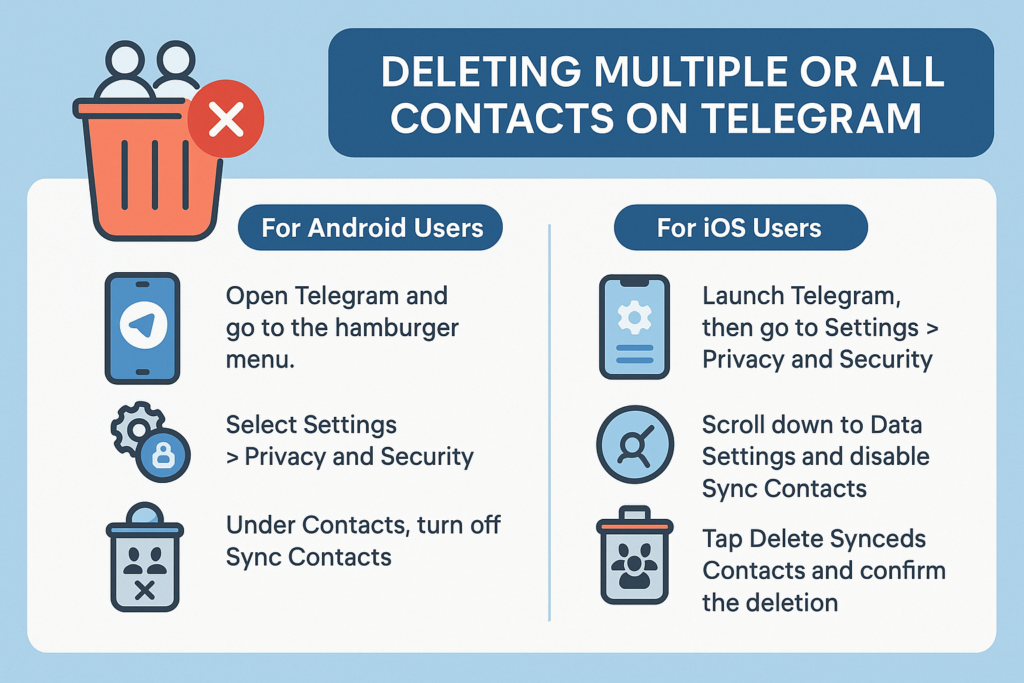
In case you wish to remove the contacts which you have added on telegram but want it to be deleted in bulk, there’s an option available that will assist you to do so. But keeping in mind this will only delete the contacts synced from your device to telegram and not the contacts backed up on the mobile device in use.
For Android Users:
- Open Telegram and go to the hamburger menu.
- Select Settings > Privacy and Security.
- Under Contacts, turn off Sync Contacts.
- Tap on Delete Synced Contacts and confirm the action.
For iOS Users:
- Launch Telegram, then go to Settings > Privacy and Security.
- Scroll down to Data Settings and disable Sync Contacts.
- Tap Delete Synced Contacts and confirm the deletion.
Disabling Contact Syncing for Future Use
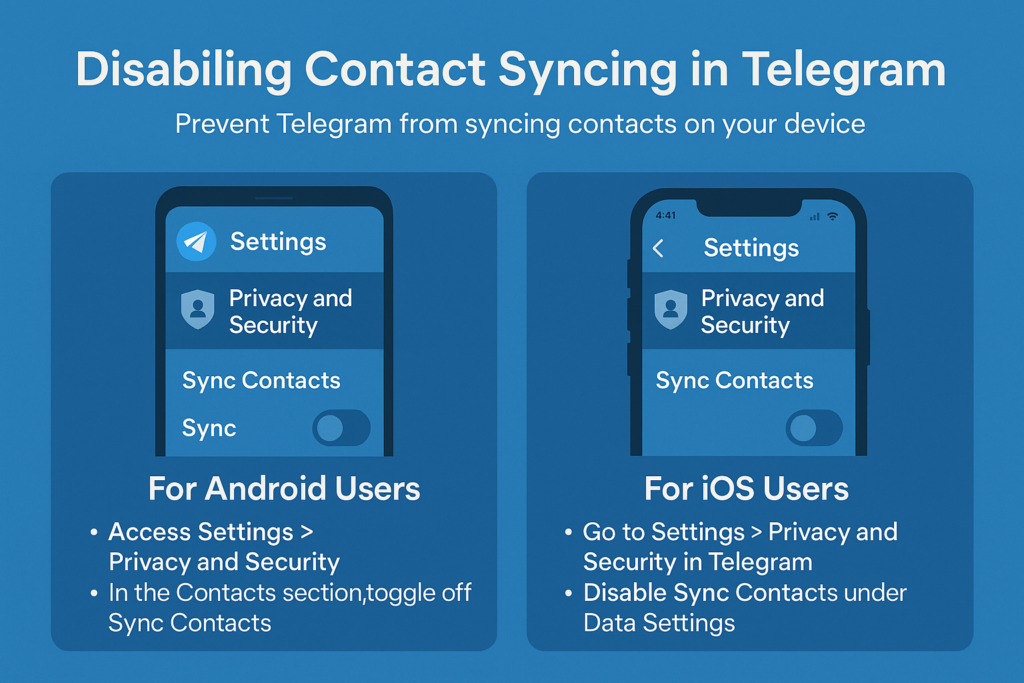
Disabling Contacts Syncing For Future Use In order to avoid Telegram from syncing contacts on your device in the future you can disable this feature altogether. This will enable you to add and manage contacts in the application and will ensure that there are no additional contacts added into your list through syncing automatically.
For Android Users:
- Open Telegram and access Settings > Privacy and Security.
- In the Contacts section, toggle off Sync Contacts.
For iOS Users:
- Go to Settings > Privacy and Security in Telegram.
- Disable Sync Contacts under Data Settings.
By disabling contact syncing, you have full control over your contact list without new additions unless you manually add them.
Sometimes it is necessary to drop certain contacts which does not take much time but can greatly help you in keeping your list clean. It can also improve your security. If you are going to go through these guidelines, then you should know how to add and remove contacts, how to limit specific additions, and how to regulate your messaging space. You might also want to periodically delete your contacts or adjust your privacy settings in order to enhance your Telegram experience and keep your account clean.
What’s the Difference Between Deleting and Blocking Contacts?
You should know the difference between blocking and deleting contacts on Telegram because it changes how you can talk to them. You can still get messages from people you’ve deleted from your Telegram contacts list, but they won’t be able to see your organized contacts list anymore. You can’t see the contact in your contacts anymore, but you can still see all of your past conversations in your chat list.
On the other hand, blocking a contact is a more complete step that stops all communication between you and the person you blocked. When you block someone on Telegram, they can’t message you, add you to groups, or see when you’re online. Blocked contacts won’t be able to see your profile pictures or when you were last online, and you won’t get any messages from them.
You can delete a contact if you want to clean up your list of contacts but still be able to talk to them. This is great for people you don’t see or talk to very often, like coworkers or friends. You can block someone if you don’t want to talk to them anymore, like a spam account, a harasser, or someone you don’t want to talk to anymore.
How to Prevent Contacts from Being Added to Telegram Automatically
You need to change some settings in your telegram account to stop automatic contact additions. This will give you full control over who shows up in your contact list. The first and most important thing to do, as we talked about before, is to turn off contact syncing. When you add someone new to your device, this stops telegram from automatically adding them to your phone’s contact list.
You can also change your privacy settings so that only certain people can see your phone number. Look for options in the “Privacy and Security” settings that say “Who can find me by phone number.” Change these settings to “My Contacts” or “Nobody” depending on how private you want to be. This stops people who might have your phone number from automatically seeing you on Telegram.
You might want to be more careful about which contacts you add to your phone if you haven’t already turned off syncing. Many people think it’s easier to keep their phone and telegram contacts separate. For instance, they add people to Telegram by using their usernames instead of syncing phone numbers. This way, you can keep your phone’s contact list separate from your telegram contacts and manage them in great detail.
Troubleshooting: What to Do When You Can’t Delete Contacts
Sometimes, users have trouble deleting telegram contacts. It can help to know how to fix these problems quickly. The most common problem is that apps are out of date. There may be bugs or features that aren’t there. Check to see if the latest version of your telegram app is installed on your device. This is because the features for managing contacts are always getting better.
Try closing and reopening the Telegram app if you still can’t delete a contact after updating. Close the app all the way and then open it again. Try once more to delete the file. When the app has temporary bugs, it can be hard to manage contacts. Restarting the app fixes these problems.
You might not be able to delete contacts if your network connection isn’t working right because the action needs to sync with Telegram’s servers. Check to see if your internet connection is stable, and then try deleting the file again. If the problems keep happening, try switching between Wi-Fi and mobile data to see if the network is the problem. You might have to log out of your Telegram account and then back in again to get your contact list to update and everything to work again, but this is very rare.

How to Create Your Own Telegram Bot: A Complete Step-by-Step Tutorial for Beginners
One of the most popular ways to automate interactions and make users’ experiences better on Telegram is to build a bot for the app. This complete guide will show you how to make a telegram bot for customer service, entertainment, or business automation, no matter what you want it to do. You’ll learn how to make a bot that meets your needs without needing a lot of coding experience. You’ll start by using BotFather to set up your first bot and then move on to deploying and testing it. This tutorial is worth your time because it gives you useful, actionable information that will help you understand how to make a bot and start making your own automated solutions right away.
What Is a Telegram Bot and Why Should You Create One?
A telegram bot is an automated account that can talk to people through the Telegram messaging app. It can respond to commands, send notifications, and do other things without any help from a person. A bot works through the Telegram Bot API, which lets developers build and run complex automated systems that can do everything from simple chat responses to complicated business processes. This is different from regular user accounts. A telegram bot is like a digital assistant that can work all the time to help your users.
The best thing about making your own bot is that you can use it in many ways and it is easy to get to. You can use bots to automate customer service, send alerts to subscribers, manage groups or channels, and even connect with outside services like OpenAI or ChatGPT to give smart answers. Telegram bots are very appealing because they can always be online, handle multiple conversations at once, and give users consistent, reliable service. If you don’t plan ahead, a bot might not work, but a well-made telegram chatbot can change the way you talk to your audience.
Making your bot doesn’t require a lot of coding knowledge, so business owners, marketers, and people who want to automate different parts of their online presence can all do it. Telegram has everything you need to make your idea a reality, whether you want to make a simple notification bot or a complicated chatbot that can answer customer questions. Users can talk to your bot in a natural way, which makes it a great place for people to talk to your bot.
Getting Started with BotFather: Your Gateway to Bot Creation
The official bot for Telegram is BotFather, which is the main place to create and manage all bots. This special bot is the main way for you to make, set up, and manage your telegram bots. To start making your bot, open the Telegram app and search for “@BotFather.” When you find it, click the “Start” button to start making your first bot.
When you first talk to BotFather, you’ll see a list of commands that let you make and control your bots. The interface is easy to use and will help you make your bot by giving you clear instructions and prompts at every step. BotFather will ask you for important information about your bot, such as its name and the username you want it to use. This step-by-step guide makes the process easy for people who don’t have a technical background.
It’s important to know how to use BotFather well because you’ll need to go back there to change your bot’s settings, profile picture, description, or list of commands. BotFather also lets you use advanced features like inline query support and webhook configuration, which makes it an essential tool for your bot’s entire life. When you learn how to make things with BotFather, you’re learning the most important skill you’ll need for all future bot development.
How to Create a Telegram Bot: The Initial Setup Process
To make a telegram bot, the first step is to send the command “/newbot” to BotFather. This simple command starts the process of making a bot and opens an interactive session in which BotFather will ask you for specific information about your new bot. Making something is easy and usually only takes a few minutes, so anyone who wants to make their own automated assistant can do it.
When you type in the “/newbot” command, BotFather will ask you to give your bot a name. Users will see this name when they talk to your bot, so it should be easy to remember and describe what it does. After you give your bot a name, you need to make a username for it. This username must end with “bot,” like “myawesomebot” or “customer_service_bot.” You might have to try a few different usernames before you find one that is available on all of Telegram.
BotFather will give you an API token after you successfully make your bot. This is a long string of characters that identifies your bot and gives you access to the Telegram Bot API. This token is very important for your bot to work because it lets it send and receive messages through API calls. You must keep this token safe and use it in your bot’s code to verify requests and let the bot talk to Telegram’s servers. This is when you can start adding features to your telegram bot after you’ve made it.
Choosing the Perfect Name and Username for Your Bot
It’s more important than many beginners think to choose the right name and username for your telegram bot. Subscribers will see the name in their chat list, and new users will see it when they first find your bot. It should be easy to remember and professional, and it should make it clear what your bot does. For instance, if you’re making a bot to handle customer service, names like “Support Assistant” or “Help Desk Bot” make it clear what the bot does and help users find what they need.
Users can find your bot through Telegram’s search function by using the bot’s username. Other developers can also use the bot’s username to refer to your bot in their apps. The username has to be unique and end with “bot,” so you should pick something that is both easy to remember and brandable. Think about adding your business name, the bot’s main purpose, or keywords that people might use when looking for a bot on Telegram that is similar to yours.
When BotFather asks you for this information during the bot creation process, keep in mind that you can change the bot’s name and description later using the edit your bot commands, but the username is permanent once you choose it. This makes choosing a username very important because you won’t be able to change it without making a new bot. Before you make your final choice, take some time to think of a few options and make sure they are all available. People will be able to use your bot more easily if you choose a name and username that are easy to remember.
Understanding the Telegram Bot API and Its Capabilities
The Telegram Bot API is what makes all of the bots on the platform work. This full bot API gives developers everything they need to make complex automated systems that can handle different types of user input, send messages in different formats, and work with other services. Anyone who wants to make more than just a basic response bot needs to know what the API can do. The telegram bot api has a lot of features that can turn simple bots into powerful automation tools.
The bot API can handle many kinds of messages, such as text, photos, documents, audio files, and even location data. Users can give your bot commands, ask questions, and get back rich content like custom keyboards, inline buttons, and formatted text. The API also lets your bot work in groups or channels, manage channel subscriptions, and handle complicated workflows that require multiple users to interact with each other. The API gives you the endpoints you need to send alerts or notifications to your bot through https requests.
One of the best things about the Telegram Bot API is that it can handle webhook connections. This lets your bot get updates from Telegram servers in real time. This means that your bot can answer user messages right away instead of having to keep checking for new ones. The API also lets you connect your bot to databases, AI services like OpenAI, payment processors, and other third-party platforms, which lets you make complete automated solutions. You need the webhook feature to make and control interactions in real time.
How Do You Connect Your Bot to External Services?
You can automate and improve your bot’s features in endless ways by connecting it to external services. The most common method is to use webhooks to get updates from Telegram and then use API calls to other services based on what users do. With this setup, your bot can get real-time data, handle complicated requests, and give dynamic responses that are much more than just simple pre-programmed messages. You’re making a connection between Telegram and the rest of the internet when you connect your bot to services outside of Telegram.
If you want to add ChatGPT or OpenAI features to your business, you’ll need to set up your bot to get user messages, send them to the AI service to be processed, and then send the responses back to the users. This makes a smart chatbot that can talk to people in their own language, answer questions, and give them help that is specific to them. To make sure the service is reliable, the integration needs to handle API keys and errors correctly. This method lets your bot give smart, context-aware answers that make talking to it feel natural and helpful.
You need to host your bot on a reliable server or cloud platform if you want it to always be online and respond. You can use VPS hosting, Heroku, or other cloud services that can keep your bot code running all the time. It is important that the hosting solution you choose for Telegram can handle HTTPS requests because Telegram needs secure connections for webhook communications. With the right hosting, your bot can handle multiple conversations at once and keep performing well even when it’s busy. When you host your bot correctly, each user can count on getting the same service every time.
What Commands Can Your Telegram Chatbot Handle?
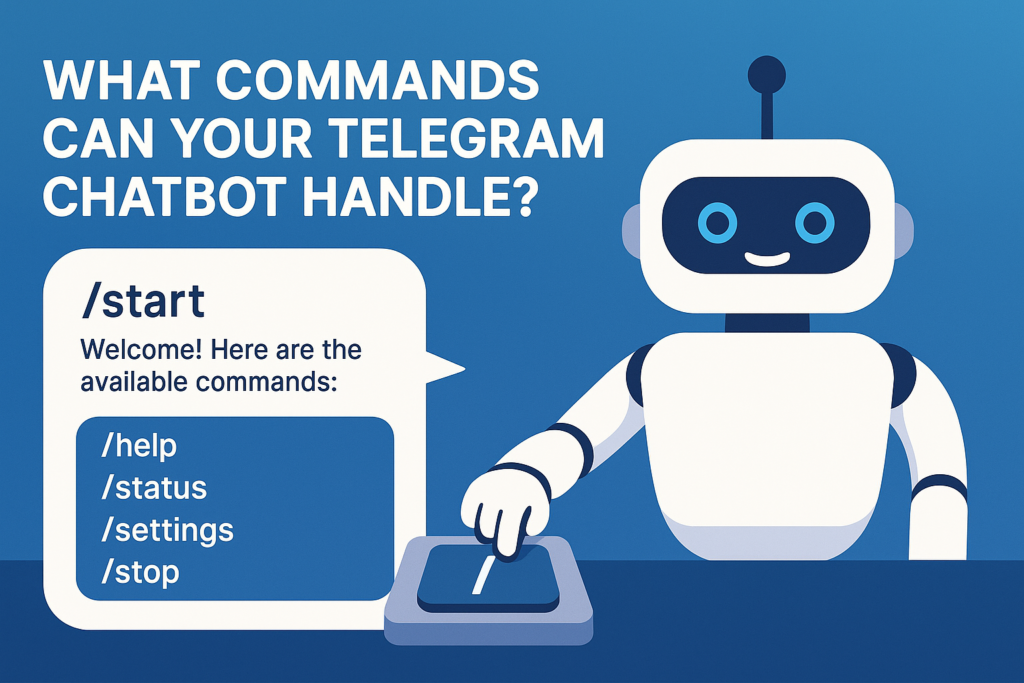
A well-made telegram bot can take a lot of different commands, making it easy and quick for users to interact with it. The command “/start” is the most basic one. It usually sends a welcome message and tells new users what your bot can do. From there, you can make commands that fit the specific job your bot needs to do, like giving information, handling requests, or making transactions easier. It should be easy to remember and clearly define these commands that will make your bot work.
When people type “/” in a chat with your bot, BotFather lets you make a list of commands that will show up for them. This list of commands is like a menu that shows users what your bot can do. Some common command patterns are “/help” to get help, “/status” to check current information, “/settings” to see configuration options, and “/stop” to end interactions or stop getting notifications. When users get commands, they should get clear, useful answers that help them figure out what they can do.
Advanced bots can also understand natural language input that isn’t formal commands. If you connect your bot to AI services, it will be able to understand conversational messages and respond correctly without users having to learn how to use specific command syntax. This method makes your bot easier to use and more accessible, especially for people who like talking to it in a natural way instead of giving it structured commands. You can also use inline keyboards that show options as clickable buttons. This makes it easier for users to talk to your bot without having to type commands. The keyboard feature makes the user experience much better.
How to Test Your Bot Before Going Live?
Before making your bot available to users, it’s important to test it thoroughly to make sure everything goes smoothly and to find any problems that might come up. As soon as you get your API token from BotFather, you should start testing and debugging. First, make sure your bot can send and receive simple messages. Then, test it with more complicated features like handling commands, processing user input, and connecting to other services.
Make a simple test environment where you can use your bot like a normal person would. Send different kinds of messages, such as valid commands, invalid input, and edge cases that could lead to mistakes. Keep an eye on how long it takes to respond, how the messages are formatted, and how the conversation flows as a whole. If your bot has inline keyboards or custom keyboards, make sure to test all of the buttons to make sure they do what they are supposed to do. This methodical way of testing helps you find problems before any new user runs into them.
Testing bots that connect to other services is harder because you have to make sure that API calls work, that errors are handled correctly, and that data is processed correctly. You might want to make a staging version of your bot that uses test APIs or sandbox environments for services that are outside of your control. You can do thorough testing with this method without affecting production systems or having to pay for API usage during development. You can be sure that your bot works reliably if you set up a simple testing protocol.
How Can You Edit Your Bot Settings and Features?
After you make your bot, you can use different commands in BotFather to change its settings and features. The “/mybots” command shows you a list of bots that are linked to your account. You can then choose the bot you want to change. From there, you can change the bot’s name, description, profile picture, and other settings that change how people see and use your bot. This flexibility lets you keep making your bot’s presentation better.
Updating your bot’s description to better explain how it works, changing its profile picture to match your brand, and changing the list of commands to show new features or changes in functionality are all common editing tasks. If your bot needs to work in other chats or channels, you can also change the privacy settings, turn on or off group functionality, and set up inline query support. These settings are the basis for user interaction when you need to make new responses or change old ones.
To change how your bot works or add new features, you need to update its code and redeploy it to your hosting platform. This could mean adding new command handlers, changing response messages, or connecting to more outside services. Keep in mind that you need to update the code for your bot’s core features, but you can often make cosmetic and configuration changes directly through BotFather. You can keep your bot useful and relevant to your users by constantly improving it.
Advanced Bot Features: Keyboards, Inline Queries, and More

Advanced telegram bot features can make it much easier for users to interact with your bot and give it more capabilities than just having text-based conversations. Custom keyboards let you give users buttons with pre-set options, which makes it easier for them to use your bot’s features without having to type in specific commands. These keyboards can stay on the screen for the whole conversation, or they can only show up when they are needed for the current interaction. The keyboard’s features are necessary for making user interfaces that are easy to use.
Inline queries let your bot work in other chats and channels, so people can use your bot’s features while talking to other people or posting in groups. If someone types your bot’s username and a question into any chat, your bot can give them relevant results that they can share with others. This feature is especially helpful for bots that help people find information, make content, or do useful things that people might want to share. The inline feature lets your bot do more than just talk to people directly.
Other advanced features include the ability to handle files, which means your bot can process documents, images, and other types of media that users send. You can also set up flows or bulk campaigns that help users through complicated tasks one step at a time, keep track of users’ states between interactions, and make experiences that are unique to each user based on their preferences or past interactions. If you need to set up complex automation, you can use the SendMessage API method to send specific content. You can set up responses for common situations ahead of time, but you can still have dynamic interactions. These features need more advanced programming, but they can make bot experiences that are very interesting and helpful, and they can be used to automate complicated business tasks.
Key Takeaways: Essential Points to Remember
• Start with BotFather: All telegram bot creation begins with the official BotFather bot, which provides the tools and API tokens needed to create and manage your automated assistant.
• Choose names wisely: Your bot’s name and username are crucial for discoverability and user recognition, with usernames being permanent once selected.
• API token security: Keep your bot’s API token secure as it provides complete access to your bot’s functionality and communication capabilities through the bot api.
• Test thoroughly: Always test your bot comprehensively before making it available to users, including edge cases and error scenarios through proper testing and debugging.
• Plan for hosting: Decide early whether you need your bot to be always online and choose appropriate hosting solutions like VPS or Heroku platforms.
• Start simple: Begin with basic commands and features, then gradually add complexity as you become more comfortable with bot development and the process of creating advanced functionality.
• User experience matters: Design your bot’s commands and interactions to be intuitive and user-friendly, considering both new user experiences and returning users.
• External integrations: Leverage APIs from services like OpenAI or ChatGPT to create more intelligent and capable bots that can handle complex queries and provide valuable responses.
• Continuous improvement: Use BotFather’s editing features to refine your bot’s settings and description as you add new features and capabilities to better serve your subscribers.
• Documentation is key: Maintain clear documentation of your bot’s features and commands to help users understand how to interact with your automated system effectively, ensuring smooth user interaction with your bot and enabling them to get the most value from your creation.
How to Recover a Hacked Telegram Account: Your Complete Password and Account Recovery Guide
You’re not the only one whose telegram got hacked. Millions of people have their accounts hacked every day, and knowing how to get back into a hacked telegram account can help you protect your privacy and digital identity. This complete guide shows you what to do right away, how to keep your account safe, and how to get it back if it gets hacked. If you’ve lost access because of stolen credentials or unauthorized access, this article gives you practical ways to get back in control and protect your communications.
What Should You Do First When Your Telegram Account Has Been Hacked?
If you find out that your telegram account has been hacked, you need to act quickly to limit the damage and start the process of getting your account back. The first step is to end all active sessions so that the hacker can’t keep getting into your telegram account. On any device where you can still get to telegram, go to settings, then Privacy and Security, and then “Active Sessions.” You can end all of your other sessions here except for the one you are currently in. This will log out the unauthorized user who got into your account.
If you can’t get to telegram at all, try logging in from a different device with your phone number and entering it when asked. If the hacker changed your login information, you’ll need to use Telegram’s verification system to get it back. If you can’t get into your account the usual way, the platform will send a login code to the phone number you used to sign up. This is your main way to get back in.
Write down everything you see about the hack, like messages sent from your hacked account, changes to your username or profile picture, and any other strange things that happen with your account. This information is useful when you try to get in touch with telegram support and helps you figure out when the breach happened. Take a screenshot of any evidence of unauthorized access before the hacker might delete it. This will help your recovery claim and show that your telegram account has been hacked.
How Can You Tell if Your Telegram Account Hacked Has Occurred?
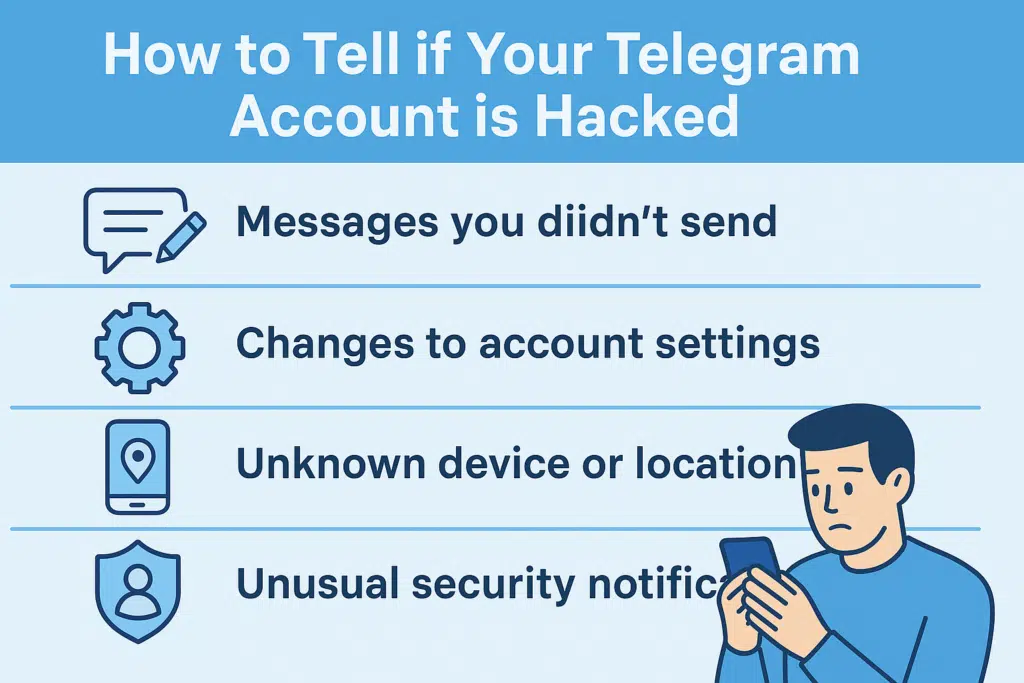
Being able to spot the signs of a hacked account early on can make a big difference in how well you can recover a hacked telegram account. Some signs are that messages were sent from your account that you didn’t write, your account settings were changed without your knowledge, and friends reported strange behavior on your profile. When telegram was hacked, your contacts may have gotten spam from telegram bots, scam links, or requests for private information that looked like they came from you.
Go to settings and look at the android devices or other devices that are logged into your account to see how many sessions you have. Your account has been hacked if you see it on a device or in a place you don’t know. When someone logs into your account from a different device, Telegram will send you a notification. Unwanted notifications are often a sign that someone is trying to get into your account without your permission, which could mean you lose access to it.
Keep an eye on any changes to your privacy and security settings, such as who can see your phone number, last seen status, or profile picture. Hackers often change these settings to hide what they’re doing or to use Telegram to steal information from your contacts. Also, if you suddenly can’t get into your account without changing your password or if your recovery email gets unexpected verification requests, these are strong signs that someone has accessed your account without your permission.
What Steps Help Recover Access When Telegram Account From Being Hacked Attempts Succeed?
The first step in recovering your account is to try to get back into your telegram using the mobile number you used to sign up. If a hacker changes your password, Telegram will send you a verification code to your phone number. This lets you get back control of your account. This recovery method works because hackers don’t usually have physical access to your device unless they specifically targeted it or put malware on it.
If you’ve turned on two-step verification in Telegram, you’ll need to enter both the SMS code and your extra password. You can quickly get your account back if you remember this password. Just change all of your security settings right away. If the hacker changed your two-step verification password, though, you’ll have to wait seven days before Telegram lets you reset it. During that time, you should keep an eye on your account for any other unauthorized activity.
The recovery process is more difficult for telegram users who have lost access to their mobile number. You need to go to the telegram support page and show proof of identity and account ownership in order to get my account back. Tell us when you made the account, who you’ve messaged recently, and any other information that shows you’re the real owner. The tech support team looks at each case on its own, but it can take telegram support a few days or weeks to get back to you, depending on how complicated the case is and whether you can provide enough proof of your telegram account.
How Do You Contact Telegram Support for Hack Recovery?
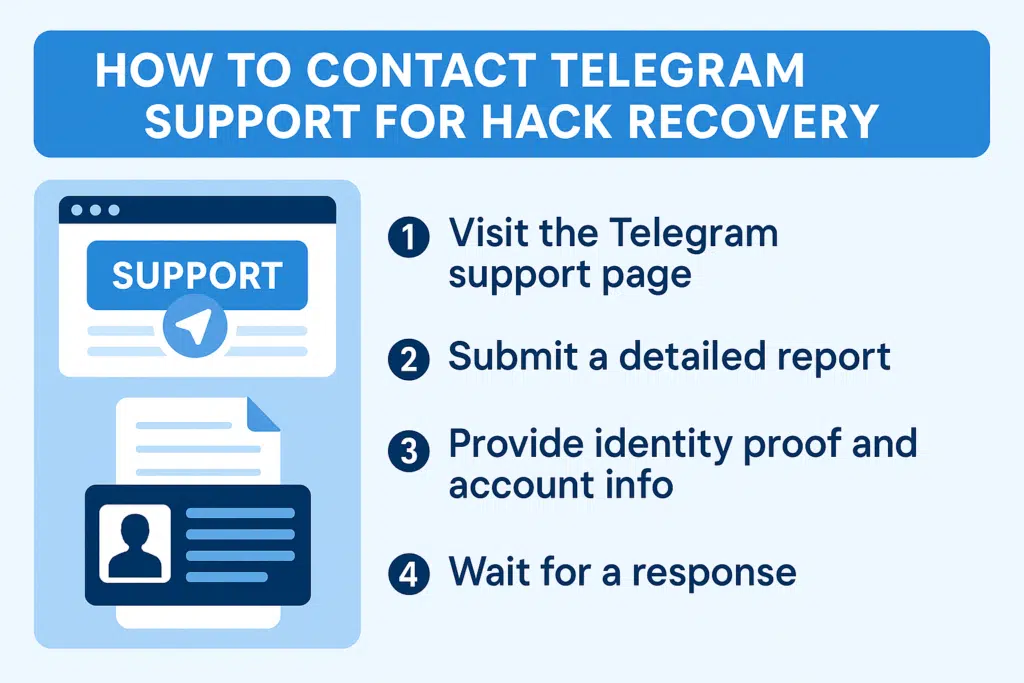
Telegram doesn’t have regular customer service channels, so you need to follow certain steps to get to tech support. Go to the official telegram website and click on the support page. There, you can send a full report about your hacked account. Please give your phone number, the date your account was created, and a description of what happened when someone may have hacked your account by taking advantage of security holes.
When you tried to get in touch with telegram support, you should have given them as much proof as possible that you are who you say you are and that you have the right to access my account. This includes screenshots of chats with close friends, information about your account settings, and, if you have a telegram premium subscription, information about that as well. Be sure to include details about your account history and how you use it. This will help you convince support that you are the real owner trying to get back a hacked telegram account.
Be patient while you wait for support, because Telegram gets thousands of reports of hacks every day from users. While you wait for tech support to get back to you, keep an eye on your account in other ways and write down any new activity that isn’t allowed. Some users say they were able to get help by contacting support multiple times with more proof. However, don’t spam their system, as this could slow down your case and the response you need from telegram support.
What Security Measures Prevent Future Telegram Account Hacked Incidents?
Using strong security measures makes you much less likely to be hacked and keeps your telegram communications safe. Two-step verification is an extra layer of protection beyond your regular password. You should turn it on in Telegram right after you get your account back. Make sure that each of your telegram accounts has a different password than the ones you use on other sites. This will keep all of your accounts safe.
Check your privacy and security settings often, especially the ones for active sessions and login notifications. When you aren’t using a device, set it to automatically end your session. When you are using a public or shared device, always end your session. Set up login alerts so that you are notified right away when someone logs into your account from a different device. This will let you respond quickly to unauthorized access attempts and keep your account safe.
Don’t click on links that look suspicious that you get through Telegram, even if they come from people you know. These could be phishing attempts that try to get you to give them your login information. Be careful of telegram bots that ask for personal information or tell you to verify your account on other websites. Real Telegram services never ask for your password or verification codes in messages you didn’t ask for. Also, Telegram won’t ask for sensitive information in direct messages.
How Does Two-Step Verification Protect Against Hack Attempts?
Two-step verification in Telegram makes it very hard for people who shouldn’t be able to get in to do so by requiring both your SMS verification code and a second password. Hackers can’t get into your telegram account even if they get your phone number and intercept SMS messages. They need to know your secondary password. This security feature has worked well to stop most hackers who want to get back into hacked telegram accounts from getting in.
The verification system protects against many types of attacks, such as SIM swapping, in which hackers move your phone number to their own device to get verification codes. If you have two-step verification turned on, just getting your phone number isn’t enough to get into your account. The extra password requirement makes attackers use more advanced social engineering techniques, which makes it much harder for them to get in and makes it less likely that they will be able to do so.
When you set up this security feature, pick a password that is easy to remember and hard to guess. Don’t use passwords from other accounts or information that is easy to guess, like your name or birthday. You might want to use a password manager to make and save different passwords for each of your accounts, even your Telegram two-step verification. This method keeps things usable while also keeping things very secure. It also helps keep features like secret chats safe from people who shouldn’t be able to see them.
What Are Common Methods Hackers Use to Compromise Accounts?
Knowing the most common ways that hackers get into accounts can help you spot and avoid situations that could put your account at risk. Phishing is still one of the most common ways for attackers to get your login information. They do this by making fake websites or messages that trick you into giving them your information. These scam operations often look like real Telegram messages and ask you to verify your account through links that are meant to steal the code to your Telegram account.
Instead of looking for technical flaws, social engineering attacks use people’s psychology to get into telegram accounts. Hackers could pretend to be Telegram support staff, friends, or family members to get you to give them private information. They might say that your account needs to be verified or that there is suspicious activity that needs to be dealt with right away. If you get a direct message from a legitimate telegram support person, they will never ask for your password or verification codes. Always check to make sure that any message that claims to be from an official source is real.
Malware is another big danger, especially on Android devices where users can download apps from places other than official app stores. Malicious software can record what you type, take screenshots, or even get into your phone’s SMS messages. Some malware is made to attack messaging apps like Telegram. It steals login codes and session data to get into accounts and may even break features like secret chats.
How Can You Secure Your Account After Recovery?
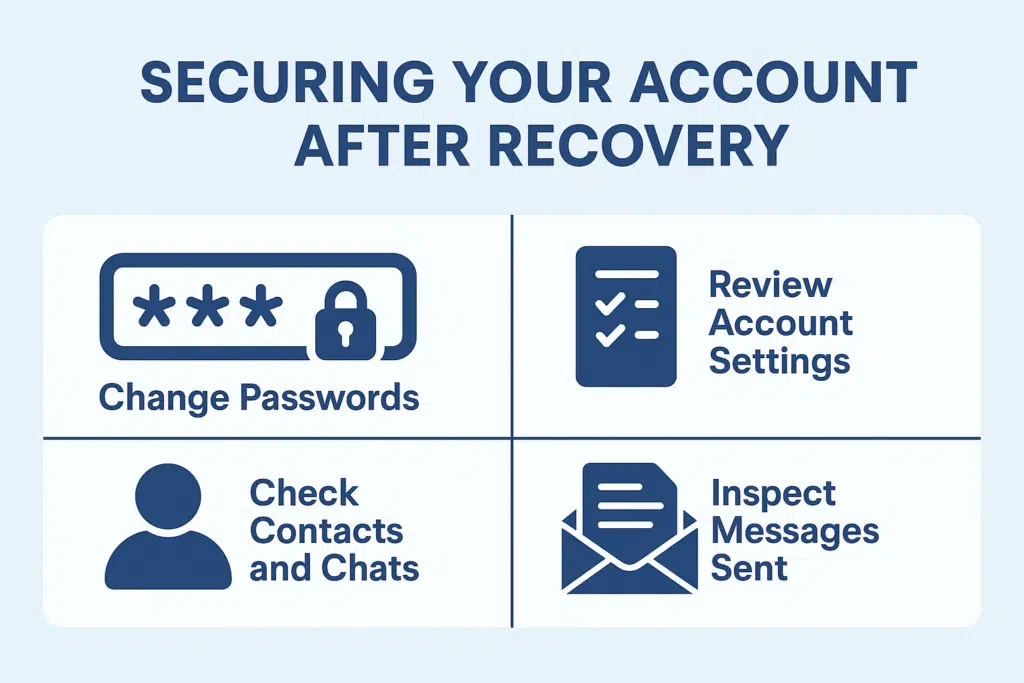
Once you get your hacked account back, you can protect your communications and stop future breaches by putting in place strong security measures. First, change all of the passwords for your Telegram account, including the password for two-step verification and any passwords for recovery emails. To protect yourself from credential stuffing attacks, which happen when hackers use stolen passwords to get into multiple platforms, use different passwords for each account.
Take a close look at all of your account settings, especially the privacy settings that may have been changed during the hack. Find out who can see your profile picture, mobile number, and last seen status. Check your list of blocked users, because hackers sometimes unblock accounts so they can talk to their partners. Check that any changes to your username haven’t made it easier for someone to impersonate you or commit fraud, and make sure that your account is still safe through official channels.
Check your contact list and chat history for any changes that weren’t made by you. Hackers often add their own accounts to your contacts or erase proof of what they did from your account activity logs. Check your sent messages for anything you didn’t write, and let your contacts know that they might have gotten scam messages from your hacked account. This openness helps keep trust and stops your contacts from being attacked again when they use Telegram.
What Should You Avoid During the Recovery Process?
A few common mistakes can make it harder for you to recover your account or give hackers more chances to keep getting into your telegram account. Don’t give your verification codes to anyone who says they are from Telegram support, because real staff members never ask for these codes through direct communication. Scammers often go after people who are trying to recover their accounts when they are most vulnerable. They pretend to be helpful support staff but are really trying to steal your new login information so they can get back into your account.
Don’t use public Wi-Fi networks or shared computers while you’re recovering. These places could be watched by bad people who want to get into telegram accounts. When you need to enter sensitive information or log into your account, only use your own devices and secure internet connections. If you have to use a public device, make sure you log out completely and clear your browser history afterward. This will keep your number safe and stop session hijacking.
Don’t make changes to your security settings too quickly without thinking about each option and how it might affect your account settings. When dealing with a hack, it’s important to act quickly, but making quick choices about privacy settings or verification methods can make things worse. Before turning on a security feature, take the time to learn how it works. Also, make sure you can get to recovery methods like backup email addresses or phone numbers before you delete your account or make big changes.
When Should You Consider Deleting Your Compromised Account?
If things are really bad and it seems like you can’t get better or the damage is too big, deleting your telegram account may be the best way to protect your privacy and stop the abuse from happening again. If the hacker has changed the phone number linked to your account, making normal recovery methods useless, you might want to think about deleting it. This is a big problem because it stops you from getting the SMS verification codes you need to make a real recovery attempt and makes it impossible to get my account back through normal means.
When a hacker gets into your recovery email and other connected services, it can lead to a chain reaction of security breaches on many platforms. In this case, you need to delete your account. If someone has used your Telegram account to scam people or send harmful content to your contacts, delete the account to help limit the legal and social fallout. You can delete your Telegram account from the Telegram website without having to log in. However, you should know that this action cannot be undone.
Before you delete your account, try every other way to get it back, like contacting support several times with different evidence packages. You can also use the “delete my account if away” feature, which will automatically delete your account after a set amount of time without activity. Keep in mind that deleting your account is permanent and can’t be undone. You’ll lose all of your chat history, contacts, and media for good. If you choose to delete your account, let your important contacts know right away through other means and give them new contact information. Many relationships and professional connections now use Telegram as a main way to talk to each other.
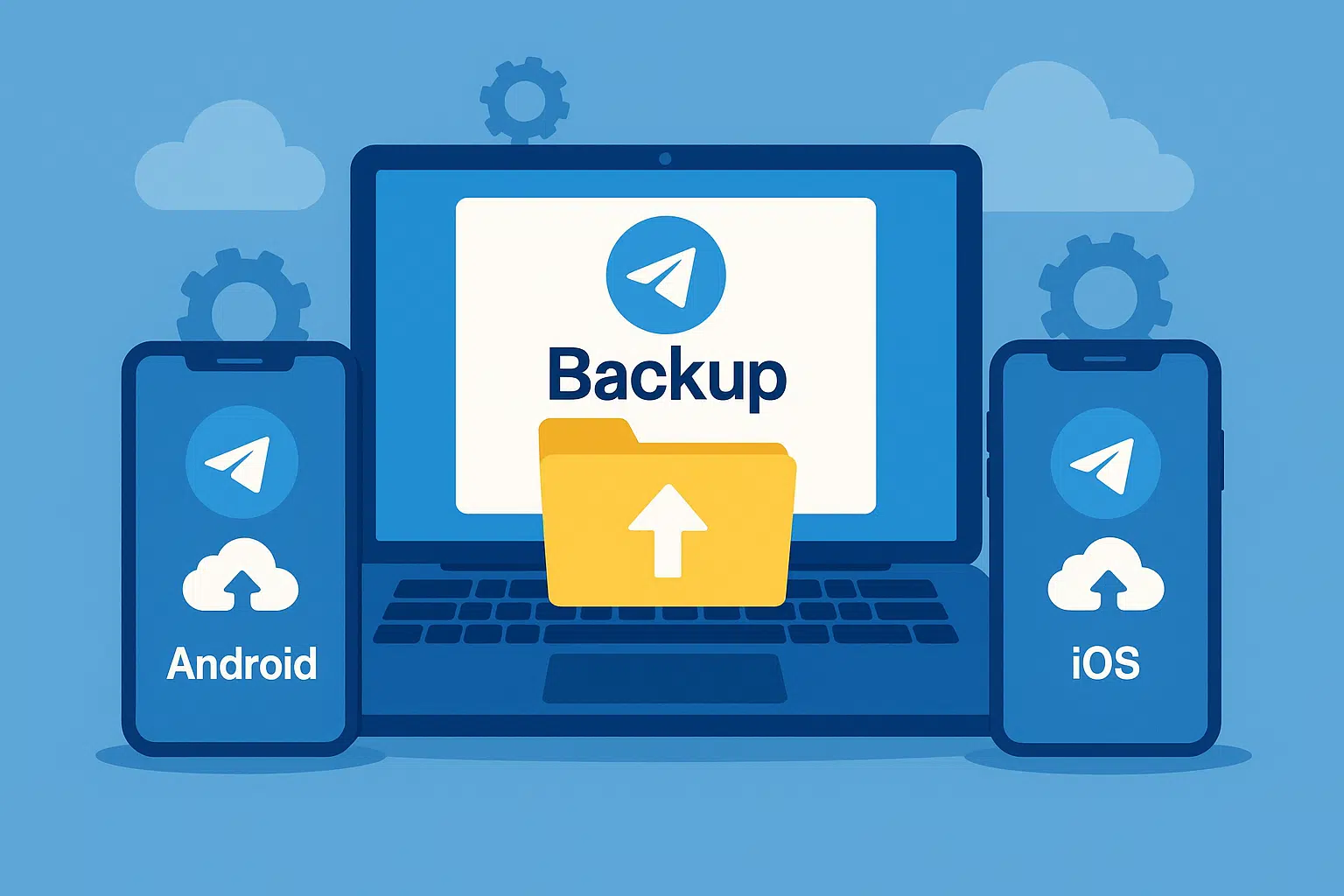
How to Backup Your Telegram Desktop (Android and iOS): A Complete Guide
Do you want to know how to backup your Telegram account in a more convenient way? If yes, then you should not skip this article. In this guide, we are going to show you how to backup Telegram on iOS and Android devices step by step. Whether you’re looking for the best backup Telegram iOS method or need a reliable Telegram backup Android solution, we’ve got you covered. Stay with TM and learn everything you need!
Why one would take a backup of their data on Telegram, the introduction:
Most probably, at one point or the other, you have wished to take a backup of your Telegram account data due to certain reasons. For instance, if you want to preserve Telegram messages or your Telegram contacts, so that you are confident that this information will never be lost, and even if you decided to delete your Telegram and your chats, this information can sometimes be restored. For some time, Telegram did not provide the option for which information was created to backup contacts’ accounts, but now this feature is supported by Telegram desktop!
Desktop Telegram is a kind of software that is an application of Telegram which can be downloaded into a computer and be used directly from the computer. With the new version update Telegram desktop talking about new exciting features that were previously unavailable, yes taking backup is among them as well as several excellent options that are also available for backup. Much to their delight this upgrade also comes with the opportunity to set up their account details which the user can set up and choose before the backup. In the rest of this article, we will teach how to backup Telegram desktop (Windows and iOS). Stay with the help mobile.
In the desktop variant of telegram, doing backup is straightforward. To achieve this, it is enough to open the Telegram program on your computer or laptop and log into the account where you need to back up the chats and other materials. After the account is logged in, the following procedures are to be done:
Go to the top left corner of the window, and click on the three-line icon. The main menu of Telegram will be opened. In this section, click on the Setting option.

In the [new] window, first or more, click on “Advanced”, which will scroll down the full settings that appear until up to the last option called “Export Telegram Data”. Choose this option. In this situation, a new window appears to outline the various settings that can now be selected. This window is illustrated below.


First, select the export option, it means that Telegram will be saved with the default options of this program. But if you, for some reason, want to change the settings and the items in this section for backing up Telegram, you should know that the options provided in this section are as follows:

Account Information: By ticking this option, the choice of a name for the account, a profile photo, one’s contact number and other information in the account is saved in the selected backup.
Contacts List: By ticking this option, all your contacts in Telegram will be restored on backup.
Personal Chats: By ticking this option, all private mails that are held in the Telegram memories in its back up will be kept.
Bot Chats: By ticking this option, any messages you sent to Telegram bots will be included in the backup.
Private Groups: By ticking this option, the archived chats of the private groups which contain you as a member are also included in the final backup.
Only my Messages: This particular option is quite related to the previous one and by activating it, only the messages you have personally sent in private groups shall be retained in the backup file while the messages of the other group users shall not be retained.
Private Channels: By ticking this option, all messages sent in private channels will be kept safe.
Public Groups: By ticking this box all the messages sent or received in public groups will be preserved in the ultimate backup.
Public Channels: All messages sent via public channels will be kept in the backup, as prompted.
Photos: By checking this option, all the pictures that you have sent and those that you have received will be captured and preserved in the last backup.
Video Files: By checking this option, all the clips and videos that you have sent and received through this tool will be retained.
Voice Messages: By checking this option, all voice memos sent and those received will be enclosed in the final backup copy.
Round Video Messages: All video memos sent and those received will also be enclosed in the final backup copy as long as this option has been enabled.
Stickers: Selecting this option ensures the stamps you’ve sent and received including the ones attached to your account are preserved in the last back up copy.
Animated GIFs: Selecting this option helps to protect the dynamic pictures or GIF files that were sent and received and quick saved in the account back up.
Files: Selecting this option preserves all the files you have attached or received in the last back up. Below this option, there is a slider that can set a size limit for the desired files. For instance, if you check the Files option and set the slider to 8MB, all files that are 8MB or less will be included in the Telegram backup and those that are 8MB and above will be excluded from the back up.
Active Sessions: This section is relevant to the running sessions or devices where your account is presently being used.
Miscellaneous Data: Selecting this option ensures that all data that was not listed in previous options is included in the last backup copy saved.
Download Path: Under this section, you are allowed to define the location of your Telegram backup file.
Options for Human-readable HTML and Machine-readable JSON: in general these two options dictate how the Telegram backup is stored. I suggest that you opt for the first option in this section.
Backup from Android Telegram and backup from iPhone Telegram
Maybe you have this thought in your mind that the described feature is related to Telegram desktop and is not applicable for Android iOS! If so, that’s wrong because the provided function indirectly allows you to backup Android and iPhone Telegram account. So simply make sure to sign in with your active account on your android phone or iPhone on the desktop version of telegrams and go through the stages we have stated. In this case, you will have a complete backup of the active telegram account which was active on your android phone or iPhone. Therefore, the new feature that has been included in the desktop version of the program that telegram has provided can be said to have in effect enabled the possibility of backing up telegram android and backing up telegram iPhone.
Thus, the key teaching about how to backup the telegram desktop (android and ios) was delivered in this article. If you have any issues regarding any of the described steps, you can engage the specialists of the mobile support unit and ask for clarification.
What Are the Best Practices for Managing Multiple Backup Copies?
You won’t have to worry about a lot of problems if you have more than one backup of your telegram data. The 3-2-1 backup rule says that you should keep three copies of important telegram conversations: one in telegram, one on your computer, and one in the cloud or another place. You won’t lose your important conversations if your device breaks, the cloud service goes down, or you accidentally delete them.
Use clear naming rules that include the date and a short description of what the file is to keep your backup files organized. Put your backups into different folders based on what they are. For example, you could have full account exports, backups of just one chat, and archives that only hold media. This layout makes it easier to find conversations when you need to. It also helps you keep track of your storage space by letting you know which old backups you can delete or move to an archive without worrying about losing important files.
Check your backups often to make sure they are always available and not broken. Every now and then, open up exported conversations and make sure the media files are showing up the way they should. This will help you make sure your backup files are working. This check helps you find problems that could happen before you have to use backup files to get your data back. Also, make a note of how you back up your files and where you keep them so that you can easily find important telegram conversations when things get tough.
Key Takeaways: Essential Points to Remember
• Use Telegram Desktop for the most backup options because it has the export tool you need to make detailed backup files of your chats.
• Set up regular backups to keep your important telegram messages safe from being lost because of device problems, accidental deletion, or account problems.
• Always encrypt your backup files before you store them on your computer or in the cloud. This will keep sensitive telegram data safe from people who shouldn’t have access to it.
• Keep in mind that secret chats have some limits: these encrypted chats don’t sync across devices and need to be backed up on each device to keep them.
• Use the 3-2-1 backup strategy to keep multiple copies of important telegram conversations in different places for the best protection.
• Open exported conversations to check that they’re accessible and that media files show up correctly on a regular basis.
• Use clear naming conventions and folder structures to organize your backup files so that you can easily find specific conversations when you need them.
• Add manual backups to your cloud storage because Telegram’s built-in cloud system doesn’t let you download backup files or export your entire account.
• Make backup files before switching devices to make sure that important telegram conversations continue.
• When looking at third-party backup solutions for your telegram account, think about automation tools carefully, putting security and privacy first.
How to Delete Your Telegram Account: Complete Step-by-Step Guide
Are you thinking about leaving the messaging app that everyone uses? If you want to switch chat apps, are worried about your privacy and safety, or just want to leave less of a digital trail, you need to know how to delete your Telegram account. This full guide tells you everything you need to know about permanently deleting your account, what happens to your data, and things you should think about before you do something that can’t be undone. We’ll show you all the ways you can delete your Telegram account, from the built-in self-destruct feature to ways you can do it yourself. You’ll be able to do it with confidence when you’re ready.
Why Would You Want to Delete Your Telegram Account?
People delete their telegram accounts for a lot of different reasons, like wanting to keep their privacy safe or just needing a break from technology. Some people don’t like how their personal information is handled, and some people want to delete their account so they don’t get spam or other unwanted messages. A lot has changed in the world of instant messaging, and some people would rather use platforms like WhatsApp or others that better meet their needs.
They might want to delete your account if they think someone else has used it without permission or if they’re getting a new phone and want to start over. Some people get so many messages and notifications from this chat app that they can’t take it anymore and decide that the best way to get their digital peace back is to delete it. If you know why you want to do something, it can help you make the best choice for your situation.
Before you delete your account, think about whether changing your privacy settings or taking a break from the app might help. Some people like that they can delete the app without also deleting their account. The next sections will show you how to permanently delete your account if you really want to.
Understanding Telegram’s Account Self-Destruct Feature
Telegram has a unique “self-destruct” feature that deletes your account after a set amount of time without you using it. This built-in safety feature keeps users’ privacy safe and makes sure that accounts that are no longer used don’t stay active forever. If you don’t log in for six months, Telegram will automatically delete your account. However, you can change this time limit.
If you want to delete your account but aren’t ready to do it right away, you can turn on the self-destruct timer. When the timer runs out, your account and all of its messages, media, and contact lists are deleted. This process happens safely and doesn’t need any help from people.
To change the settings for self-destruct, go to Settings > Security and Privacy > Delete My Account. You can turn this feature off completely or choose the time frame that works best for you. This automated way to delete gives people who want to delete their telegram account but need more time to prepare more options.
To delete your Telegram account, follow these steps:
Method 1: Using the Telegram Deactivation Page

Go to the Telegram Deactivation Page: Open your web browser and navigate to the Telegram Deactivation Page.
Log in to your account:
- Enter your phone number in the international format (e.g., +1234567890).
- Telegram will send a confirmation code to your Telegram app (not via SMS).
Enter the confirmation code: Retrieve the code from your Telegram app and enter it on the website.
Select the option to delete your account: Once logged in, you will see options to manage your account. Click on the option to delete your account.
Confirm the deletion:
- Provide a reason for leaving if prompted (optional).
- Click on “Delete My Account”.
- Confirm your choice. Please be aware that this action is irreversible.
Method 2: Using the Telegram App (Self-Destruct Feature)
You can also set your Telegram account to self-destruct if it is inactive for a certain period.
Open Telegram app: Launch the Telegram app on your device.
Go to Settings:
- For iOS: Tap on “Settings” in the bottom right corner.
- For Android: Tap on the three horizontal lines in the top left corner, then select “Settings”.
Navigate to Privacy and Security: Tap on “Privacy and Security”.
Set the Account Self-Destruct Timer:
- Scroll down to find the option “Delete my account if away for”.
- Select the inactivity period (1 month, 3 months, 6 months, 1 year).
If you remain inactive for the chosen period, your account and all associated data will be automatically deleted.
Important Considerations
- Data Loss: Deleting your account will permanently remove all your messages, groups, and contacts.
- Irreversibility: Once deleted, you cannot recover your account or its data.
- Re-registration: You can sign up again with the same phone number, but it will be a completely new account without previous data.
What Happens to Your Telegram Data When You Delete Your Account?
When you delete your Telegram account, all of the information that is connected to it is permanently removed from the servers. This includes all of your voice messages, chat history, media files you’ve sent or received, and any documents you’ve sent or received through the messaging app. You will be kicked out of all the channels and group chats you were in, and other people can now use your username.
If you delete your account, all of the information in it, like your profile picture, bio, and contact information, is also deleted. But remember that messages you sent to other users will still be in their chat history. They will show up as coming from a “Deleted Account” instead of showing your name or profile information. This is what most instant messaging apps do to keep conversations going.
You can also get your phone number back from the account without any problems. If you want to, you can make a new account with the same number. But once you delete your account, you won’t be able to get any of your old data, messages, or contacts back. You also lose the encryption keys that keep your conversations safe. This means that your deleted data is gone for good and telegram support can’t get to it.
Can You Recover a Deleted Telegram Account?
Once you delete your Telegram account, you can’t get it back. Some social media sites let you get your account back for a short time, but Telegram starts the process of permanently deleting your account right away after you confirm your decision. There is no way to get your account back after it has been confirmed that it will be deleted.
If you delete your account, you’ll have to start over with a new one if you want to use Telegram again. You can keep your phone number, but you’ll have to start over from scratch. There won’t be any contacts, chat history, or settings or preferences from before. You’ll have to rebuild your contact lists and join any groups or channels you were a part of before this new beginning.
Telegram is committed to keeping users’ privacy and safety safe, which is why deleting an account can’t be undone. This makes sure that when users delete their account, their data is really gone and no one, not even Telegram, can get it back. You can’t restore an account without any data, so make sure you’ve backed up any important information you might need later before you delete it.
How to Automatically Delete Your Account After Period of Inactivity
If you stop using Telegram, the automatic deletion feature is a good way to make sure your account doesn’t stay active forever. You can change this account’s self-destruct feature to make it work better for you. You can set the account to be inactive for anywhere from one month to one year before it is deleted. To set up automatic deletion, go to Settings > Privacy and Security > Delete My Account.
The default setting is six months, but you can change it to fit your needs and preferences. If you’re not sure you want to leave Telegram for good but want to make sure your account doesn’t stay open forever, setting a longer time frame gives you more options. You don’t have to worry about accidentally deleting your account because the timer starts over every time you log in.
This feature is very helpful for people who travel a lot, switch devices often, or can’t always get to their accounts. If something happens that keeps you from getting to your account, it makes sure that your personal information won’t stay on the platform forever. The automatic deletion deletes all the same data as manually deleting it, which keeps your privacy safe.
Alternative Options: Deactivating vs. Permanently Deleting
You might want to think about whether temporarily deactivating your account would be better for you than permanently deleting it. Telegram doesn’t have a “deactivate” button like some other social networks do, but you can get the same effect by not using the app and letting your account die on its own. If you want to delete your account but aren’t sure, this gives you time to think about it again.
You could also remove the app from your device without canceling your account. This keeps your account safe and stops you from wanting to check your messages. If you need to, you can still get to your account through Telegram Web, but it’s harder to get to, which keeps you away from the platform. This is the best option for people who want to take a break but don’t want to delete their account right away.
You could also change your privacy settings so that only certain people can get in touch with you, turn off notifications, or leave group chats that are too busy. You don’t have to delete your account permanently to make the platform have a lot less of an effect on your daily life. Some people who have left Telegram for a short time think these changes are enough. If none of these other options work for you, you can always delete your account later.
Privacy and Security Considerations Before Account Deletion

Before you delete your Telegram account, you should know what will happen to your privacy and security. Telegram encrypts secret chats from beginning to end, but regular chats are stored on their servers with encryption while they are being sent and while they are being stored. When you delete your account, Telegram deletes your messages from its servers, but other people may still have copies of them in their chat histories.
You might want to use a VPN while you delete your account and do any last-minute things with it if you’re worried about your privacy. Telegram is known for being safe and private, but you can feel even safer by taking extra steps. Also, remember that any time you’ve talked to a bot, it may have saved some information. But if you delete your account, they won’t be able to collect any more data.
People who live in places with strict internet rules or who have shared private information on the site can feel safer knowing that their accounts will be deleted. Once your data is permanently deleted from Telegram’s servers, no one will ever be able to access it or get a court order to do so. One of the best things about Telegram is how well it protects your data and encrypts your messages.
Is it possible to temporarily delete a Telegram account?
Telegram does not offer a direct option to temporarily deactivate or delete an account. If you want to disable your account temporarily, use the “logout” option.
Log Out:
- You can log out of your account on all devices. This will effectively make you inactive without deleting your account.
- Open Telegram and go to Settings.
- Tap on Devices.
- Log out from all active sessions.
Things to Remember When You Delete Your Telegram Account
• Once you delete your account, you can’t get it back. You can’t get your account, messages, or data back after you confirm it.
• There are many ways to delete: you can do it through the mobile app, the browser, or by setting up automatic deletion after a certain amount of time of inactivity.
• All of your data is gone—Telegram’s servers permanently delete all of your messages, media, contacts, and account information.
• To prove who you are, you need to enter your phone number and a confirmation code that sends a text message with a code to your phone.
• Other people can still read your messages. Even though your account is gone, the messages you sent to other people will still be in their chat history.
• Your username becomes available—other people can use it after you delete it.
• The phone number is given out. You can make a new account with the same phone number, even if you already have one with that number.
• Consider other options first. For example, deleting an app or changing your privacy settings are both temporary fixes that might help without having to delete the app for good.
• Back up important files. Before you delete something, make sure to save it first because you won’t be able to get it back later.
• Self-destruct feature for accounts: Telegram will delete accounts that haven’t been used in a certain amount of time, so you don’t have to do it yourself.
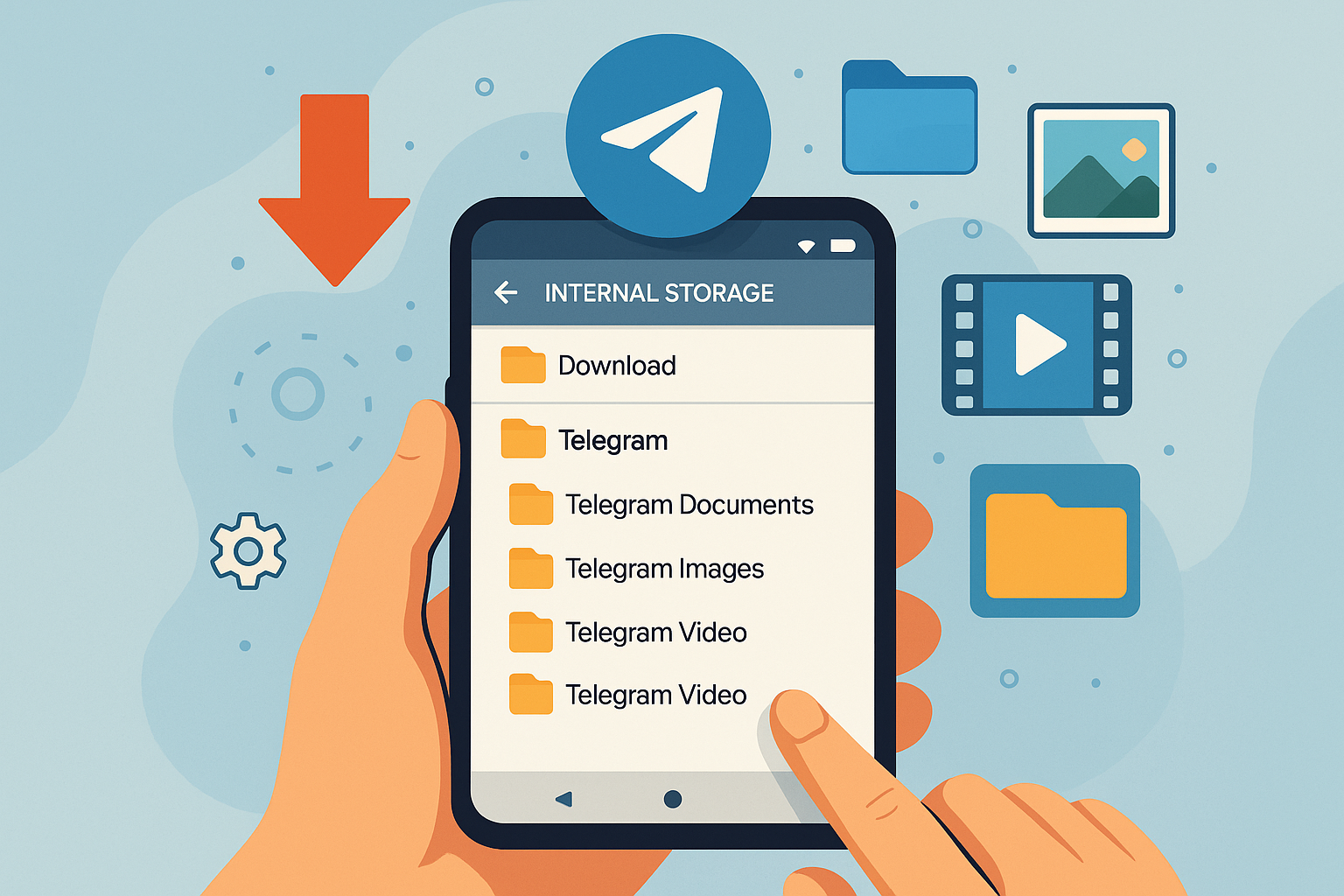
How to Find Telegram Downloaded Files on Android: Complete Guide to Locating Your Downloads
Have you ever had trouble finding an important file, picture, or video you downloaded from Telegram on your Android device? You’re not the only one. Many people have trouble finding telegram files they’ve downloaded on their Android phones. This is usually because the files are saved in different places based on what kind of file it is and how it was downloaded. This full guide will show you all the ways to find downloaded files on Telegram, tell you where Telegram files are stored on your Android device, and give you tips on how to better organize your Telegram downloads so you can find them more easily in the future.
Where Does Telegram Store Downloaded Files on Android?
The app doesn’t keep everything in one place when you download files from Telegram. Depending on what you’re downloading, the telegram app puts its folders in different places. To find your files on your Android phone quickly, you need to know how this system works.
Telegram downloads files to your device’s internal storage by default, and they are kept in certain folders.When you first use Telegram and start downloading things, the app usually makes a folder for you. Most of the time, pictures and videos go to the gallery or files app on your device. On the other hand, PDFs and other types of files go to a download folder or a custom telegram directory.
Most of the time, files you download are saved in your phone’s main telegram folder, the standard downloads folder, or even the gallery app on your Android phone. Telegram makes its own folder structure on your Android phone to organize different types of media and documents. This makes it easier to keep track of a lot of downloaded content from telegram channels and groups.
How to Find Telegram Downloaded Files Using File Manager?
The best way to find your telegram downloads on your Android device is to use the file manager app. Every Android phone has a file manager app built in, but the way it looks may vary from brand to brand. To find telegram downloaded files, you need to know how to use your device’s storage system well.
To get to these files, open the file manager on your Android device and go to internal storage. Your Android phone’s telegram files will mostly be in a folder called “Telegram.” Most of the time, you’ll find subfolders in this telegram folder that are organized by type of content, like telegram photos, telegram documents, and other types of files that you’ve downloaded from telegram.
If you can’t find the main telegram folder right away, look in the standard download folder first. Some people find that the files they downloaded from Telegram end up here, especially if they changed their download settings or chose a specific folder you chose during the download process. The file manager method shows you all of your downloaded files in one place and lets you move them to better places if you need to.
How to Find Telegram Downloaded Files on Apple iPhone IOS
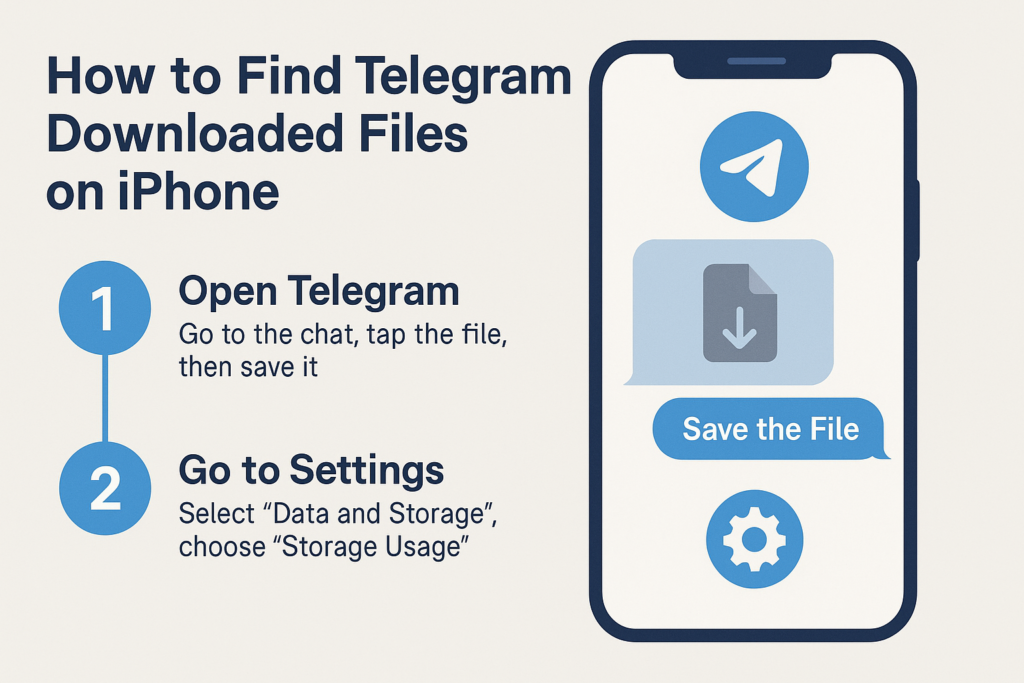
In the iOS operating system, due to security issues, you cannot directly access the downloaded files. There are two suggestions and solutions:
1- First, “Open Telegram” and then “Go to the Chat” and find the message containing the file you downloaded. Tap on it to open or preview it and then “Save the File” so that you can access it in the files.
2 – Enter Telegram and click on “Settings” in the menu, look for “Data and Storage” and after finding it, click on it and enter, then click on “Storage Usage” which is one of the first options to Enter the new page.
Then by scrolling the list of all the chats, channels, groups from which you have downloaded a file can be displayed and it also shows the amount of storage used, you can delete them separately if needed. Make files related to a conversation.
How to Find Telegram Downloaded Files on PC (Windows)
First, open “File Explorer“, if you don’t find it, you can open it using the Win + E buttons on the keyboard, then to open “Download Folder“, just enter the following path. (You can find the folders in order or copy it in the address bar)
C:\Users\YourUsername\Downloads\Telegram DesktopReplace “YourUsername” with your actual username on the PC. You can see all the downloaded files now.
What Happens When You Download Files from Telegram Automatically?
The automatic media download feature in Telegram can change where your files go on your Android device in a big way. When you turn on auto download, the telegram app will automatically save photos, videos, and other media files that come in to certain places. You don’t have to download each one separately.
You can change the settings for automatic media downloads based on the type of file and the type of connection. For instance, you could set your photos to download automatically when you’re connected to Wi-Fi but not when you’re using mobile data. These settings tell your device where to save files, like the telegram folder, the photos app, or other specific places. This will make it harder to get to your downloaded files.
You need to know what your current auto download settings are in order to find files that may have been downloaded without your knowledge. When you download files automatically, they usually end up in a different place than when you download them by hand. It might be hard to find the files later if this happens. The telegram app handles these automatic downloads in the background and saves files according to your data and storage settings.
How to Locate Telegram Photos and Videos on Android?
On Android devices, Telegram photos, images, and videos are saved in a certain way. When you download pictures or videos from Telegram, they usually go to one of two places: either to your phone’s gallery app or to a special telegram images folder in internal storage.
You can choose to save photos and videos you download to your phone’s gallery app next to photos and videos you took with your camera if you have the “save to gallery” option turned on in your Telegram settings. With this integration, you can easily get to telegram photos through your regular photos app. But it can also make it harder to tell the difference between pictures you’ve taken and files you’ve downloaded from Telegram.
For people who want to keep their telegram content separate, photos and videos are stored in their own subfolders inside the main telegram directory. Most of the time, these folders are in the main telegram folder on your internal storage. You can find these files in your file manager app or sometimes even in the gallery app, depending on how your Android phone organizes media files. When you want to automatically save photos from telegram channels and groups, these settings decide where the content will be saved: in the photos app or in separate telegram folders.
Where Are Telegram Documents and PDFs Stored?
Telegram stores files like PDFs, Word documents, spreadsheets, and other types of files that aren’t media in a different way than it stores photos and videos. In the main telegram directory, there is a special folder for telegram documents where these files are usually saved. Sometimes they go straight to the general download folder on your device.
When you download a file from Telegram by hand, you can usually choose where to put it. If you don’t choose a place, though, the file will go to the default place that your telegram app settings say it should go. The telegram documents folder is usually in the main telegram folder on your internal storage. This makes it easy to find the files you downloaded.
These folders keep track of the order in which files like PDFs and other documents were downloaded from telegram channels, groups, or individual chats. This way of organizing things helps keep things in order, especially for people who download a lot of files or a lot of different kinds of files from different telegram sources. When you need these files, knowing where they are will help you find them quickly.
How to Change Telegram Download Settings on Android?
You can change the settings for your telegram downloads to make it easier to find your files later and control where downloaded files are saved. To get to these settings, open the Telegram app and go to Settings > Data and Storage. This is where you can find all the ways to choose where and how files are downloaded to your Android device.
The download folder settings let you choose where to save different kinds of files on your computer. You can choose where to put different types of files, such as pictures, videos, documents, and more. You can always find the files you’ve downloaded from Telegram by changing where you want them to go. You can choose to save them to your downloads, gallery, files app, or a specific folder in Telegram.
You can also choose how to automatically download media for different kinds of connections. These settings determine whether or not files are automatically downloaded when you’re connected to Wi-Fi or using mobile data. This lets you keep track of how much space you have and how much data you’re using, and it makes it easy to get to important saved files. You can also turn on or off the option to save incoming photos and decide whether or not to save them to the gallery automatically.
What’s the Difference Between Auto Download and Manual Download in Telegram?
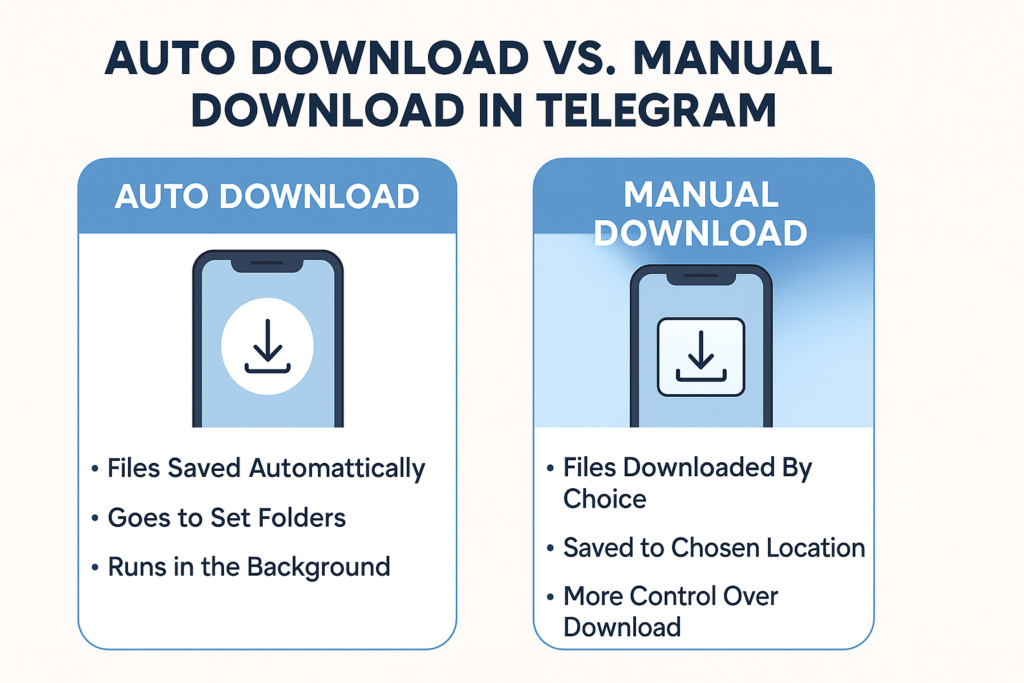
You need to know the difference between automatic and manual downloads in order to find your telegram files on Android. Telegram’s auto-download feature saves some types of media files as soon as they come in, so you don’t have to click a download button or download each file by hand.
When your computer automatically downloads files, they usually go to the folders you told it to in your data and storage settings. You could save pictures to the photos app, videos to a telegram videos folder, and documents to a special downloads folder. This process runs in the background and can make big files that you might not notice right away. These files use up space on your device.
When you tap on a media file and choose to download it, on the other hand, you do a manual download. You usually have more control over the folder you put something in when you download it yourself, and you’re more likely to remember doing it. When you download files yourself, it’s usually easier to find them because you know where they are and can choose where they go.
How to Find Telegram Downloads in Internal Storage?
You need to know how to move around the usual folder structure and how to quickly find the files in order to find telegram downloads on your Android device’s internal storage. Most of the files you send and receive on Telegram are stored in the main Telegram folder on your device’s internal storage.
To get to internal storage, open your file manager app and search for “Internal Storage” or “Device Storage.” To find the telegram folder, scroll down in this directory. There are usually a lot of subfolders in this folder, and they are all organized by the type of content they hold. This makes it easier to find the files you need, whether they are pictures, documents, or something else.
Each subfolder has files that are sorted by type and sometimes by date. This makes it easier to locate what you need. If you want to find a certain file, think back to when you downloaded it. This will help you navigate the content, which is organized by date. Some file manager apps let you look for certain types or names of files in the telegram folder. This makes it even easier to find and open these files.
Why Can’t I Find My Telegram Downloaded Files on Android?
There are a few things that can make it hard to find files you downloaded from Telegram on your Android phone. One common problem is that files might be saved in places you didn’t expect because of how you set up your downloads or how the telegram app stores files in different versions.
When people have more than one file manager app on their devices, they often run into another problem. The file system may look different in these apps. Some file managers may not show all of the folders or may organize files in a different way, which can make it hard to find where telegram files are really kept. Also, your files might be saved in different places if you open the Telegram app on different devices or use Telegram Desktop.
Storage permissions can also change how easy it is to see files and how easy it is to find downloaded files on Telegram. If the telegram app doesn’t have the right permissions to save files, they might not be where you think they are or be able to be opened with regular file browsers. Different versions of Android and custom device interfaces put files in different places. This can change how Telegram interacts with the system’s file management and where it keeps its files.
How to Better Organize Your Telegram Files for Easy Access?
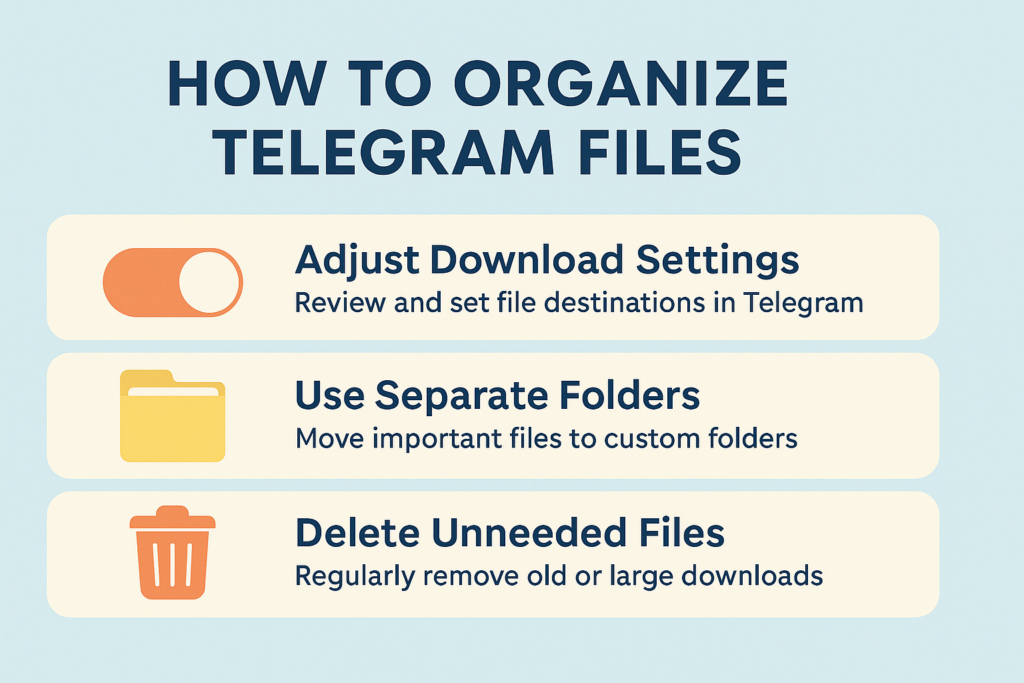
If you know how to organize your telegram downloads, you won’t have to spend as much time looking for files. Check your download settings often to make sure that files are going to the right places based on how you use them and the types of files you usually download from Telegram.
For important files, you might want to create a separate folder structure outside of the default telegram folders. You can move important documents, photos, or other media files from the telegram folders to folders that are better organized for certain tasks every now and then. By keeping temporary downloads and files you want to keep for a long time separate, this method makes it easier to find the files you really need.
It’s also important to clean up your system on a regular basis to keep it organized. Go through your telegram folder every so often and delete files you don’t need anymore. This habit not only frees up space on your hard drive, but it also makes it easier to find the files that matter to you. Telegram has built-in tools for managing storage that you can use to find and delete large files or old content that might be taking up space when you open the app. Knowing where files are downloaded and how they are organized in Telegram will help you keep better track of your device’s storage.
Key Takeaways
• Primary Storage Location: Most telegram downloaded files are stored in the telegram folder within your android device’s internal storage, organized by file type in subfolders where files are stored systematically.
• File Manager Navigation: Use your android file manager app to navigate to internal storage > telegram to find downloaded files, with separate folders for telegram photos, telegram documents, and other content types.
• Gallery Integration: Photos and videos may appear directly in your gallery app on your phone if save to gallery is enabled, making them accessible through your standard photos app where saved to the photos app content appears.
• Download Settings Control: Access Settings > data and storage in the telegram app to customize where different file types are saved and configure automatic media download preferences for your android phone.
• Auto vs Manual Downloads: Automatically downloaded files follow predetermined paths based on your settings, while files you manually download may offer location choice and are generally easier to track and find.
• Document Storage: Files like pdfs and other telegram documents are typically saved to a dedicated telegram documents folder or your device’s general download folder depending on your configuration.
• Storage Permissions: Ensure the telegram app has proper storage permissions to save files in expected locations and make them accessible through file managers and files app on your device.
• Regular Organization: Periodically clean up and organize your telegram downloads by moving important saved files to dedicated folders and deleting unnecessary content to maintain easy access.
• Search Functionality: Use your file manager app’s search feature to locate specific files by name or type when browsing through large amounts of files downloaded from telegram channels and groups.
• Cross-Platform Considerations: Remember that files downloaded from telegram may be stored differently if you also use telegram desktop or access telegram on other devices, so know how to find files across different platforms.

How many channels can be created on Telegram?
The popularity of Telegram as a social network means that a lot of people want to create Telegram channels. So the answer to how many channels can be created in telegram will be useful to many users. Many Telegram channels are associated with multimedia or content production, distribution, and management businesses. Such as education, online shops, etc., however, making a channel and running it is a completely different thing that also requires skills.

What exactly is a Telegram channel?
The purpose of telegram channels is to communicate a piece of information to a great amount of users by one or multiple users, and it is extremely efficient in accomplishing that. In such channels, there is no messaging option that is reciprocal. These types of channels can be subscribed to by an infinite number of people who can consume their content. To offload these duties permanently it won’t be a problem since telegram channels can have more than one administrator. Bear in mind, however, that all new members of the channel launched as a new member of the channels can view the messages posted earlier. Channels are mechanisms for sending mass messages to the people that are interested in them.
How to create a channel on telegram 2025?
Creating a channel in Telegram is not complicated at all and is easily created. Even in the new Telegram updates, you can create a channel for yourself in the easiest possible way.
iPhone: Tap the icon in the upper right corner of the chat screen, then tap New Channel.
Android: Tap the circle icon on the home screen and select Create an account.
Windows Phone: Tap the “+” button in the bottom bar. Then the new channel.
What is the difference between public and private channels?
Private channels do not allow everyone to join the channel as it is indisputably closed to the open public. However, only the owner of such channels can add their contacts or give out an inviter link for such channels. On the other hand, people can find public channels via the username and become a channel member.

Telegram channel settings
You have to specify the member type for your created channel (private, public). As the admin, you also have to do settings and channel privacy. Initially, you can add the subscribers you need or other people’s channels. Each subscriber has the authority to become an admin or get kicked off the channel by you. In the section of the admin settings, you can restrict your admins in many ways. One of such methods is deciding whether message supervisors could delete messages or not.
Under the edit section, while creating a channel, you can upload a profile picture for your development channel. Provide as well a group profile description too, which is viewable by all group members.
Is there a limit on Telegram?
Yes, this is inseparable from Telegram as it has a number of limits which they impose upon users. As an instance, one device can never log in on more than 3 accounts and even if a user wants to join telegram no account can be created without a purposefully unique number.
When it comes to managing your Telegram presence, it’s important to understand some key limitations. For instance, telegram channel maximum members isn’t strictly capped like groups, but there are still important rules to follow. Channels with over a thousand subscribers can only be removed by contacting Telegram support. You’re allowed to create up to 10 public channels per account. Additionally, you need at least 500 subscribers to access detailed channel statistics. At the start, you can manually add up to 200 users to your channel — after that, members must join through invite links or by discovering your channel organically.
The maximum members in Telegram group has significantly increased over the years, making it a powerful platform for managing large communities. As of 2025, Telegram allows up to 200,000 members in a single group, providing unmatched scalability compared to other messaging apps. This makes it an ideal choice for businesses, educational institutions, fan clubs, and online communities looking to engage a massive audience in one place. Understanding the maximum members in Telegram group limit helps admins plan and grow their communities more effectively.
Restrictions on creating Telegram channels (private and public)
Since Telegram channels come with lots of benefits to both members and owners, there is growing tendency among users to make Telegram channels. But they only have 10 public channels and a couple of private channels opened on the side. Of course, this restriction applies to one Telegram account only. If you would like to host more channels, you need to open a new user account. Of course, please, remember that administrating Telegram channels is not an easy issue, and it is advisable to seek assistance from other users as an administrator. For your channel, you can include up to 50 other administrators.
While managing channels is one side of the story, many users also wonder how many Telegram groups can I create to support more interactive communication. Currently, a single Telegram account can create up to 10 groups. However, you can be a member or admin of hundreds of groups, depending on your activity and account standing. Each group can accommodate up to 200,000 members, making Telegram a strong platform for large-scale discussions. If you need more groups under your control, creating additional user accounts or involving trusted admins can help manage them effectively.
What are the benefits of having many Telegram channels?
It is good to have many Telegram channels even though they can wear a person out to their bones owing to monotony. Channels’ owners and admins generally have 1 or 2 primary channels and as they seek to expand their involvement on other levels, they decide to open a couple of new angles to their activity but instead of a defining activity, the defined channel wishes to define them. For example, let’s say a person creates a painting products sales channel, and he also has a teaching channel to broaden his market. So later, he has to create a channel to interact with his students. Another benefit to having more than one channel is the increase in the main channel’s development as well as growth in the overall number of activities possessed by the channel operator. However, such approaches need to be streamlined in such a manner that they do not irritate the subscribers and improve the success chances. On the other hand, one of the most significant downsides to opening multiple channels on a platform like Telegram is the management challenges that come with them. So if you are unable to control them, forget using that approach anyway. Also, the investment and growth aspect of your channel needs factoring. If you are determined to go down this route, we would advise that you employ some managers to cover more ground within a short period of time.
How can I add 1000 members to the telegram channel?
As soon as a Telegram channel exceeds a certain number of members, Telegram enforces a set of restrictions. However, this number can be increased in many ways, including joining other social networks, looking for this number while creating some high-quality content and interacting with your channel members, and so on. Other faster methods do exist, but they come at a cost.
Advertisements on other Telegram channels
Cross-promotion with other Telegram channels that have a greater number of subscribers and or a higher rate of activity than yours can prove to be extremely productive. It’s as simple as creating an advertisement post with a hyperlink for your Telegram channel and willing to pay someone to post it. You have to negotiate with the channel owner regarding a hourly rate for placing advertisement and other parameters, so usually there is no fixed rate for it. It goes without saying that before the advertisement is triggered, one should subscribe to the channel and monitor it for at least a few days.
Buy telegram members

Conclusion:
In this article, in addition to answering the question “How many channels can be created in Telegram?” Answer other questions that have been created for users. This concern cannot be overemphasized and it is indeed the second most fundamental barrier to be overcome to increase the growth level of Telegram to the required levels, that is, lack of adequate knowledge with respect to this popular application. Feel free to reach us with your queries and do not hesitate to contact us if you want to order telegram related services.

How to Download and Install Telegram on Android and iOS Devices
Telegram is a cloud-based instant messaging and voice over IP service. Telegram client apps are available for Android, iOS, Windows Phone, Windows NT, macOS and Linux. Users can send messages and exchange photos, videos, stickers, audio and files of any type.
It’s likely that you’re looking for a way to install Telegram Messenger on your Android phone, iPhone, iPad, or Windows phone. In this article, we’ll show you how to install Telegram and where to find the latest version for Android, iOS, and Windows Mobile.
Why Should We Install the Latest Version of Telegram?
A simple reason why many users find themselves necessarily updating the app. The updates allow for better performance through Maintenance and optimization while increasing security through new features. Privacy is probably the biggest reason for why users appreciate the app and in every update the app gets more private through better tools and messaging options. Older versions of an app are often prone to vulnerabilities due to bugs and lack of patches within the app. Therefore, it is suggested to always have the newest version of the app. In this way, your experience in using the app gets considerably better and security as well as optimization is present through reduced glitches that were not fixed before.
Step 1: Downloading the Telegram App
For Android:
To open a telegram account, the user must first verify his phone number. Most telegram users have Android phones and thus it can be said that most telegram users belong to the Android platform. Bear in mind that almost all Samsung, LG, Huawei, HTC, etc. phones operate on the Android system, so considering installing and downloading a Telegram version, the links provided can be recommended for use. However, when looking for an Android version, head to the Google Play Store.
- Open the Google Play Store on your Android device.
- In the search bar, type Telegram and look for the official Telegram app, which should be published by Telegram FZ-LLC.
- Tap Install to start downloading the app. Once the download is complete, the app will be automatically installed.
- You can always download the official Android version from Telegram.org/android
For iOS:
The huge part of telegram users also include people who make use of gadgets that are based on the ios operating system. The software that runs iPhones, iPads and Apple iPods is based on iOS, hence to install telegram on them, the ios version of this messenger program has to be downloaded. To Install And Download Latest Version Of Telegram App For Ios you can use the Apple Store where you can easily find it.
- Open the App Store on your iPhone or iPad.
- Search for Telegram in the search bar. Make sure to select the app published by Telegram Messenger LLP.
- Tap Get, and once prompted, confirm the installation. The app will start downloading and install once it’s complete.
- You can always download the official iOS version for iPhone and iPad from https://apps.apple.com/us/app/telegram-messenger/id686449807
Step 2: Setting Up Your Telegram Account

After installing Telegram, follow these steps to set up your account:
- Open Telegram on your device.
- Tap Start Messaging to proceed to the registration screen.
- Enter Your Phone Number: Telegram will ask for your phone number to verify your account. Select your country code, enter your number, and tap Next.
- Verify Your Number: You’ll receive a verification code via SMS. Enter this code to confirm your account.
- Set Up Your Profile: Add your name and an optional profile photo, then tap Next to complete the setup.
When you complete these procedures, it won’t take long to install Telegram Messenger and have it fully configured on your Android or iOS device. Among all messaging platforms, Telegram stands out with its robust privacy features, support for large group chats, and versatile media tools. Whether you’re setting it up on mobile or exploring Telegram Windows download options for your desktop, the experience remains seamless and user-friendly.