Article
How to Mute a Group or Channel in Telegram: Full Tutorial for Chat Control
A busy Telegram group can send hundreds of notifications a day. Muting it stops the alerts without leaving: the messages still arrive, and you read them when it suits you. The quick version: open the group or channel, tap its name at the top, tap Mute and choose how long. This guide covers the exact steps on Android, iPhone and desktop, what each mute option does, and how to keep only the alerts you actually need.
What muting a Telegram group or channel does
Muting turns off notifications for one chat. It does not remove you from the chat, hide it or tell anyone you muted it. A few details are worth knowing before you start:
- Messages still arrive. The chat stays in your list with an unread counter, and a crossed-out bell or speaker icon shows it is muted.
- Timed mutes end on their own. If you mute for 8 hours, notifications come back by themselves after 8 hours.
- Mentions and replies can still reach you. When someone @mentions you or replies to one of your messages in a muted group, Telegram usually still notifies you, so muting a group doesn't mean missing messages aimed at you.
- Nobody is told. Other members and admins can't see that you muted the chat.
How to mute a Telegram group on Android
- Open the group or channel.
- Tap its name at the top of the screen to open the info page.
- Tap the Notifications or Mute option (a bell icon).
- Choose Mute for… and pick a duration, or choose Mute forever.
A faster way from the chat list: long-press the chat and tap the mute icon in the toolbar. You can select several chats this way and mute them together.
How to mute a Telegram group on iPhone
- Open the group or channel.
- Tap its name at the top of the screen.
- Tap Mute under the name.
- Choose Mute for… to pick a duration, Disable Sound to keep silent notifications, or Mute Forever.
From the chat list, you can also swipe left on a chat and tap Mute.
How to mute a Telegram group on desktop
In Telegram Desktop for Windows, Mac and Linux:
- Right-click the group or channel in your chat list, or open it and click the three-dot menu at the top right.
- Choose Mute notifications.
- Pick a duration or mute it until you turn notifications back on.
Menu names can differ slightly between app versions, but the Mute option is always in the chat's menu or on its info page.
Which mute option should you choose?
Telegram has three kinds of mute, and each one suits a different situation:
- Mute for a set time. Older versions offered fixed choices such as 1 hour, 8 hours and 2 days; current versions let you pick any duration with Mute for…. Use an hour for a meeting, 8 hours for a night or a workday, a few days for a weekend or a trip.
- Disable Sound. Notifications still appear on your screen, but without a sound or vibration. Good for chats you want to see but don't need to hear.
- Mute forever. No notifications until you unmute the chat yourself. Best for big groups and channels you only read now and then.
A timed mute is usually the safer choice for groups you care about: you get a quiet stretch, and notifications come back without you having to remember to turn them on.
How to mute Telegram channels
Channels are muted exactly like groups: open the channel, tap its name, then tap Mute. Channels are broadcasts, so you rarely need to react to a post the moment it appears. Many people mute every channel they follow and check them at set times, for example with morning coffee and in the evening.
Channel admins can also send posts silently, so you may see new posts without a notification even in channels you haven't muted.
Can I mute specific types of messages in a group?
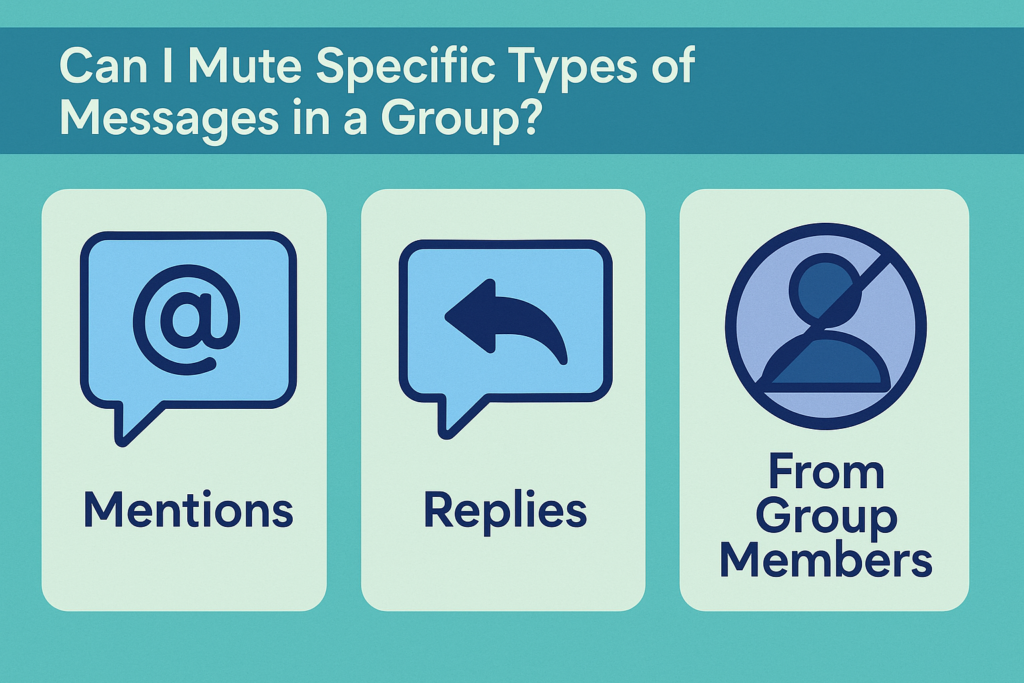
Only partly. Telegram doesn't let you filter notifications by message type or by sender, and there is no option to mute a single member of a group. What you can do:
- Mute the group and rely on mentions and replies. This is the closest thing to "notify me only when it's about me", and it works well in large groups.
- Use Disable Sound for groups you want to see but not hear.
- Give important chats their own notification sound from the chat's notification settings, so you know who is writing without looking at your phone.
What's the difference between muting groups and channels?
The steps are the same; the reason for muting is different. In a group, people talk to each other and sometimes to you, so a long mute can mean replying late to a question. A timed mute, or relying on mentions, works better there. A channel is one-way: posts stay just as useful hours later, so muting a channel forever costs you almost nothing.
How to manage notifications from many groups at once
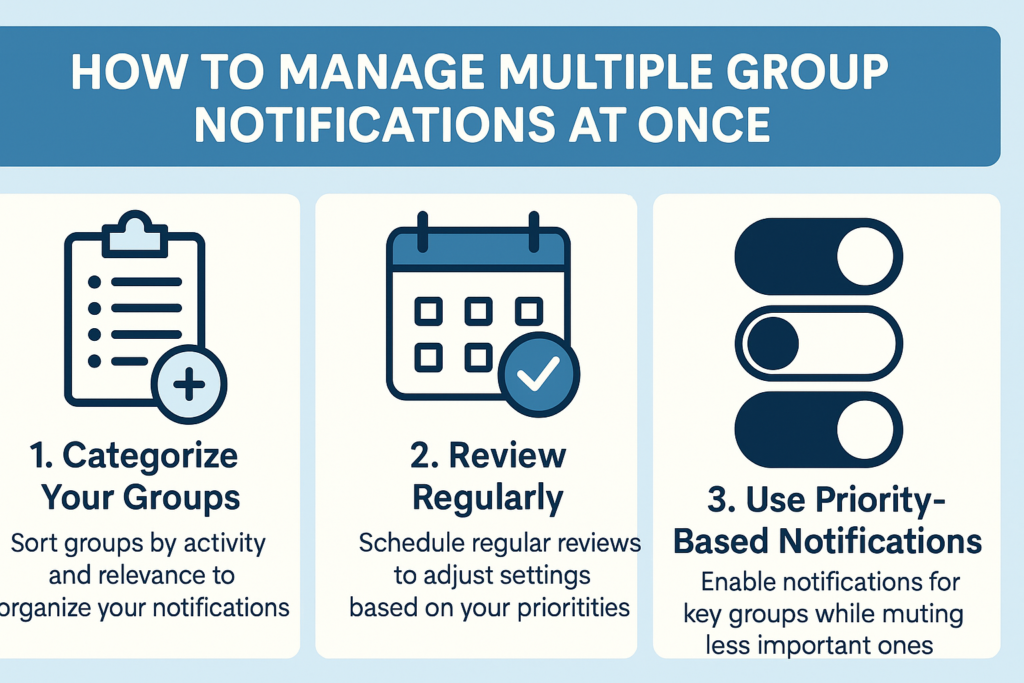
If you are in dozens of groups and channels, muting them one by one is slow. Better options:
- Turn off all group or channel notifications at once. In Settings → Notifications and Sounds, switch off notifications for groups or for channels, then add the few chats you still want to hear from as exceptions.
- Mute several chats together. On Android, long-press one chat, select the others, and tap mute once.
- Archive muted chats. Muted chats in the Archive stay there when new messages arrive, which keeps your main list for the conversations that matter.
- Use folders. Put work, friends and news in separate folders so you can check each one when you choose.
- Decide what the unread badge counts. In the notification settings you can choose whether muted chats count toward the number on the app icon.
A simple system that works for most people: full notifications for the few groups where your answer matters, mute plus mentions for medium-priority groups, and mute forever for busy groups and channels. If you run a group yourself and it's too quiet rather than too loud, that is a different problem: content, invites and, for a faster start, options to buy Telegram members can help it grow.
Troubleshooting: still getting notifications from a muted group?
- Check whether it's a mention or a reply. These can still notify you in a muted group.
- Check that the mute is on. Open the chat's info page and look at the notification setting; a timed mute may simply have ended.
- Check your exceptions. In Settings → Notifications and Sounds, an exception for that chat can override your general settings.
- Check the other device. If you use Telegram on a phone and a computer, look at the settings on the device that is making the noise.
- Check your phone's settings. Make sure Telegram's notification permissions and your phone's Do Not Disturb mode are set the way you expect. Updating the app often fixes notification bugs.
How to unmute a Telegram group or channel
Open the chat, tap its name and tap Unmute (on desktop, use the chat's menu and turn notifications back on). On Android you can also long-press the chat in your list and tap the unmute icon. Timed mutes end by themselves, so you only need to do this for chats muted forever or when you want alerts back early.
Key Takeaways
- To mute, open the chat, tap its name and tap Mute; on desktop, right-click the chat and choose Mute notifications.
- Use a timed mute for groups you care about and mute forever for busy groups and channels.
- Disable Sound keeps notifications on screen but silent.
- Muted groups can still notify you about mentions and replies, so you don't miss messages meant for you.
- To silence many chats at once, turn off group or channel notifications in Settings and add exceptions.
- Muting is invisible to others and fully reversible.
FAQ
Why mute a Telegram group or channel?
How do I mute a group on Telegram mobile?
Can I mute Telegram on the desktop app?
What happens when I mute a Telegram group or channel?
Will I still get notified when someone mentions me in a muted group?
Can I mute one person in a Telegram group?
How do I mute all Telegram groups at once?
How do I unmute a Telegram group or channel?
Related articles

How to Start a New Chat in Telegram: A Simple Guide

How to Add Admins to Groups and Channels in Telegram: A Simple Guide

How can I get Telegram Member (For channel and group)?

How to Create a Telegram Group: Your Complete Guide to Building Communities and Managing Group Chat

Telegram Tips and Tutorials: Your Complete Learning Hub

Ultimate Guide: How to Effectively Add Members to Telegram Channels and Groups
Comments
No comments yet. Be the first to share your thoughts.