
How to Share Your Location on Telegram: Complete Guide to Live Location and Advanced Features
Telegram is one of the most popular messaging apps in the world. One of its most useful features for getting in touch with friends, family, and coworkers is location sharing. This complete guide has everything you need to know about Telegram’s location features, whether you want to share your location for a quick meetup or need to use live location for ongoing coordination. We’ll look at how telegram works with location data, from basic sharing to more advanced spoofing techniques. We’ll also talk about how mastering these features can make your messaging experience much better.
What is Telegram Location Sharing and Why Use It?
Telegram location sharing is a built-in feature that lets users send their current or live location to contacts and group chats. This feature turns the telegram app into a powerful coordination tool that lets users share their exact location and get real-time updates on where they are.
The best thing about location on Telegram is that it can be used in many different ways. Telegram is different from other messaging apps because it lets you see both static and dynamic live location updates. When you share your location, the people who get it can see where you are on an interactive map that shows gps coordinates and nearby landmarks. This feature is very helpful for getting together with friends, making sure deliveries go smoothly, or making sure family members know where you are when you travel.
Telegram’s location features go beyond just sharing. The app gives you real-time location updates that change every minute, so other people can see where you are and what you’re doing. Telegram’s ability to work in real time makes it especially useful for ride-sharing, emergencies, or any situation where you need to keep an eye on someone’s location all the time. The messaging app does a good job of handling GPS location data, so sharing your location won’t drain your battery or use up too much data.
How Do You Share Your Location on Telegram?

It’s easy to share your location on Telegram; all you need to do is follow a few simple steps. To start, open any chat where you want to share your location and tap the paperclip icon next to the message box. To see the options for sharing your location, click “Location” on the menu that pops up.
If you haven’t already given telegram permission to access your location, it will ask for it when you choose to share your location. To find out where you are right now, the app needs permission to use GPS. You will see a map with a pin marking your exact location after you give permission. If you need to, you can move this pin to make sure the shared location is correct.
Just tap the “Send Selected Location” button when you’re ready to send. The person who gets the message will get a map that shows where you are and lets them interact with it. They can click on this map to see it in full-screen mode, get directions to your location, or copy the coordinates. This basic location sharing sends a picture of where you are right now, which is different from live location, which keeps changing. This way of sending your current location is great when you want to let other people know where to meet you.
What is Live Location and How Does It Work?
Live location is one of Telegram’s most advanced features. It gives you real-time updates on your location that happen automatically. Live location sharing is different from static location sharing in that it keeps broadcasting your location for a set amount of time, updating every minute to show where you are right now.
To turn on live location, do the same things you would do to share your location normally, but choose “Share Live Location” instead of sending a static location. Telegram will ask you how long you want to share your live location. You can choose between 15 minutes and 8 hours. You can also set it for one hour or any other length of time that works for you.
The live location feature makes a map that changes as you move. People who get your message can see your location dot move across the map, which gives them constant updates on where you are. This feature is especially helpful for coordinating with a lot of people in group chats because it lets everyone see exactly where you are without you having to keep updating them all the time. The system gives you real-time location data that updates automatically, so it’s easy for other people to plan trips with you or keep track of your progress. Telegram gives you a full view of where you are when you share your live location. This view updates automatically.
Can You Change Your Telegram Location?
Telegram mostly uses the real GPS location of your device, but there are good reasons why someone might want to change the location of their telegram. This could be for privacy reasons, to test features that work based on location, or to get content that is only available in certain areas. The app itself doesn’t let you change your location, but there are ways to do it.
Using fake GPS apps or location spoofing tools is the easiest way to change your location. These tools let you fake your location by blocking your device’s GPS signals, which makes Telegram think you’re in a different place. This method lets you trick the app into thinking you’re in a different place by giving it wrong coordinate data.
But it’s important to remember that you should only change your location in a responsible way and in accordance with telegram’s terms of service. Some people want to change their desired location for good reasons, like keeping their privacy safe or seeing how location-based features work in different areas. Before trying to fake your location, think about whether you really need to and make sure you know what will happen if you give false location data. For privacy reasons, a lot of people want to share a new location without giving away where they really are.
How to Use Telegram Location Features on Different Devices?

The steps for using Telegram’s location features are a little different on each platform, but the main features are the same. Telegram works perfectly with Google’s location services on Android devices, giving you accurate GPS location for both static and live location sharing.
The telegram app asks for location access through the usual permissions system for Android users. Once you give the app permission, it can get your GPS location and give you exact coordinates. The Android version of Telegram works especially well with Google Maps, which lets users see detailed maps that are accurate down to the street level.
Telegram location sharing works on iPhones and iPads through Apple’s location services framework. To make the live location features work right, iOS users may need to let Telegram access their location data while they are using the app and in the background. The iOS version works in much the same way as the Android version, and it works perfectly with Apple Maps to show shared locations. Both platforms let you share your location in a full way, whether you want to do it on Telegram or use advanced location features.
What Are the Privacy Implications of Location Sharing?
Before using the location-sharing features on Telegram, users should be aware of the important privacy issues that come with them. When you share your location, you’re giving other people exact information about where you are. This information could be used against you if it gets into the wrong hands.
Telegram has a number of privacy settings that let users control who can see their location. You can choose who can see your location and for how long with the app. You have control over when your location is visible to others when you use live location. You can stop sharing at any time. These privacy settings make sure that you only share your location with people you trust.
The messaging app also has ways to keep location data safe. Telegram encrypts location data while it is being sent, so your GPS location and coordinate data on Telegram are safe. Users should know, though, that sharing your location creates a digital record of where you’ve been, which could be accessed by law enforcement or other groups in some situations. The location in telegram feature has strong privacy controls, but users should know how their location looks to other people and change their privacy settings as needed.
How to Fake Your Telegram Location Using Advanced Tools?
There are many advanced tools and methods that can help you fake your location on Telegram for legitimate reasons. These tools trick your device into thinking you’re in a different place than you really are by sending it fake GPS signals.
One way is to use fake GPS apps that can make it look like you’re moving and give you static locations all over the world. These apps work by turning off your device’s location services and sending fake coordinate data to telegram and other location-based apps. Some people use this method to keep their personal information safe or to see how location features work in different areas.
More advanced users might use computer programs that can fake location data with more accuracy. These tools often have advanced features like route simulation, which lets users make realistic movement patterns instead of just jumping from one place to another. These location-based tools can mimic how people move in real life and instantly teleport to any place in the world. But it’s important to use these kinds of tools responsibly and only for legal reasons. If you break telegram’s terms of service, your account could be limited.
What is iToolab AnyGo and How Does It Work?
Itoolab Anygo is a professional location spoofer that lets people change their GPS location on both iOS and Android devices. This tool is a complete answer for anyone who needs to change their telegram location or their location in other location-based apps.
Anygo location spoofer has a number of important features that make it very useful for people who use Telegram. The tool lets you teleport anywhere in the world right away, and it gives you exact control over the coordinates of where you want to go. Anygos has more advanced features than simple fake GPS apps, like route planning and simulating movement. This makes changes in location look more natural and real.
The anygo location spoofer connects to your device and changes its GPS signals. Users can choose any spot on the interactive map, and the tool will make telegram believe you’re really there. This feature that lets you access content or features that are only available in certain areas is especially helpful for people who need to use them but can’t find them in their own area. The tool lets you fake your location in real time and has advanced features that can mimic complicated movement patterns.
How to Stop Sharing Location and Manage Settings?
Managing your location sharing settings on Telegram is very important for keeping your privacy and deciding who can see where you are. The app lets you choose from a number of ways to stop sharing your location and control your privacy settings.
To stop sharing your live location, just open the chat where you’re doing it and tap on the message that says “live location.” You can choose “Stop Sharing,” which will stop the live location broadcast right away. This lets you choose when and for how long people can see your location.
You can also control who can access your location on a system level with Telegram. You can see which apps can get to your location data and change these permissions if you need to. If you’re worried about privacy, you should check these settings often to make sure that only trusted apps can see your GPS location. You can also use Telegram’s privacy settings to control the people nearby feature and other location-based features.
What Are the Best Practices for Safe Location Sharing?

To keep your privacy and safety safe when sharing your location on Telegram, you need to follow a few best practices. First, only tell people where you are who you completely trust. Keep in mind that once you share your location, the people who get it can see exactly where you are and may be able to save this information for later.
When you use live location, be careful about how long you choose. Sharing for 8 hours might be helpful for long trips, but for most coordination needs, shorter times like 1 hour are usually enough. You can always share for longer periods of time if you need to, but starting with shorter ones helps keep your exposure to a minimum.
Think about using telegram’s privacy settings to limit who can see where you are. You can change the permissions for sharing your location with different contacts and group chats in the app. Also, keep in mind that location-based features like “people nearby” can show other Telegram users where you are, so change these settings to what makes you feel comfortable. When you want to let other group members know where you are, make sure they all know how long and what privacy issues it will cause.
Key Takeaways
• Telegram has both static and live location features. The live location feature updates every minute, and the static location feature does not.
• Live location updates every minute for 15 minutes to 8 hours.
• Location sharing works on Android, iPhone, and other platforms as long as the user has the right GPS permissions.
• Privacy settings let users choose who can see their location and how long they want to share it.
• Advanced features like itoolab anygo can fake GPS locations and teleport anywhere for legitimate reasons. Users should check their privacy settings often to make sure they have the right permissions to access and share their location. Sharing your location safely requires trust, time limits, and careful management of your privacy when you share your location with others. Telegram encrypts location data while it is being sent, but users should still be careful about sharing their location. The app’s location features work well with interactive map services to show coordinates accurately. You can stop sharing your location right away through the chat interface or the app settings. The bot integration and nearby people features add more location-based features. The share real-time locations feature works perfectly in group chats for coordinating with friends. Static locations let you share your location once, while live locations let you see where you are right now. The location shows up on an interactive map with exact location data and GPS location on Telegram integration.

How to Create and Share Your Telegram Profile Link: The Complete t.me Link Generator Guide
Right now, Telegram is one of the most popular messaging apps in the world. You can talk to each other safely and share files in many different ways. You need to know how to make and share your Telegram profile link if you want to grow your network and make it easy for people to find you. This is true whether you run a business, make content, or just want to meet new people.
This full guide will teach you everything you need to know about Telegram links, including how to make your first t.me link and how to share it on other sites. You will learn how to use Telegram’s linking system, the best ways to share your profile, and how to talk to other people with this powerful messaging app. When you finish reading this article, you will know how to use Telegram to its fullest for networking, both in your personal and professional life.
What is a Telegram Link and Why Do You Need One?

A Telegram link is just a direct URL that takes you to your profile, group, or channel on Telegram. These links, which look like t.me/yourusername, make it very easy for anyone to find and connect with you on the platform. Telegram is a messaging app that puts privacy first for its users. This means that using Telegram links to share your phone number with people you don’t know or business contacts is safer.
When you create a t.me link, you give people who aren’t on Telegram a way to get to your account. You can share this link on social media, in your email signature, or on your business cards. People can get to your profile from any device, including a phone, computer, or the web.
Having a link to your Telegram profile is great because it keeps your information private. If you want to ask someone to connect with you, you don’t have to give them your phone number. Just send them a link that has your username in it. This way, you can choose who can send you messages while still keeping your privacy and safety on the platform. You can use different privacy settings with your profile link on Telegram to choose who can see your account.
How to Set Up Your Telegram Username for Link Creation
Before you can make a t.me link, you have to name your Telegram account. This username is what people use to find you on Telegram and is the link to your profile. It’s simple to create a username, but you should consider which one to use because many Telegram accounts may want the same popular ones.
To set a username, open the Telegram app and go to the settings. Look for the box where you can enter your username and come up with a name that is unique to you or your brand. Your Telegram username should be professional, easy to remember, and related to what you want to do on the site. Be careful when you make a profile because your username will always be there on Telegram.
Don’t forget that no two usernames on the site can be the same. You will need to think of some new usernames if someone else has already taken the one you like best. Adding numbers, underscores, or words that are specific to your field can help your username stand out. Once you set your username, your Telegram link will automatically change to t.me/yourusername. You can also easily copy the link from your profile settings.
Step-by-Step Guide: How to Copy Your Telegram Profile Link
Once you’ve made your username, there are a few different ways to copy the link to your Telegram profile. You can do this with either the Telegram app or the web app. Opening the app and going to your profile is the easiest way. You can then find the share option that will give you your t.me link.
You can see your profile picture and other information by opening the Telegram app and going to your profile. You should be able to see your username clearly, and there should be a button next to it that lets you share or copy it. If you tap this option, the full link to your Telegram account will be copied to your device’s clipboard so you can paste it anywhere you want. This method works with any version of Telegram, whether you have it on your phone or computer.
If you get the “cannot copy the link” error, try restarting the app or checking your internet connection. You might have this problem if you use the web version of Telegram or if your internet connection isn’t working right. You can also make your link by hand by typing your username after t.me/. This is a great way to quickly share a telegram link in a chat or when the app doesn’t let you copy it right away.
Understanding Different Types of Telegram Links
Telegram has more than just links to personal profiles. It has different types of links that help you connect with other people and talk to them. If you want to invite someone to join your Telegram group, knowing about these different kinds of links will help you choose the best way to send them.
The personal profile link, which looks like t.me/yourusername, is the most common type of link. These links send people to your personal Telegram account, where they can talk to you right away. This type of link is great for making connections, helping customers, or building your own brand. When someone clicks on your link, a chat window opens up where they can talk to you right away.
There is a difference between Telegram group links and channel links, even though they look the same. People can join conversations that are already going on with more than one person by clicking on a link to your group. Telegram channels, on the other hand, let you share content with your subscribers in a way that is similar to a broadcast. The group link and the channel link are both very helpful for building communities, sharing information, and doing business communications. You can only make a Telegram group link or channel if you are an admin, and you should think about the privacy settings before you do.
How to Create a Telegram Link Generator for Your Business
If you run a business or make content and need to share Telegram links a lot, setting up a way to make links can help you get things done faster. Telegram doesn’t come with a link generator tool, but you can make your own way to keep track of and share all of your Telegram links.
Put all of your Telegram links in one place to begin. This could be your personal profile, links to your business accounts, and any groups and channels you run. Make a simple document or spreadsheet that lists all of the Telegram links, what they are for, and who they are for. This group will help you share a telegram link in different situations and make sure you always share the right link with your username.
You could make short links with your brand name that take people to your Telegram profile. Many URL shortening services let you make custom branded links that look better when you put them on business cards or other marketing materials. This way, you can keep track of more things while still making your messages look professional. You can also make a link that works perfectly with your other social media sites, like WhatsApp, so you can send and receive messages from all of them.
Best Practices for Sharing Your Telegram Profile Link

To do it right, you need to think carefully about where and how you share your Telegram profile link. The most important thing is to share your link on all of the platforms you use in a way that is professional and relevant, and that makes it easy for your target audience to find.
You could put your Telegram link in your email signature, on your business cards, and on your social media pages. This multi-channel strategy makes sure that people can find your Telegram even if they find your other content or services through other channels. When you share your Telegram profile link on other sites, you might want to add some information about what people can expect when they talk to you on Telegram.
Check that your links work before you send them to a lot of people. Click on your t.me link to make sure it works and goes to the right profile. This simple check can keep you from having to deal with the shame of sending someone a broken or wrong link. You could also write a standard message or introduction to use when you send telegram links. People should know what kinds of conversations or content they can expect when they get your telegram contact information.
Troubleshooting Common Telegram Link Issues
People sometimes have trouble making or sharing their profile links, even though Telegram is easy to use. You can keep your network connected and make sure that people can always get a telegram link when they need one if you know about common problems and how to fix them.
There are times when the internet or the app are having problems and you can’t copy the link. If you have this problem, try restarting the Telegram app, refreshing it, or checking your internet connection. Switching between the mobile app and the Telegram web app can sometimes fix problems with copying if you have Telegram installed on more than one device.
People often have trouble keeping track of their different Telegram accounts or usernames. Make sure you copy the right username and link for the job you want to do if you have more than one Telegram account for privacy reasons. Check that you’re logged into the right account before you share telegram links. This is very important if you have both a personal and a business profile on the site. Remember that you can only have one username for each Telegram account.
Privacy and Security Considerations for Telegram Links
When you share your Telegram profile link, you need to know what it means for your privacy and safety. You can choose who can contact you and how they can find you on Telegram by changing the app’s privacy and security settings.
Check your privacy settings often to make sure they are in line with what you feel comfortable with and what you need for work. You can choose who can see your profile picture and last seen status, whether people can find you through your phone contacts, and whether they can add you to groups without your permission. These settings, along with your public username, let you control everything about your Telegram account and make it easy for people to find you.
Think about what it means to give everyone your Telegram link instead of just a few people. Sharing your link with the public can help you meet new people and get more exposure, but it also means that anyone who has it can get in touch with you. You can choose who can message you on Telegram, but if you share Telegram links with a lot of people, more people will be able to reach you through Telegram.
Using QR Codes for Easy Telegram Profile Sharing

QR codes are a new and simple way to give someone your telegram profile link, especially when you meet them in person. Telegram has a built-in QR code feature that makes it easy to make and share these visual links with other people. You don’t even have to type their username by hand.
To find your Telegram QR code, go to your profile settings and look for the QR code option. This feature makes a unique QR code that links to your Telegram account. People can quickly get to your Telegram profile by scanning this code with their phone’s camera or QR code reader. They won’t have to type or copy any links. This method works really well when you use the Telegram app to meet new people.
QR codes are great for business cards, conference materials, and other printed materials that you want people to be able to quickly find your Telegram profile. They make it easy for both sides to connect and get rid of the chance of making mistakes while typing. If you want people to join a channel or start a conversation, you should think about putting your Telegram QR code on your marketing materials along with your regular contact information. This will make it easier for people to reach you.
Integrating Telegram Links with Other Platforms
You usually need to connect your Telegram account to your other social media and work accounts in order to network well. Strategic integration can help you build a complete online presence that makes it easy for people to get in touch with you on different platforms and know when to use Telegram instead of other messaging apps.
Think about how your Telegram link fits into the rest of your online plan. If you use WhatsApp for some things and Telegram for others, make sure you know what each platform is for before you share links. This makes it easier for your contacts to know when and why they should use each messaging app to talk to you and what kind of conversations they can have with you—private ones, group ones, or channel ones.
A lot of businesses have been able to use Telegram along with their other ways of talking to each other. You could use email for official business, WhatsApp for quick updates, and Telegram to connect with people or help customers. When you send someone your telegram profile link, be sure to explain these differences clearly so that they know what to expect and how to talk to you on telegram.
Frequently Asked Questions About Telegram Links
When people first start using Telegram or want to grow their network, they often have the same questions about sharing links and profiles. You can avoid common mistakes and get the most out of your Telegram networking by knowing the answers to these frequently asked questions.
One of the most common questions is what the difference is between giving out your phone number and your username. Sharing your username is a better way to protect your privacy because it doesn’t show your real phone contacts information. People can easily find you on Telegram using your username-based link, even if they don’t have your phone number. This is especially important for privacy reasons.
A common question in our FAQs is how long Telegram links last. Your t.me link will stay active as long as you keep the username you chose. If you change your username, though, your old links won’t work anymore, and you’ll have to share your new link with your network. When you make a link for your profile or business, you should think about the long-term effects and choose your username carefully.
Advanced Telegram Link Strategies and Tips
There are a number of advanced ways to share Telegram links and manage your presence on the platform for power users who want to get the most out of their Telegram networking. You can use these methods to make your communities stronger and to better manage your different Telegram accounts and channels.
Think about making separate telegram accounts for different things, like one for business networking and another for personal use. This method lets you keep your professional boundaries while still using Telegram to network. When you give someone your telegram profile link, you can send them to the right account based on how you know them.
If you run Telegram channels or groups, you should think carefully about how to promote them to each other. You could put a link to your main channel in your profile and then use that channel to promote other channels or groups. This method helps create a full Telegram ecosystem around your brand or interests. Keep in mind that adding a Telegram bot can also improve your link-sharing strategy by automating some interactions and making it easier for people to move between your different Telegram properties.
Key Takeaways for Telegram Link Success
• Choose a username that fits your personal or professional brand and will be the basis for your t.me link in all of your telegram messages.
• Always check your links before sharing them to make sure they work and go to the right profile, whether people use the telegram app or telegram web to get there.
• Use a variety of sharing methods, such as direct links, QR codes, and connecting with other social media sites, to get the most out of your networking.
• Use telegram links to share your profile while keeping your privacy and security settings the same as your comfort level and professional needs.
If you have more than one account, group, channel, or telegram bot integration, you should set up a central system to keep track of all of your telegram links.
• Think about the situation before you send someone a telegram link and explain what they can expect when they get a telegram connection with you.
• To help people find your Telegram presence and keep your brand recognizable, try to use the same username on all platforms when you can.
• Make sure your sharing plan still works for your networking and communication goals by reviewing and updating it often. Telegram lets you customize your sharing plan in many ways.
• Learn about the different kinds of telegram links that are out there and pick the best one for each sharing situation, like for personal profiles, group connections, or channels.
• Keep in mind that telegram is a messaging app that puts privacy first. When you want to invite someone to connect, always respect their privacy settings and use telegram links responsibly.

How to Hide Your Profile Picture in Telegram: Complete Privacy Guide for Profile Photo Control
In this day and age of technology, it’s more important than ever to keep your privacy safe on messaging apps. Telegram is different from other platforms because it has a lot of privacy settings, especially when it comes to controlling who can see your profile picture. Telegram is different from other messaging apps like WhatsApp in that it lets you control who can see your profile picture and when.
This complete guide will show you everything you need to know about how to change the privacy settings for your Telegram profile picture. This article gives step-by-step instructions for all devices, including Android and iOS, on how to hide your profile picture from certain users, keep your personal information safe, or just keep your profile picture private from certain users. You’ll learn how to hide your profile picture from certain contacts, understand the difference between public and private visibility settings, and find out about Telegram’s advanced privacy features that make it better than other messaging apps.
What is Telegram Profile Picture Privacy and Why Does It Matter?
Telegram profile picture privacy is the full set of settings that let you choose who can see your profile picture in the Telegram app. Telegram is different from simpler messaging apps because it lets you set very specific privacy settings that can limit who can see your profile picture to certain users, groups, channels, or categories of contacts. In a world that is becoming more and more connected, this level of control is necessary to keep your privacy and personal space safe.
When you add a profile picture to your Telegram account, you can choose who can see it in a number of ways. You can choose to share your profile with everyone, limit it to people in your contacts, or even hide your Telegram profile picture from some people while letting others see it. This flexibility is especially useful for people who want to keep their profile private from some people but still be able to see it by others.
There are more reasons than just personal preference to keep your profile picture private. Your profile picture often has personal information that can be used to find you on different platforms or in real life. You can stop unwanted contact, protect yourself from possible harassment, and have more control over your digital footprint by learning how to use Telegram’s privacy settings. Telegram is different from other messaging apps because of how it handles privacy and security. It gives users the tools they need to talk to each other safely and lets them choose who can see their profile picture.
How Does Telegram Profile Picture Privacy Compare to Other Apps?

When it comes to privacy for profile pictures, Telegram is much better than other popular messaging apps. WhatsApp and other platforms give you basic privacy controls, but Telegram lets you customize things so that you have a lot of control over who can see your profile and when. This messaging app is different because it has features that could be very helpful for keeping your privacy.
WhatsApp usually only lets you choose from three simple options: everyone, contacts, or nobody. Telegram, on the other hand, lets you make custom lists of people who can or can’t see your profile picture. This means you can choose to hide your profile picture from some contacts while keeping it visible to others. You can even make exceptions to your general privacy settings. You can control every part of your profile information, not just your photo, and you can manage each of your contacts separately.
This feature is available on all platforms, which is what makes Telegram so great. The privacy controls are the same and complete no matter if you’re using the Telegram app on your iPhone, Android device, or desktop. This consistency across platforms makes sure that your privacy settings work the same way no matter what device you use to access Telegram. This gives you a privacy experience that many other messaging apps can’t match. Telegram lets users keep their privacy the same on all of their devices.
Step-by-Step Guide: How to Hide Your Profile Picture on Android
Once you know where to look, it’s easy for Android users to control the privacy of their Telegram profile picture. You need to go into the Telegram app’s privacy and security settings and set who can see your profile picture the way you want them to. Android makes it easy to hide your profile from certain people.
First, open the Telegram app on your Android phone or tablet and go to the main menu. The settings option is usually shown by three horizontal lines or a gear icon. In the settings, look for the “Privacy and Security” section. This is where you can control who can see your profile picture and other private information. This is where Telegram lets you change your privacy settings exactly how you want them, and you can easily see your profile settings.
Find the “Profile Photo” option in the privacy settings. You have a few options for who can see your profile picture: “Everyone” lets anyone see it, “My Contacts” only lets people in your contact book see it, and “Nobody” hides it from everyone. You can also choose “My Contacts Except…” to hide your profile picture from some users but not others, or “Only Share With…” to show your profile picture only to a few people. These options let you choose who can see your Telegram profile, and you can even make it so that some people can’t see your profile at all.
Step-by-Step Guide: How to Hide Your Profile Picture on iPhone
iPhone users can use the same full privacy settings for their Telegram profile picture, but the interface may look a little different from the Android version. The features are still the same, so iOS users can still control their privacy in the same way that makes Telegram better than other messaging apps. If you only want to share your profile with certain people, follow these steps on your iPhone.
Open the Telegram app on your iPhone and go to the settings menu. You can usually find this in the top-right corner of the main screen or by clicking on the tab bar at the bottom. To find all the privacy settings for your Telegram account, go to “Privacy and Security.” This part has controls for your profile picture as well as settings for your phone number, last seen status, and other privacy features that help keep your profile private.
To see the options for who can see your profile photo, go to the Privacy and Security menu and click on “Profile Photo.” iPhone users have the same detailed controls as Android users. For example, you can hide your profile picture from everyone, limit it to contacts only, or make custom lists of who can and can’t see your profile picture. You can also choose not to share your profile picture with some users while still letting others see it. This gives you full control over your digital presence on Telegram. It’s easy to see and change your telegram settings on the iOS interface.
Understanding Telegram’s Advanced Privacy Settings for Profile Photos

Telegram’s advanced privacy settings are much more than just options to show or hide things. They give you very precise controls over who can see your profile picture. Telegram is different from other messaging apps because it has these advanced features that help users keep their privacy arrangements in place. You can choose who can see your profile and even hide the list of members in groups if you are an admin.
One of the best things about this is that you can make exception lists in your general privacy settings. For instance, you could make your profile picture visible to “My Contacts,” but then you could add certain users to an exception list so that they can’t see your profile even though they’re in your contact book. On the other hand, you could hide your profile picture from everyone except a few people you want to share your profile with. You can manage your profile picture for your contacts with amazing accuracy at this level of control.
You can also change who can see your profile picture on Telegram in different situations. You can have different settings for private chats, groups, channels, and public interactions. This means that you could let people see your profile picture in private chats but not in public or private groups, or the other way around. These fine-grained controls let you keep the right level of privacy for different kinds of interactions when you use Telegram for both work and personal communication. You are the only one who can decide if someone should see your profile.
What Happens When You Hide Your Profile Picture in Telegram
When you decide to hide your profile picture on Telegram, the platform instantly applies your privacy settings to all of your conversations and situations. Knowing exactly what happens when you limit who can see your profile picture will help you make smart choices about your privacy settings and make sure you get the level of privacy you want. People who can’t see your profile will always have the same restrictions on the platform.
If someone can’t see your profile picture, they’ll see a default avatar placeholder instead of your real picture. Depending on your Telegram settings and the device you’re using, this placeholder usually shows your initials or a generic user icon. These users can’t see your profile picture at all, whether they’re in a private chat, a group chat, or looking at your profile info directly. They will only see my profile as a placeholder and not your real photo.
The privacy settings work both ways: if you hide your profile picture from someone, they won’t be able to see it right away, even in conversations that happened before. If you later decide you want to let someone see your profile who you had previously blocked from seeing it, they will be able to see it as soon as you change your privacy settings. You can change your privacy settings whenever you want with this dynamic control. You can also go back and choose different settings if you need to.
Managing Profile Picture Privacy for Specific Contacts
One of the best privacy features of Telegram is that you can control who can see your profile picture without changing your overall privacy settings. This level of control lets you keep different levels of privacy with different people in your contact book, which is something that many other messaging apps, like WhatsApp, can’t do. You can set different privacy settings for your name and profile picture on Telegram for each contact.
To control privacy for certain users, go to your profile picture privacy settings and look for choices like “Add Exceptions,” “Never Share With,” and “Always Share With.” These options let you make special lists of people who should be treated differently than your general privacy rule. If you normally share your profile picture with everyone, you can add a specific person to a “Never Share With” list to keep your profile picture from them.
This feature is very helpful for keeping work and personal lives separate. You might want coworkers to see your profile picture for work reasons, but you might not want some family members to see it for personal reasons. You could also want to show your profile to close friends but not to people you know or people you met in public groups. You have full control over your digital presence on Telegram because you can change the privacy settings for each contact. Group admins cannot change these settings for you.
Privacy Implications: Who Can Still See Your Information
It’s important to know what information is still visible and what privacy issues come up when you hide your profile picture. Telegram has a lot of options for privacy, but some of your information may still be available to contacts and other users, depending on how you set up your other privacy settings. Knowing what people can still see helps you make smart choices about how to protect your privacy as a whole.
People who can contact you or see you in shared groups usually still see your name on Telegram even if you hide your profile picture. If you have a username set up, it may also be visible, depending on your privacy settings. Also, if someone has permission to see your phone number through Telegram’s privacy settings, they might be able to figure out who you are even if they don’t see your profile picture. The profile picture may be hidden from the public, but other information that could help identify the person may still be available.
Even if your profile picture is hidden, other people in groups and channels can still see your name and any messages you send. Group admins may be able to see more information about members, but this usually doesn’t include profile pictures that you’ve set to private. Knowing these limits will help you make smart choices about your overall privacy strategy on Telegram and make sure you don’t share more information than you want to. Keep in mind that keeping a picture from the public doesn’t affect all parts of your visibility.
Troubleshooting Common Profile Picture Privacy Issues
When users try to change the privacy settings for their Telegram profile picture, they sometimes run into problems or find that their settings aren’t working as they should. Knowing what problems are common and how to fix them can help you keep your privacy at the level you want and fix any problems that come up. There are usually easy answers if you want to hide your profile but some people can still see it.
One common problem is that people think they’ve hidden their profile picture, but some contacts can still see it. This usually happens because of conflicting privacy settings or exception lists. If someone can still see your profile when you thought you had hidden it, check your “Always Share With” list to make sure they weren’t added there by mistake. Also, make sure that your general privacy settings are correct and that you haven’t accidentally made exceptions that let some people see your profile picture.
Another common problem is that profile pictures are visible in groups but not in private chats. Some people think that their privacy settings should work differently in groups, but Telegram uses the same rules for profile picture privacy in all situations. You can’t see someone’s profile picture if you want to hide it from them, whether you’re in a private chat, a public group, or a private group. If your behavior is inconsistent, try refreshing your Telegram app or logging out and back in to make sure your privacy settings are in sync. People sometimes ask about these problems on sites like Quora, but the answer is usually in the settings.
Best Practices for Telegram Profile Picture Privacy

You can still enjoy the social features of Telegram while keeping your privacy in mind when you set up your profile picture. Following best practices will help you keep your privacy settings in line with your personal and professional needs while also keeping you as safe as possible on the platform. When making a profile picture, you should think carefully about who should be able to see it and why.
Think about making a privacy plan that takes into account the different kinds of relationships and interactions you have on Telegram. You could choose to show your profile picture to family and close friends but not to business contacts, or the other way around. If you don’t want people to be able to see your profile in groups and channels, change your settings to reflect that. If your needs change, you can always go back and choose different settings. You should also keep your profile settings up to date as your situation changes.
Check your privacy settings often, especially when you add new people or join new groups. What worked for your privacy needs six months ago might not be right for you now. You can easily change your Telegram settings as your needs change because the app has flexible privacy controls. However, you need to actively manage these settings to make sure they still work for you. To make sure your privacy settings still match your preferences and way of life, you might want to set a reminder to check them every few months. To use Telegram well, you need to keep up with these privacy settings.
Frequently Asked Questions About Profile Picture Privacy
A lot of people who use Telegram have the same questions about how to set up privacy settings for their profile pictures and how they work in real life. By learning the answers to these common questions, you can make better choices about your privacy settings and avoid common mistakes about how Telegram’s privacy features work. You can change these settings separately for your phone number and profile picture. They don’t affect each other.
A lot of people want to know if hiding your profile picture will stop you from using other Telegram features. No, hiding your profile picture doesn’t stop you from sending messages, joining groups, using Telegram bots, or using any other features of the platform. Your privacy settings only control who can see your profile picture; they don’t stop you from using the platform in any way. You can still fully take part in group discussions and chat conversations.
Another common question is whether or not people can tell that you’ve hidden your profile picture from them. Most of the time, users can’t tell if they’ve been specifically blocked from seeing your profile picture or if a general privacy setting is in place. If someone can’t see your profile picture, they’ll see the same placeholder avatar no matter who you’ve hidden it from: everyone, all non-contacts, or just them. This level of discretion lets you keep your privacy without making it clear that you’re not getting along with certain people on your contact list. This method might be more diplomatic than other messaging apps.
Key Takeaways for Telegram Profile Picture Privacy
• Customize your visibility settings to match your comfort level – Telegram gives you an incredible amount of control over who can see your profile picture, so take advantage of these granular options that are not available in apps like WhatsApp
• Use exception lists strategically to create different privacy levels for different contacts without affecting your general settings for the majority of your contact book – this feature is available for both individual contacts and groups
• Review your settings regularly as your relationships and circumstances change – what works today might not be appropriate in six months, and changing your profile privacy should be an ongoing consideration
• Understand that privacy settings are immediate and comprehensive – when you hide your profile picture from someone, they lose access immediately across all contexts, and they cannot see your profile in any situation
• Remember that other information may still be visible even when you hide your profile picture, so consider your overall privacy strategy on Telegram including your phone number and username visibility
• Take advantage of cross-platform consistency – your privacy settings work the same way whether you’re using Android, iOS, or desktop versions of Telegram, ensuring consistent protection of your personal data
• Don’t worry about social friction – people cannot tell if they’ve been specifically excluded from seeing your profile picture versus being affected by general privacy settings, making this a diplomatic way to maintain boundaries
• Combine profile picture privacy with other privacy controls for comprehensive protection of your personal data and digital presence on the platform, including controlling who can see your telegram information
• Test your settings by asking trusted contacts what they can see to ensure your privacy preferences are working as intended and that you’ve successfully configured who can see your profile picture

How to Enable Auto-Night Mode in Telegram: A Step-by-Step Guide
Telegram’s Auto-Night Mode simplifies the process of switching between light and dark themes by automatically activating the appropriate display based on specific conditions such as the user’s location, local time, ambient light levels, or mobile device system settings. This feature enhances user experience in low-light environments, supports users with extensive reading needs, and conserves battery life on OLED screens. Whether you’re exploring Telegram dark mode for visual comfort or looking to optimize your night mode Telegram experience, this comprehensive tutorial guides Android and iOS users step-by-step through enabling Auto-Night Mode and customizing it to suit their preferences.
Understanding Telegram’s Auto-Night Mode
With the Auto-Night Mode, Telegram provides its users with the capability of auto switching to the required theme by offering the following three options:
Scheduled Times: Automatic switch of light and dark modes based on fixed time frames.
Adaptive Mode (Ambient Light): Meets the light requirement of the surroundings automatically through the device.
System Default: The system would automatically set a compatible theme to the rest of the applications on the user’s device.
This feature comes in handy to users who prefer automatic adjustments of the theme without the constant need to change the settings.
Setting Up Auto-Night Mode on Android Devices
For Android owners, turning on Auto-Night Mode is very easy and may be modified to your liking. Kindly adhere to the procedures below:
Step-by-Step Guide for Android:
- Open Telegram: Go to the home screen of your Android device and start the Telegram app.
- Access Settings: Using your device, click on the menu three horizontal lines (hamburger menu), which can be found on the top left of the screen and click on Settings.
- Navigate to Chat Settings: Tap on Chat Settings to customize aspects of your chat experience.
- Configure Auto-Night Mode: Look for Auto-Night Mode and touch it to see the options.
- Select a Mode:
- Disabled: Disables the Automated Night Function.
- Scheduled: Lets you plan the time for the light and dark themes to be automatically switched.
- Adaptive: Automated-focus modes change the themes as per the level of light present in the room but this may need the user to use a bar to set the angel level.
- System Default: Follows the system-wide theme setting of your Android device.
Customizing Brightness Threshold in Adaptive Mode
In the event that Adaptive Mode is selected, it is feasible to define the light level which would be used as a switch, which will initiate the theme change. If the night level of the light is set too high, it will cause night mode to be turned on even in dark conditions, whereas lower settings will enable switching to night mode at lower levels of light.
Enabling Auto-Night Mode on iOS Devices
For the iPhones, Auto-Night Mode works in the same way and is found in the Settings of the Telegram application.
Step-by-Step Guide for iOS:
- Open Telegram: Launch Telegram on your iOS device.
- Access Settings: Tap the Settings tab at the bottom-right corner of the screen.
- Go to Appearance: Tap on Appearance to open theme customization settings.
- Configure Auto-Night Mode: In the Appearance section, select Auto-Night Mode to view the available options.
- Choose a Mode:
- Disabled: Turns off Auto-Night Mode.
- Scheduled: Allows you to set a time range for the theme switch.
- Adaptive: Adjusts the theme according to ambient light.
- System: Syncs with the system-wide theme preference set in iOS.
Using Brightness Settings in Adaptive Mode
In the same way as the adaptive mode users of Android devices, the adaptive mode users of iOS devices can also adjust the brightness range used to determine at what environment the night theme will be switched on. When you have a higher range, the theme will be switched on in dark places, but if the range is lower, the dark mode gets activated faster.
Customizing Themes for Auto-Night Mode
The users of Telegram can modify the appearance of how the app looks in the day or in the night. Therefore, users have the choice of how their app looks like in any mode.
Setting a Preferred Night Theme:
- Choose a Default Dark Theme: Telegram includes several pre-designed dark themes to choose from.
- Create Custom Themes: Users can create custom dark themes by adjusting colors and backgrounds to suit personal preferences.
Adjusting the Day Theme:
- Light Theme Selection: Pick a standard light theme for daytime use.
- Theme Consistency: Ensure the selected light and dark themes provide a comfortable experience and align with your aesthetic preferences.
For those theme settings you go in Chat Settings (Android) or Appearance (iOS): select desired themes and relate them to the Theme in your case – Preferred Night Theme.
Benefits of Using Auto-Night Mode
When it comes to using Telegram, there are numerous benefits that come with the use of Auto-Night Mode. There are a number of reasons why you should enable it out there as well -In the first place :
- Reduced Eye Strain: Both shallow and dark themes are easy on the eyes when a user is in a dark environment allowing him to stay comfortable at night.
- Battery Conservation on OLED Displays: Dark themes save battery on the devices such as OLED ones increasing the battery life.
- Enhanced Readability: While in the dark, Auto Night mode aids in enhancing the reading experience.
- Convenient Automation: One doesn’t have to get inside the settings to change the themes as the language is altered according to the user.
Troubleshooting Common Issues with Auto-Night Mode
Should you notice that Auto-Night Mode is always failing to work, do as follows.
- Update Telegram: Ensure you are using the latest version of Telegram, as new updates may improve the performance of Auto-Night Mode.
- Check Device Compatibility: Auto-Night Mode may not work on very old devices or operating systems that don’t support theme switching.
- Adjust Brightness Threshold: If Adaptive Mode isn’t switching correctly, try adjusting the brightness threshold slider to fine-tune when night mode is activated.
These settings together with regular app updates ensure usage of Auto-Night Mode is smooth.
Conclusion
The Auto-Night Mode in the Telegram application is a sort of transformation that improves the practicality and aesthetic value of the application. An Auto-Night Mode can be scheduled with a demonstrated custom timetable, automatic transitions depending on the light present, or have it change according to system defaults. Managing the visual design of numerous environments in which one utilizes Telegram is made easy with this option. Such a feature prevents the user from excessive strain, optimizes battery for OLED screens, and makes the text more readable by changing automatically to fit the time or the brightness of the surrounding.
You may use the fully Auto-Night Mode in accordance with the recommendations given in this article to enhance your overall experience while using Telegram. Taking full advantage of night mode Telegram not only improves usability in low-light conditions but also personalizes the interface for greater comfort. Such updates, along with regular practice on platforms like Twitch, help readjust the application space to better suit the user’s evolving requirements and preferences. Whether you’re exploring Telegram dark mode for eye strain relief or aesthetic reasons, consistent use ensures the interface aligns seamlessly with your habits.

How to Enable Floating Video Playback in Telegram: A Step-by-Step Guide
Telegram makes it possible for users to watch movies in a tiny, movable container. It is fantastic since it allows you to run additional programs or perform tasks on the platform without pausing the video. No matter your location, whether on an Android device or an iOS device, there is no difference. The PiP mode in Telegram makes the overall user-parent useful in that one does not have to switch from the active content to pause something. This is why we have provided a step by step guide on how to activate and make the best use of the floating video option on Telegram.
What is Picture-in-Picture Mode in Telegram?
Using this feature, you can watch videos while chatting on the Telegram app or other apps for an endless period of time, as your video plays in an active movement reducing the entire container. It is no surprise that with contact PiP, videos embedded in group coversation messages get delivered in a stand-by mode so that when a user looks at a text there will be issues switching the screen where the video is active.
Advantages of PiP Mode:
- Increased Multitasking: Allows you to watch a video while chatting, browsing channels, or accessing other apps.
- Continuous Video Playback: Video playback continues even when you exit the chat where it was playing.
- User-Friendly Experience: The floating video window can be moved or resized according to your preference, providing flexibility in how you view content.
How to Enable Floating Video Playback on Android Devices

For Android devices, PiP mode on Telegram is user-friendly and simple to use. To activate such following steps are required:
Step-by-Step Guide for Android:
- Open a Chat with a Video: Launch Telegram and go to the chat, group, or channel containing the video you want to watch.
- Start Playing the Video: Tap on the video to play it within Telegram’s video player.
- Activate PiP Mode: While the video is playing, locate the PiP icon, often shown as a small square with an arrow, at the top-right corner of the video screen. Tap this icon to shrink the video into a floating window.
- Multitask as Needed: Once PiP is activated, you can move the floating video window around the screen to any location that works best for you. You’re free to navigate other parts of Telegram or even use different apps without interrupting playback.
Customizing PiP on Android:
- Resize the Window: Pinch in or out on the floating video to adjust its size.
- Move the Window: Drag the video to any position on the screen.
- Access Playback Controls: Tap on the floating window to access options like play, pause, and close.
How to Enable Floating Video Playback on iOS Devices
iOS users can also enjoy PiP mode in Telegram with similar ease. Here’s how to enable it on an iPhone or iPad:
Step-by-Step Guide for iOS:
- Open a Video in a Chat: Navigate to a Telegram chat or channel with a video.
- Play the Video: Tap on the video to start playing it within Telegram’s video player.
- Activate PiP: While the video is playing, simply swipe up from the bottom of the screen (or press the Home button on older devices) to exit to the home screen. The video will automatically shrink into a floating window.
- Multitask on iOS: You can now move the floating window around or continue using other apps while the video plays in PiP mode.
Customizing PiP on iOS:
- Resize the Floating Window: Pinch in or out to adjust the size of the floating video.
- Move the Window: Drag it to your desired position.
- Access Playback Options: Tap on the floating window to pause, play, or close the video.
Optimizing Your PiP Experience: Tips and Tricks
Pip mode in telegram is a versatile feature that is made to fit your needs. However, there are a few tips you might ignore that can come in handy when using this feature:
Manage Window Placement: Avoid placing the floating window at the corners of the screen as it tends to block important information in other applications.
Use Larger Screens Effectively: PiP mode is perfectly convenient for bigger screen devices namely tablets, since it delivers videos with less stress on the screen.
Quick Pause and Resume: You can touch the moving video at any time and get an option to control it, making it faster and easier to mute and play the content.
The Benefits of Using Telegram’s Picture-in-Picture Mode
The purpose of PiP mode is to further enhance the experience on Telegram, particularly on video usage. Here are some of its advantages over other modes:
Enhanced Multitasking: PiP mode allows you to engage with multiple chats, browse through channels, or even use other apps while a video is playing.
Uninterrupted Video Experience: Once PiP mode is enabled, videos continue to play even if you leave the chat where it originated.
Customizable Viewing: The floating window can be resized or moved, providing a flexible viewing experience that doesn’t take up the entire screen.
So as we saw, Telegram’s picture-in-picture mode is an easy function that allows you to continue watching videos even after switching away from the chat or the app. This feature is very straightforward to implement across iOS and Android devices and allows for setting adjustments to improve the viewing experience. Whether it is a short video message or a step by step tutorial, PiP mode is comfortable and gives the opportunity to run other functions of Telegram or other applications on the device at the same time. So by reading this article you will be able to enjoy the benefit of floating video in Telegram and make your chatting in the app even more comfortable.

Clearing Your Telegram Contact List: Best Practices and Tips
It’s important to keep your telegram contacts private and organized. This full guide will show you all the ways to remove a telegram contact, whether you want to do it for privacy reasons, to clean up your contact list, or just because you don’t talk to them anymore. You can keep your telegram account organized and safe by learning how to delete telegram contacts the right way. This will give you more control over your messaging experience.
What Happens When You Delete a Telegram Contact?
You can still get messages from someone even if you delete them from your telegram contacts. This doesn’t stop the person from messaging you or block them; it just takes them off your organized contact list in the telegram app. The contact you deleted won’t be in your contacts anymore, but you can still see your conversation history.
If you delete a contact from Telegram, it won’t change the list of contacts on your phone. If you synced the contact from your phone to Telegram, they will stay in your phone’s contact app. This separation means that you can now manage your telegram account separately from the contact management system on your phone.
If you need to, you can always add the contact back. But to add them back to your Telegram contacts, you’ll need their phone number or username. You can easily manage your contacts on Telegram because of this flexibility. You can also try out different ways to organize them without worrying about what will happen.
Deleting Individual Contacts on Telegram
For Android Users:
- Open the Telegram app on your device.
- Tap the hamburger menu (three lines) in the top-left corner.
- Select Contacts to view your list.
- Locate and long-press the contact you want to delete.
- Tap the trash bin icon at the top to delete the contact.
- Confirm the deletion when prompted.
For iOS Users:
- Open the Telegram app and go to Contacts.
- Find the contact you want to remove and tap on their name to open the profile.
- Tap on Edit at the top right.
- Scroll down and select Delete Contact.
- Confirm the deletion to remove the contact from your list.
For Desktop Users:
- Launch Telegram Desktop and go to Contacts from the main menu.
- Select the contact to open the chat window.
- Click on the contact’s name at the top of the chat.
- In the profile, click the three-dot menu and choose Delete Contact.
- Confirm the deletion to remove them from your contact list.
Deleting Multiple or All Contacts on Telegram
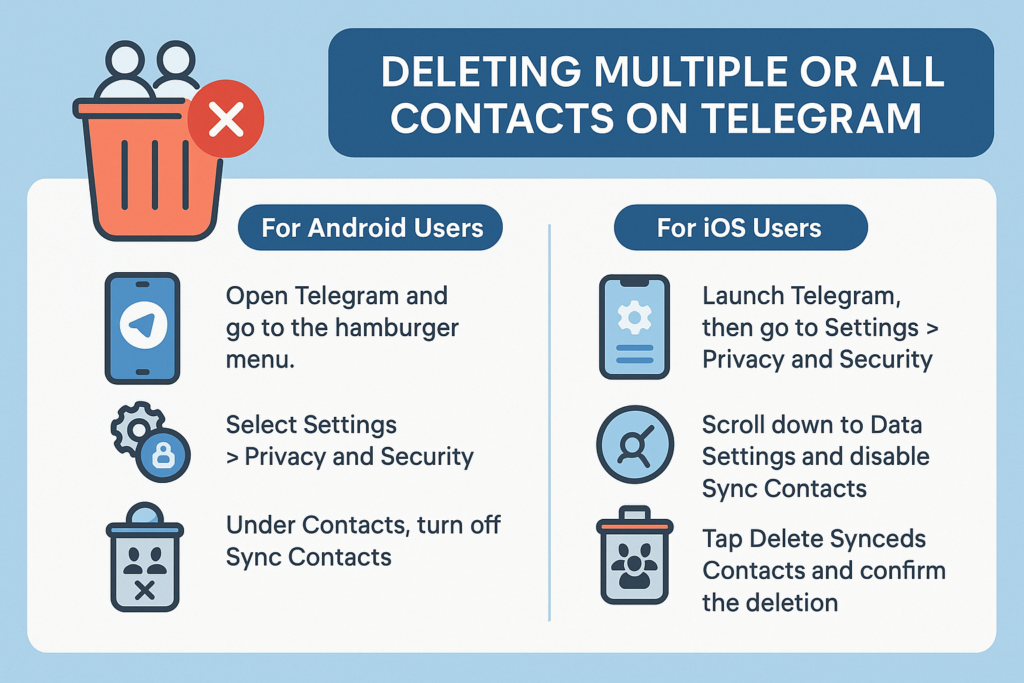
In case you wish to remove the contacts which you have added on telegram but want it to be deleted in bulk, there’s an option available that will assist you to do so. But keeping in mind this will only delete the contacts synced from your device to telegram and not the contacts backed up on the mobile device in use.
For Android Users:
- Open Telegram and go to the hamburger menu.
- Select Settings > Privacy and Security.
- Under Contacts, turn off Sync Contacts.
- Tap on Delete Synced Contacts and confirm the action.
For iOS Users:
- Launch Telegram, then go to Settings > Privacy and Security.
- Scroll down to Data Settings and disable Sync Contacts.
- Tap Delete Synced Contacts and confirm the deletion.
Disabling Contact Syncing for Future Use
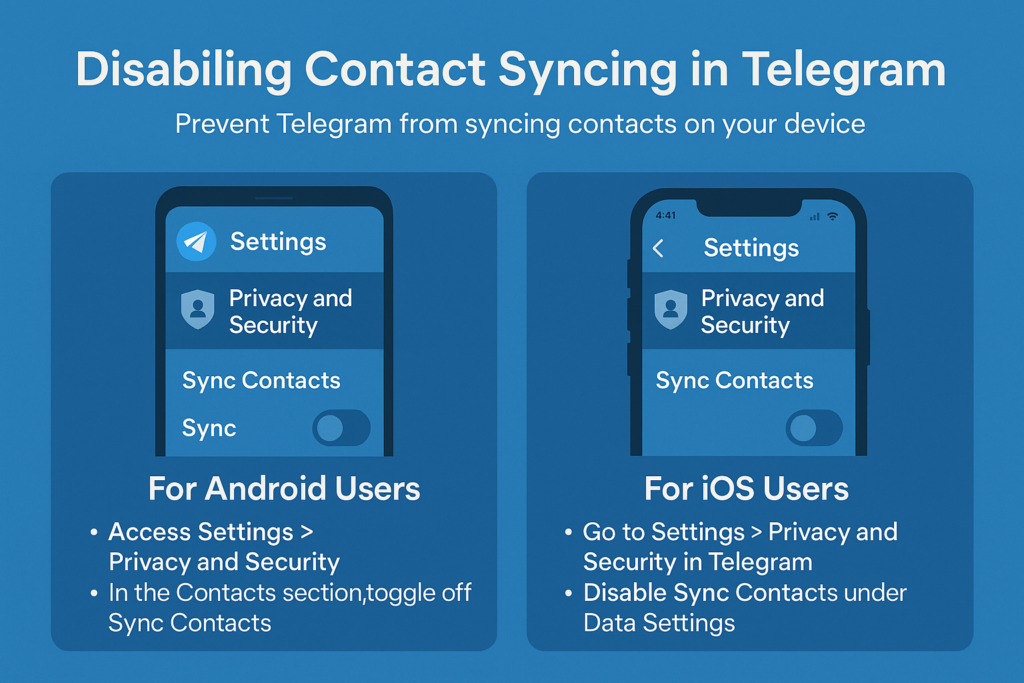
Disabling Contacts Syncing For Future Use In order to avoid Telegram from syncing contacts on your device in the future you can disable this feature altogether. This will enable you to add and manage contacts in the application and will ensure that there are no additional contacts added into your list through syncing automatically.
For Android Users:
- Open Telegram and access Settings > Privacy and Security.
- In the Contacts section, toggle off Sync Contacts.
For iOS Users:
- Go to Settings > Privacy and Security in Telegram.
- Disable Sync Contacts under Data Settings.
By disabling contact syncing, you have full control over your contact list without new additions unless you manually add them.
Sometimes it is necessary to drop certain contacts which does not take much time but can greatly help you in keeping your list clean. It can also improve your security. If you are going to go through these guidelines, then you should know how to add and remove contacts, how to limit specific additions, and how to regulate your messaging space. You might also want to periodically delete your contacts or adjust your privacy settings in order to enhance your Telegram experience and keep your account clean.
What’s the Difference Between Deleting and Blocking Contacts?
You should know the difference between blocking and deleting contacts on Telegram because it changes how you can talk to them. You can still get messages from people you’ve deleted from your Telegram contacts list, but they won’t be able to see your organized contacts list anymore. You can’t see the contact in your contacts anymore, but you can still see all of your past conversations in your chat list.
On the other hand, blocking a contact is a more complete step that stops all communication between you and the person you blocked. When you block someone on Telegram, they can’t message you, add you to groups, or see when you’re online. Blocked contacts won’t be able to see your profile pictures or when you were last online, and you won’t get any messages from them.
You can delete a contact if you want to clean up your list of contacts but still be able to talk to them. This is great for people you don’t see or talk to very often, like coworkers or friends. You can block someone if you don’t want to talk to them anymore, like a spam account, a harasser, or someone you don’t want to talk to anymore.
How to Prevent Contacts from Being Added to Telegram Automatically
You need to change some settings in your telegram account to stop automatic contact additions. This will give you full control over who shows up in your contact list. The first and most important thing to do, as we talked about before, is to turn off contact syncing. When you add someone new to your device, this stops telegram from automatically adding them to your phone’s contact list.
You can also change your privacy settings so that only certain people can see your phone number. Look for options in the “Privacy and Security” settings that say “Who can find me by phone number.” Change these settings to “My Contacts” or “Nobody” depending on how private you want to be. This stops people who might have your phone number from automatically seeing you on Telegram.
You might want to be more careful about which contacts you add to your phone if you haven’t already turned off syncing. Many people think it’s easier to keep their phone and telegram contacts separate. For instance, they add people to Telegram by using their usernames instead of syncing phone numbers. This way, you can keep your phone’s contact list separate from your telegram contacts and manage them in great detail.
Troubleshooting: What to Do When You Can’t Delete Contacts
Sometimes, users have trouble deleting telegram contacts. It can help to know how to fix these problems quickly. The most common problem is that apps are out of date. There may be bugs or features that aren’t there. Check to see if the latest version of your telegram app is installed on your device. This is because the features for managing contacts are always getting better.
Try closing and reopening the Telegram app if you still can’t delete a contact after updating. Close the app all the way and then open it again. Try once more to delete the file. When the app has temporary bugs, it can be hard to manage contacts. Restarting the app fixes these problems.
You might not be able to delete contacts if your network connection isn’t working right because the action needs to sync with Telegram’s servers. Check to see if your internet connection is stable, and then try deleting the file again. If the problems keep happening, try switching between Wi-Fi and mobile data to see if the network is the problem. You might have to log out of your Telegram account and then back in again to get your contact list to update and everything to work again, but this is very rare.

How to Create Your Own Telegram Bot: A Complete Step-by-Step Tutorial for Beginners
One of the most popular ways to automate interactions and make users’ experiences better on Telegram is to build a bot for the app. This complete guide will show you how to make a telegram bot for customer service, entertainment, or business automation, no matter what you want it to do. You’ll learn how to make a bot that meets your needs without needing a lot of coding experience. You’ll start by using BotFather to set up your first bot and then move on to deploying and testing it. This tutorial is worth your time because it gives you useful, actionable information that will help you understand how to make a bot and start making your own automated solutions right away.
What Is a Telegram Bot and Why Should You Create One?
A telegram bot is an automated account that can talk to people through the Telegram messaging app. It can respond to commands, send notifications, and do other things without any help from a person. A bot works through the Telegram Bot API, which lets developers build and run complex automated systems that can do everything from simple chat responses to complicated business processes. This is different from regular user accounts. A telegram bot is like a digital assistant that can work all the time to help your users.
The best thing about making your own bot is that you can use it in many ways and it is easy to get to. You can use bots to automate customer service, send alerts to subscribers, manage groups or channels, and even connect with outside services like OpenAI or ChatGPT to give smart answers. Telegram bots are very appealing because they can always be online, handle multiple conversations at once, and give users consistent, reliable service. If you don’t plan ahead, a bot might not work, but a well-made telegram chatbot can change the way you talk to your audience.
Making your bot doesn’t require a lot of coding knowledge, so business owners, marketers, and people who want to automate different parts of their online presence can all do it. Telegram has everything you need to make your idea a reality, whether you want to make a simple notification bot or a complicated chatbot that can answer customer questions. Users can talk to your bot in a natural way, which makes it a great place for people to talk to your bot.
Getting Started with BotFather: Your Gateway to Bot Creation
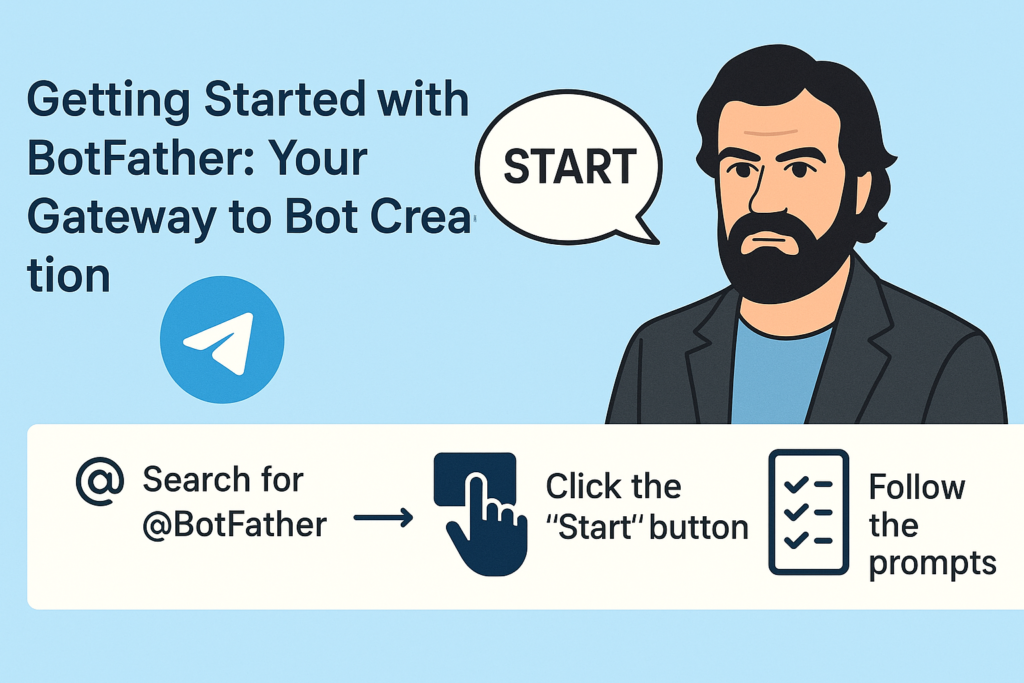
The official bot for Telegram is BotFather, which is the main place to create and manage all bots. This special bot is the main way for you to make, set up, and manage your telegram bots. To start making your bot, open the Telegram app and search for “@BotFather.” When you find it, click the “Start” button to start making your first bot.
When you first talk to BotFather, you’ll see a list of commands that let you make and control your bots. The interface is easy to use and will help you make your bot by giving you clear instructions and prompts at every step. BotFather will ask you for important information about your bot, such as its name and the username you want it to use. This step-by-step guide makes the process easy for people who don’t have a technical background.
It’s important to know how to use BotFather well because you’ll need to go back there to change your bot’s settings, profile picture, description, or list of commands. BotFather also lets you use advanced features like inline query support and webhook configuration, which makes it an essential tool for your bot’s entire life. When you learn how to make things with BotFather, you’re learning the most important skill you’ll need for all future bot development.
How to Create a Telegram Bot: The Initial Setup Process
To make a telegram bot, the first step is to send the command “/newbot” to BotFather. This simple command starts the process of making a bot and opens an interactive session in which BotFather will ask you for specific information about your new bot. Making something is easy and usually only takes a few minutes, so anyone who wants to make their own automated assistant can do it.
When you type in the “/newbot” command, BotFather will ask you to give your bot a name. Users will see this name when they talk to your bot, so it should be easy to remember and describe what it does. After you give your bot a name, you need to make a username for it. This username must end with “bot,” like “myawesomebot” or “customer_service_bot.” You might have to try a few different usernames before you find one that is available on all of Telegram.
BotFather will give you an API token after you successfully make your bot. This is a long string of characters that identifies your bot and gives you access to the Telegram Bot API. This token is very important for your bot to work because it lets it send and receive messages through API calls. You must keep this token safe and use it in your bot’s code to verify requests and let the bot talk to Telegram’s servers. This is when you can start adding features to your telegram bot after you’ve made it.
Choosing the Perfect Name and Username for Your Bot
It’s more important than many beginners think to choose the right name and username for your telegram bot. Subscribers will see the name in their chat list, and new users will see it when they first find your bot. It should be easy to remember and professional, and it should make it clear what your bot does. For instance, if you’re making a bot to handle customer service, names like “Support Assistant” or “Help Desk Bot” make it clear what the bot does and help users find what they need.
Users can find your bot through Telegram’s search function by using the bot’s username. Other developers can also use the bot’s username to refer to your bot in their apps. The username has to be unique and end with “bot,” so you should pick something that is both easy to remember and brandable. Think about adding your business name, the bot’s main purpose, or keywords that people might use when looking for a bot on Telegram that is similar to yours.
When BotFather asks you for this information during the bot creation process, keep in mind that you can change the bot’s name and description later using the edit your bot commands, but the username is permanent once you choose it. This makes choosing a username very important because you won’t be able to change it without making a new bot. Before you make your final choice, take some time to think of a few options and make sure they are all available. People will be able to use your bot more easily if you choose a name and username that are easy to remember.
Understanding the Telegram Bot API and Its Capabilities
The Telegram Bot API is what makes all of the bots on the platform work. This full bot API gives developers everything they need to make complex automated systems that can handle different types of user input, send messages in different formats, and work with other services. Anyone who wants to make more than just a basic response bot needs to know what the API can do. The telegram bot api has a lot of features that can turn simple bots into powerful automation tools.
The bot API can handle many kinds of messages, such as text, photos, documents, audio files, and even location data. Users can give your bot commands, ask questions, and get back rich content like custom keyboards, inline buttons, and formatted text. The API also lets your bot work in groups or channels, manage channel subscriptions, and handle complicated workflows that require multiple users to interact with each other. The API gives you the endpoints you need to send alerts or notifications to your bot through https requests.
One of the best things about the Telegram Bot API is that it can handle webhook connections. This lets your bot get updates from Telegram servers in real time. This means that your bot can answer user messages right away instead of having to keep checking for new ones. The API also lets you connect your bot to databases, AI services like OpenAI, payment processors, and other third-party platforms, which lets you make complete automated solutions. You need the webhook feature to make and control interactions in real time.
How Do You Connect Your Bot to External Services?
You can automate and improve your bot’s features in endless ways by connecting it to external services. The most common method is to use webhooks to get updates from Telegram and then use API calls to other services based on what users do. With this setup, your bot can get real-time data, handle complicated requests, and give dynamic responses that are much more than just simple pre-programmed messages. You’re making a connection between Telegram and the rest of the internet when you connect your bot to services outside of Telegram.
If you want to add ChatGPT or OpenAI features to your business, you’ll need to set up your bot to get user messages, send them to the AI service to be processed, and then send the responses back to the users. This makes a smart chatbot that can talk to people in their own language, answer questions, and give them help that is specific to them. To make sure the service is reliable, the integration needs to handle API keys and errors correctly. This method lets your bot give smart, context-aware answers that make talking to it feel natural and helpful.
You need to host your bot on a reliable server or cloud platform if you want it to always be online and respond. You can use VPS hosting, Heroku, or other cloud services that can keep your bot code running all the time. It is important that the hosting solution you choose for Telegram can handle HTTPS requests because Telegram needs secure connections for webhook communications. With the right hosting, your bot can handle multiple conversations at once and keep performing well even when it’s busy. When you host your bot correctly, each user can count on getting the same service every time.
What Commands Can Your Telegram Chatbot Handle?
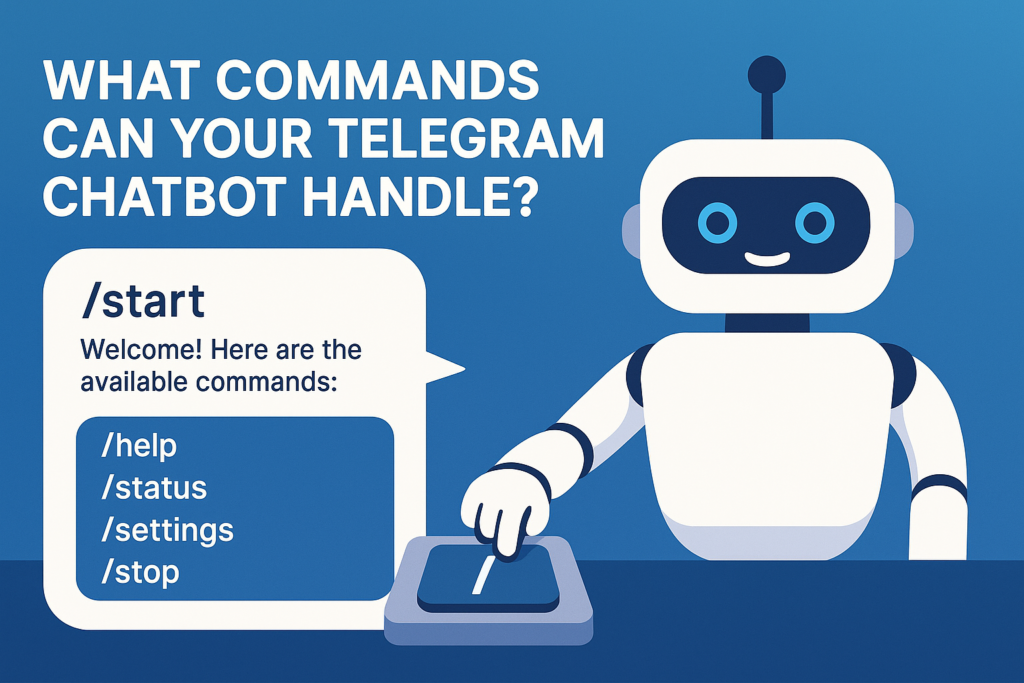
A well-made telegram bot can take a lot of different commands, making it easy and quick for users to interact with it. The command “/start” is the most basic one. It usually sends a welcome message and tells new users what your bot can do. From there, you can make commands that fit the specific job your bot needs to do, like giving information, handling requests, or making transactions easier. It should be easy to remember and clearly define these commands that will make your bot work.
When people type “/” in a chat with your bot, BotFather lets you make a list of commands that will show up for them. This list of commands is like a menu that shows users what your bot can do. Some common command patterns are “/help” to get help, “/status” to check current information, “/settings” to see configuration options, and “/stop” to end interactions or stop getting notifications. When users get commands, they should get clear, useful answers that help them figure out what they can do.
Advanced bots can also understand natural language input that isn’t formal commands. If you connect your bot to AI services, it will be able to understand conversational messages and respond correctly without users having to learn how to use specific command syntax. This method makes your bot easier to use and more accessible, especially for people who like talking to it in a natural way instead of giving it structured commands. You can also use inline keyboards that show options as clickable buttons. This makes it easier for users to talk to your bot without having to type commands. The keyboard feature makes the user experience much better.
How to Test Your Bot Before Going Live?
Before making your bot available to users, it’s important to test it thoroughly to make sure everything goes smoothly and to find any problems that might come up. As soon as you get your API token from BotFather, you should start testing and debugging. First, make sure your bot can send and receive simple messages. Then, test it with more complicated features like handling commands, processing user input, and connecting to other services.
Make a simple test environment where you can use your bot like a normal person would. Send different kinds of messages, such as valid commands, invalid input, and edge cases that could lead to mistakes. Keep an eye on how long it takes to respond, how the messages are formatted, and how the conversation flows as a whole. If your bot has inline keyboards or custom keyboards, make sure to test all of the buttons to make sure they do what they are supposed to do. This methodical way of testing helps you find problems before any new user runs into them.
Testing bots that connect to other services is harder because you have to make sure that API calls work, that errors are handled correctly, and that data is processed correctly. You might want to make a staging version of your bot that uses test APIs or sandbox environments for services that are outside of your control. You can do thorough testing with this method without affecting production systems or having to pay for API usage during development. You can be sure that your bot works reliably if you set up a simple testing protocol.
How Can You Edit Your Bot Settings and Features?
After you make your bot, you can use different commands in BotFather to change its settings and features. The “/mybots” command shows you a list of bots that are linked to your account. You can then choose the bot you want to change. From there, you can change the bot’s name, description, profile picture, and other settings that change how people see and use your bot. This flexibility lets you keep making your bot’s presentation better.
Updating your bot’s description to better explain how it works, changing its profile picture to match your brand, and changing the list of commands to show new features or changes in functionality are all common editing tasks. If your bot needs to work in other chats or channels, you can also change the privacy settings, turn on or off group functionality, and set up inline query support. These settings are the basis for user interaction when you need to make new responses or change old ones.
To change how your bot works or add new features, you need to update its code and redeploy it to your hosting platform. This could mean adding new command handlers, changing response messages, or connecting to more outside services. Keep in mind that you need to update the code for your bot’s core features, but you can often make cosmetic and configuration changes directly through BotFather. You can keep your bot useful and relevant to your users by constantly improving it.
Advanced Bot Features: Keyboards, Inline Queries, and More

Advanced telegram bot features can make it much easier for users to interact with your bot and give it more capabilities than just having text-based conversations. Custom keyboards let you give users buttons with pre-set options, which makes it easier for them to use your bot’s features without having to type in specific commands. These keyboards can stay on the screen for the whole conversation, or they can only show up when they are needed for the current interaction. The keyboard’s features are necessary for making user interfaces that are easy to use.
Inline queries let your bot work in other chats and channels, so people can use your bot’s features while talking to other people or posting in groups. If someone types your bot’s username and a question into any chat, your bot can give them relevant results that they can share with others. This feature is especially helpful for bots that help people find information, make content, or do useful things that people might want to share. The inline feature lets your bot do more than just talk to people directly.
Other advanced features include the ability to handle files, which means your bot can process documents, images, and other types of media that users send. You can also set up flows or bulk campaigns that help users through complicated tasks one step at a time, keep track of users’ states between interactions, and make experiences that are unique to each user based on their preferences or past interactions. If you need to set up complex automation, you can use the SendMessage API method to send specific content. You can set up responses for common situations ahead of time, but you can still have dynamic interactions. These features need more advanced programming, but they can make bot experiences that are very interesting and helpful, and they can be used to automate complicated business tasks.
Key Takeaways: Essential Points to Remember
• Start with BotFather: All telegram bot creation begins with the official BotFather bot, which provides the tools and API tokens needed to create and manage your automated assistant.
• Choose names wisely: Your bot’s name and username are crucial for discoverability and user recognition, with usernames being permanent once selected.
• API token security: Keep your bot’s API token secure as it provides complete access to your bot’s functionality and communication capabilities through the bot api.
• Test thoroughly: Always test your bot comprehensively before making it available to users, including edge cases and error scenarios through proper testing and debugging.
• Plan for hosting: Decide early whether you need your bot to be always online and choose appropriate hosting solutions like VPS or Heroku platforms.
• Start simple: Begin with basic commands and features, then gradually add complexity as you become more comfortable with bot development and the process of creating advanced functionality.
• User experience matters: Design your bot’s commands and interactions to be intuitive and user-friendly, considering both new user experiences and returning users.
• External integrations: Leverage APIs from services like OpenAI or ChatGPT to create more intelligent and capable bots that can handle complex queries and provide valuable responses.
• Continuous improvement: Use BotFather’s editing features to refine your bot’s settings and description as you add new features and capabilities to better serve your subscribers.
• Documentation is key: Maintain clear documentation of your bot’s features and commands to help users understand how to interact with your automated system effectively, ensuring smooth user interaction with your bot and enabling them to get the most value from your creation.
How to Recover a Hacked Telegram Account: Your Complete Password and Account Recovery Guide
You’re not the only one whose telegram got hacked. Millions of people have their accounts hacked every day, and knowing how to get back into a hacked telegram account can help you protect your privacy and digital identity. This complete guide shows you what to do right away, how to keep your account safe, and how to get it back if it gets hacked. If you’ve lost access because of stolen credentials or unauthorized access, this article gives you practical ways to get back in control and protect your communications.
What Should You Do First When Your Telegram Account Has Been Hacked?
If you find out that your telegram account has been hacked, you need to act quickly to limit the damage and start the process of getting your account back. The first step is to end all active sessions so that the hacker can’t keep getting into your telegram account. On any device where you can still get to telegram, go to settings, then Privacy and Security, and then “Active Sessions.” You can end all of your other sessions here except for the one you are currently in. This will log out the unauthorized user who got into your account.
If you can’t get to telegram at all, try logging in from a different device with your phone number and entering it when asked. If the hacker changed your login information, you’ll need to use Telegram’s verification system to get it back. If you can’t get into your account the usual way, the platform will send a login code to the phone number you used to sign up. This is your main way to get back in.
Write down everything you see about the hack, like messages sent from your hacked account, changes to your username or profile picture, and any other strange things that happen with your account. This information is useful when you try to get in touch with telegram support and helps you figure out when the breach happened. Take a screenshot of any evidence of unauthorized access before the hacker might delete it. This will help your recovery claim and show that your telegram account has been hacked.
How Can You Tell if Your Telegram Account Hacked Has Occurred?
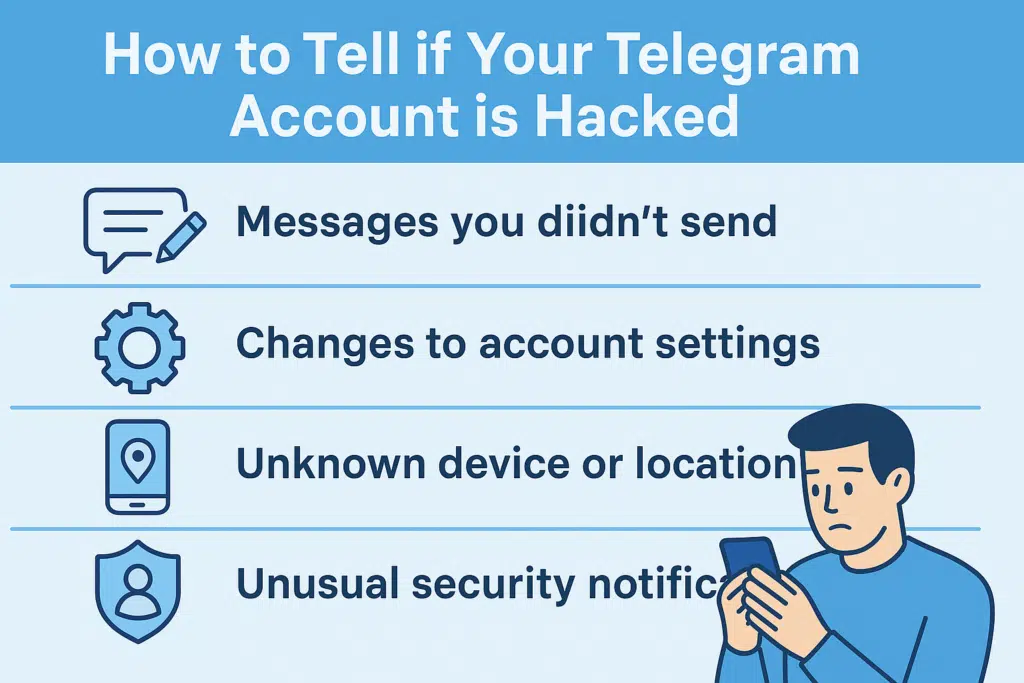
Being able to spot the signs of a hacked account early on can make a big difference in how well you can recover a hacked telegram account. Some signs are that messages were sent from your account that you didn’t write, your account settings were changed without your knowledge, and friends reported strange behavior on your profile. When telegram was hacked, your contacts may have gotten spam from telegram bots, scam links, or requests for private information that looked like they came from you.
Go to settings and look at the android devices or other devices that are logged into your account to see how many sessions you have. Your account has been hacked if you see it on a device or in a place you don’t know. When someone logs into your account from a different device, Telegram will send you a notification. Unwanted notifications are often a sign that someone is trying to get into your account without your permission, which could mean you lose access to it.
Keep an eye on any changes to your privacy and security settings, such as who can see your phone number, last seen status, or profile picture. Hackers often change these settings to hide what they’re doing or to use Telegram to steal information from your contacts. Also, if you suddenly can’t get into your account without changing your password or if your recovery email gets unexpected verification requests, these are strong signs that someone has accessed your account without your permission.
What Steps Help Recover Access When Telegram Account From Being Hacked Attempts Succeed?
The first step in recovering your account is to try to get back into your telegram using the mobile number you used to sign up. If a hacker changes your password, Telegram will send you a verification code to your phone number. This lets you get back control of your account. This recovery method works because hackers don’t usually have physical access to your device unless they specifically targeted it or put malware on it.
If you’ve turned on two-step verification in Telegram, you’ll need to enter both the SMS code and your extra password. You can quickly get your account back if you remember this password. Just change all of your security settings right away. If the hacker changed your two-step verification password, though, you’ll have to wait seven days before Telegram lets you reset it. During that time, you should keep an eye on your account for any other unauthorized activity.
The recovery process is more difficult for telegram users who have lost access to their mobile number. You need to go to the telegram support page and show proof of identity and account ownership in order to get my account back. Tell us when you made the account, who you’ve messaged recently, and any other information that shows you’re the real owner. The tech support team looks at each case on its own, but it can take telegram support a few days or weeks to get back to you, depending on how complicated the case is and whether you can provide enough proof of your telegram account.
How Do You Contact Telegram Support for Hack Recovery?
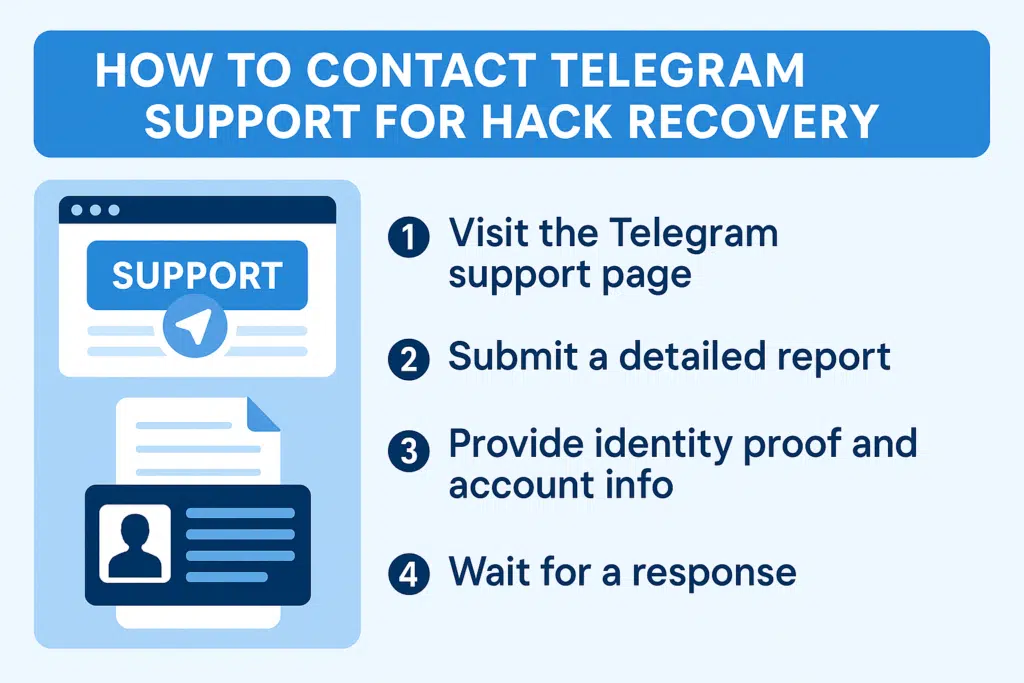
Telegram doesn’t have regular customer service channels, so you need to follow certain steps to get to tech support. Go to the official telegram website and click on the support page. There, you can send a full report about your hacked account. Please give your phone number, the date your account was created, and a description of what happened when someone may have hacked your account by taking advantage of security holes.
When you tried to get in touch with telegram support, you should have given them as much proof as possible that you are who you say you are and that you have the right to access my account. This includes screenshots of chats with close friends, information about your account settings, and, if you have a telegram premium subscription, information about that as well. Be sure to include details about your account history and how you use it. This will help you convince support that you are the real owner trying to get back a hacked telegram account.
Be patient while you wait for support, because Telegram gets thousands of reports of hacks every day from users. While you wait for tech support to get back to you, keep an eye on your account in other ways and write down any new activity that isn’t allowed. Some users say they were able to get help by contacting support multiple times with more proof. However, don’t spam their system, as this could slow down your case and the response you need from telegram support.
What Security Measures Prevent Future Telegram Account Hacked Incidents?
Using strong security measures makes you much less likely to be hacked and keeps your telegram communications safe. Two-step verification is an extra layer of protection beyond your regular password. You should turn it on in Telegram right after you get your account back. Make sure that each of your telegram accounts has a different password than the ones you use on other sites. This will keep all of your accounts safe.
Check your privacy and security settings often, especially the ones for active sessions and login notifications. When you aren’t using a device, set it to automatically end your session. When you are using a public or shared device, always end your session. Set up login alerts so that you are notified right away when someone logs into your account from a different device. This will let you respond quickly to unauthorized access attempts and keep your account safe.
Don’t click on links that look suspicious that you get through Telegram, even if they come from people you know. These could be phishing attempts that try to get you to give them your login information. Be careful of telegram bots that ask for personal information or tell you to verify your account on other websites. Real Telegram services never ask for your password or verification codes in messages you didn’t ask for. Also, Telegram won’t ask for sensitive information in direct messages.
How Does Two-Step Verification Protect Against Hack Attempts?
Two-step verification in Telegram makes it very hard for people who shouldn’t be able to get in to do so by requiring both your SMS verification code and a second password. Hackers can’t get into your telegram account even if they get your phone number and intercept SMS messages. They need to know your secondary password. This security feature has worked well to stop most hackers who want to get back into hacked telegram accounts from getting in.
The verification system protects against many types of attacks, such as SIM swapping, in which hackers move your phone number to their own device to get verification codes. If you have two-step verification turned on, just getting your phone number isn’t enough to get into your account. The extra password requirement makes attackers use more advanced social engineering techniques, which makes it much harder for them to get in and makes it less likely that they will be able to do so.
When you set up this security feature, pick a password that is easy to remember and hard to guess. Don’t use passwords from other accounts or information that is easy to guess, like your name or birthday. You might want to use a password manager to make and save different passwords for each of your accounts, even your Telegram two-step verification. This method keeps things usable while also keeping things very secure. It also helps keep features like secret chats safe from people who shouldn’t be able to see them.
What Are Common Methods Hackers Use to Compromise Accounts?
Knowing the most common ways that hackers get into accounts can help you spot and avoid situations that could put your account at risk. Phishing is still one of the most common ways for attackers to get your login information. They do this by making fake websites or messages that trick you into giving them your information. These scam operations often look like real Telegram messages and ask you to verify your account through links that are meant to steal the code to your Telegram account.
Instead of looking for technical flaws, social engineering attacks use people’s psychology to get into telegram accounts. Hackers could pretend to be Telegram support staff, friends, or family members to get you to give them private information. They might say that your account needs to be verified or that there is suspicious activity that needs to be dealt with right away. If you get a direct message from a legitimate telegram support person, they will never ask for your password or verification codes. Always check to make sure that any message that claims to be from an official source is real.
Malware is another big danger, especially on Android devices where users can download apps from places other than official app stores. Malicious software can record what you type, take screenshots, or even get into your phone’s SMS messages. Some malware is made to attack messaging apps like Telegram. It steals login codes and session data to get into accounts and may even break features like secret chats.
How Can You Secure Your Account After Recovery?
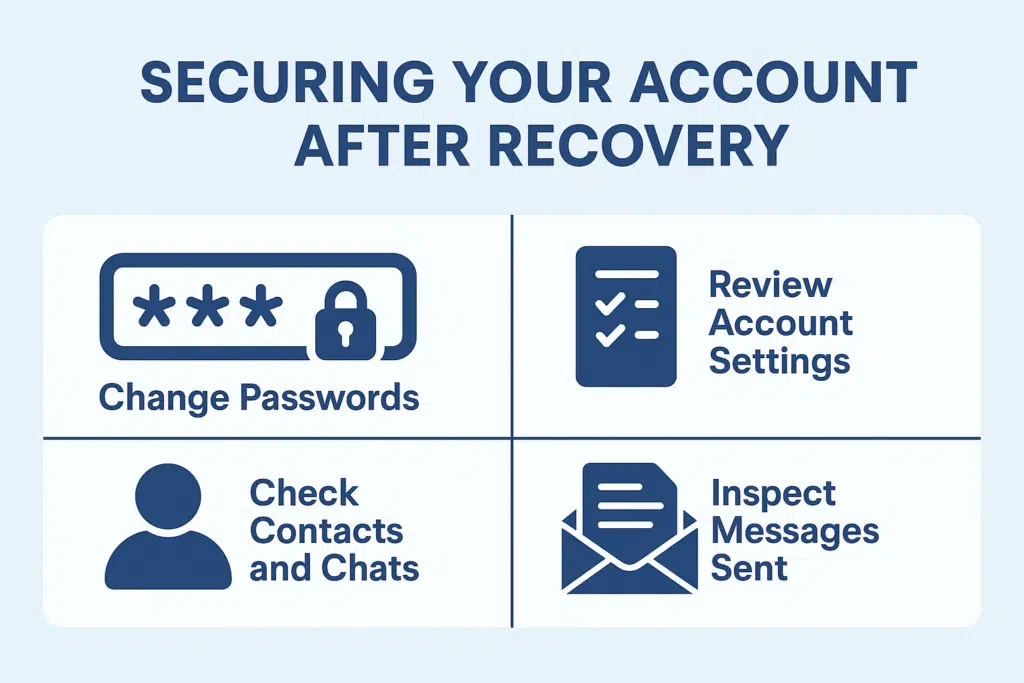
Once you get your hacked account back, you can protect your communications and stop future breaches by putting in place strong security measures. First, change all of the passwords for your Telegram account, including the password for two-step verification and any passwords for recovery emails. To protect yourself from credential stuffing attacks, which happen when hackers use stolen passwords to get into multiple platforms, use different passwords for each account.
Take a close look at all of your account settings, especially the privacy settings that may have been changed during the hack. Find out who can see your profile picture, mobile number, and last seen status. Check your list of blocked users, because hackers sometimes unblock accounts so they can talk to their partners. Check that any changes to your username haven’t made it easier for someone to impersonate you or commit fraud, and make sure that your account is still safe through official channels.
Check your contact list and chat history for any changes that weren’t made by you. Hackers often add their own accounts to your contacts or erase proof of what they did from your account activity logs. Check your sent messages for anything you didn’t write, and let your contacts know that they might have gotten scam messages from your hacked account. This openness helps keep trust and stops your contacts from being attacked again when they use Telegram.
What Should You Avoid During the Recovery Process?
A few common mistakes can make it harder for you to recover your account or give hackers more chances to keep getting into your telegram account. Don’t give your verification codes to anyone who says they are from Telegram support, because real staff members never ask for these codes through direct communication. Scammers often go after people who are trying to recover their accounts when they are most vulnerable. They pretend to be helpful support staff but are really trying to steal your new login information so they can get back into your account.
Don’t use public Wi-Fi networks or shared computers while you’re recovering. These places could be watched by bad people who want to get into telegram accounts. When you need to enter sensitive information or log into your account, only use your own devices and secure internet connections. If you have to use a public device, make sure you log out completely and clear your browser history afterward. This will keep your number safe and stop session hijacking.
Don’t make changes to your security settings too quickly without thinking about each option and how it might affect your account settings. When dealing with a hack, it’s important to act quickly, but making quick choices about privacy settings or verification methods can make things worse. Before turning on a security feature, take the time to learn how it works. Also, make sure you can get to recovery methods like backup email addresses or phone numbers before you delete your account or make big changes.
When Should You Consider Deleting Your Compromised Account?
If things are really bad and it seems like you can’t get better or the damage is too big, deleting your telegram account may be the best way to protect your privacy and stop the abuse from happening again. If the hacker has changed the phone number linked to your account, making normal recovery methods useless, you might want to think about deleting it. This is a big problem because it stops you from getting the SMS verification codes you need to make a real recovery attempt and makes it impossible to get my account back through normal means.
When a hacker gets into your recovery email and other connected services, it can lead to a chain reaction of security breaches on many platforms. In this case, you need to delete your account. If someone has used your Telegram account to scam people or send harmful content to your contacts, delete the account to help limit the legal and social fallout. You can delete your Telegram account from the Telegram website without having to log in. However, you should know that this action cannot be undone.
Before you delete your account, try every other way to get it back, like contacting support several times with different evidence packages. You can also use the “delete my account if away” feature, which will automatically delete your account after a set amount of time without activity. Keep in mind that deleting your account is permanent and can’t be undone. You’ll lose all of your chat history, contacts, and media for good. If you choose to delete your account, let your important contacts know right away through other means and give them new contact information. Many relationships and professional connections now use Telegram as a main way to talk to each other.
Telegram Premium VS. Telegram Free
Telegram has emerged as one of the leaders in terms of the number of users and the quality of communication and interaction space owing to its usability, privacy, and communication possibilities. Telegram introduced a ‘premium’ membership option for its users in June of 2022 and offered two separate apps; Telegram Free and Telegram Premium. Both versions have useful features, but more is offered in the case of adopting the Telegram Premium membership. We present to you a comparative analysis of the two versions in order for you to choose the one that better meets your requirements.
What’s Good About Telegram Free
The free version of the platform, Telegram Free has a number of appealing features that more than guaranteed its millions of users. Telegram doesn’t charge for its essence. Here are a number of features which users can enjoy for free:
Endless Cloud Backup
All Telegram Free users can enjoy unlimited cloud backup which expiration enables them to send and receive messages and files freely without any limits. Once uploaded, they are messages that Telegram users can receive from any cloud-related device.
User and Channel Limits
In the free version, users can operate channels without limitation of the number of subscribers or groups, whose membership does not exceed 200,000. This is very much advantageous to businesses, content creators and communities in need of attracting a bigger audience at no additional cost.
Standard Features in Messaging and Security
Possible ‘secret chats’ in end to end encryption have now made messaging really fast and secure in Telegram Free. They can also send large files that have a size of 2 GB, which is higher than what many other apps for messaging provide for free.
While Telegram Free has a lot to offer, Telegram Premium is for users who would like to have some advanced features.
Major Features of Telegram Premium

Some extra features are also available to the members of Telegram Premium that are intended to increase user satisfaction. This paid subscription has several superior aspects compared to the free, which are mostly for users with extensive use or huge audiences. Below are the main benefits of Telegram Premium:
File Download Speeds
Telegrams users enjoy one of the features which is the ability to download files without restrictions and they can expect to enjoy faster download… some of the advantages of having a premium subscription account. While there are many standard download speeds available for free users, Premium subscribers have access to a separate file server, making it easier to download many files quickly. This is great for users that download or send large files frequently.
Expanding the Maximum Size For Attachments or Files Uploading
Members of Telegram Premium are allowed to upload files up to 4 GB that are more than twice the limit imposed on free users. This function is most favorable to businesses, mass media practitioners, content developers, and other Internet users as it enables them to send large size documents, videos, and presentations without worrying about their size.
The Value of Telegram Premium – Advertisements Free
Public channels in Telegram catching sponsored messages have started. However, Non-Premium users have access to Premium service features. What this entails is that you can browse channels with little to no interruption made by sponsored ads.
Active and Distinctive Features and Interpretability
Premium subscribers can also access additional stickers, unique emojis, and reactions to messages. Animated profile pictures, and distinctive badges of Telegram Premium members are also available. These functionalities make customizing conversations easy and interesting and greatly enhance engagement.
Performance comparison: Telegram App Free Vs Telegram Premium

Now that we have seen the features of both versions as well as their special traits, it is time to compare which version performs best in the most important parameters as it will help you choose wisely.
Messaging and Sharing of Files
Above all casual users, the messaging and file-sharing aspects of the application Telegram Free offer seem satisfactory. Under such circumstances, Telegram Premium – including increased file size limits and faster download speeds – will make the experience of those who often transfer or download media files much easier.
Customization and Personalization
Using Telegram’s free version means you have access to standard emojis and stickers, but if you are the kind of user who prefers more creative flair with their content then Telegram Premium has better options. Premium users can enjoy animated profile pictures, special emojis and all other features that free users cannot offer.
Ads and User Experience
For a professional user of Telegram, the ability to use free accounts and adverts in large public channels for the free users may be a turn-off. It is also an option for those who would want to enjoy the application without the interruptions of ads to upgrade to Telegram Premium.
Pricing Considerations
Of course, there is a fee that one has to pay to use Telegram premium features, but it is much cheaper when comparing it with other messaging apps that have premium features. Typically, at around 4.99 to 5.99 dollars a month, the price is fairly reasonable for a lot of users around the world. Users have the option of subscribing via the app store on their mobile devices whether on iOS or Android.
Users who prefer the basic messaging capabilities can use this app free of charge as it works well. On the other hand, for users who need quicker speeds, greater file sizes and further personalization, Paying for a Telegram Premium membership is completely justifiable.
Which Version is Right for You?
You should contemplate how you intend to use the application the majority of the time when attempting to choose either Telegram Free or Telegram Premium. Here are some questions to ask yourself when deciding:
Are You a Casual User?
If you will be using Telegram for the casual purpose of chatting with your friends and relatives, it does not come at a cost. It is perfect for anyone who hotshots messaging tools and is weak in technical heat and does not have advanced requirements.
Are You a Content Creator or Business Owner?
There are several benefits for those people who are quite heavy users of Telegram and have the Telegram Premium Members features. The ability to upload files with large volumes, the ultra-fast speed of downloading, and being ad-free increases the valuation of investing in the premium version.
Do You Value Customization and Exclusive Features?
For those who love to spend time customizing their app experience with additional emojis, reactions, and animated profile pictures, there’s no hesitation that upgrading to Telegram Premium is worthwhile. It offers greater resources to improve on the users’ experience with Telegram.
Understanding the process of acquiring premium members is crucial for channel growth. For a comprehensive guide on this topic, refer to this article on purchasing Telegram premium members, which offers valuable insights into effective strategies and best practices.
Conclusion
In the fight of Telegram Premium Members vs Telegram Free both have their pros and cons. For most users, the free tier is an excellent choice as it is feature-rich and does not incur any costs. Telegram Premium however allows one to use the application at an advanced level, where they can download more files, upload larger files, and enjoy more customization options.
For those aiming to rapidly expand their channel’s reach, it’s essential to buy Telegram subscribers from reputable sources. By choosing to buy Telegram subscribers, you can boost your channel’s credibility and visibility, attracting a broader audience and fostering organic growth.
For light users the free version will probably be sufficient for their day-to-day communications. However, the premium version will greatly benefit heavy users, influencers, as well as business users. With Telegram Premium Members, you can enhance the performance of your channel, build your audience, and make usage easier in an ad-free environment.
In Conclusion, it is up to each user individually on whether they want Telegram Free or go for the Premium features. Those who are more serious about using all the benefits of TM’s application can do so with the help of its premium service as it promises quality interaction and smooth messaging.
How to Backup Your Telegram Desktop (Android and iOS): A Complete Guide
Do you want to know how to backup your Telegram account in a more convenient way? If yes, then you should not skip this article. In this guide, we are going to show you how to backup Telegram on iOS and Android devices step by step. Whether you’re looking for the best backup Telegram iOS method or need a reliable Telegram backup Android solution, we’ve got you covered. Stay with TM and learn everything you need!
Why one would take a backup of their data on Telegram, the introduction:
Most probably, at one point or the other, you have wished to take a backup of your Telegram account data due to certain reasons. For instance, if you want to preserve Telegram messages or your Telegram contacts, so that you are confident that this information will never be lost, and even if you decided to delete your Telegram and your chats, this information can sometimes be restored. For some time, Telegram did not provide the option for which information was created to backup contacts’ accounts, but now this feature is supported by Telegram desktop!
Desktop Telegram is a kind of software that is an application of Telegram which can be downloaded into a computer and be used directly from the computer. With the new version update Telegram desktop talking about new exciting features that were previously unavailable, yes taking backup is among them as well as several excellent options that are also available for backup. Much to their delight this upgrade also comes with the opportunity to set up their account details which the user can set up and choose before the backup. In the rest of this article, we will teach how to backup Telegram desktop (Windows and iOS). Stay with the help mobile.
In the desktop variant of telegram, doing backup is straightforward. To achieve this, it is enough to open the Telegram program on your computer or laptop and log into the account where you need to back up the chats and other materials. After the account is logged in, the following procedures are to be done:
Go to the top left corner of the window, and click on the three-line icon. The main menu of Telegram will be opened. In this section, click on the Setting option.

In the [new] window, first or more, click on “Advanced”, which will scroll down the full settings that appear until up to the last option called “Export Telegram Data”. Choose this option. In this situation, a new window appears to outline the various settings that can now be selected. This window is illustrated below.


First, select the export option, it means that Telegram will be saved with the default options of this program. But if you, for some reason, want to change the settings and the items in this section for backing up Telegram, you should know that the options provided in this section are as follows:

Account Information: By ticking this option, the choice of a name for the account, a profile photo, one’s contact number and other information in the account is saved in the selected backup.
Contacts List: By ticking this option, all your contacts in Telegram will be restored on backup.
Personal Chats: By ticking this option, all private mails that are held in the Telegram memories in its back up will be kept.
Bot Chats: By ticking this option, any messages you sent to Telegram bots will be included in the backup.
Private Groups: By ticking this option, the archived chats of the private groups which contain you as a member are also included in the final backup.
Only my Messages: This particular option is quite related to the previous one and by activating it, only the messages you have personally sent in private groups shall be retained in the backup file while the messages of the other group users shall not be retained.
Private Channels: By ticking this option, all messages sent in private channels will be kept safe.
Public Groups: By ticking this box all the messages sent or received in public groups will be preserved in the ultimate backup.
Public Channels: All messages sent via public channels will be kept in the backup, as prompted.
Photos: By checking this option, all the pictures that you have sent and those that you have received will be captured and preserved in the last backup.
Video Files: By checking this option, all the clips and videos that you have sent and received through this tool will be retained.
Voice Messages: By checking this option, all voice memos sent and those received will be enclosed in the final backup copy.
Round Video Messages: All video memos sent and those received will also be enclosed in the final backup copy as long as this option has been enabled.
Stickers: Selecting this option ensures the stamps you’ve sent and received including the ones attached to your account are preserved in the last back up copy.
Animated GIFs: Selecting this option helps to protect the dynamic pictures or GIF files that were sent and received and quick saved in the account back up.
Files: Selecting this option preserves all the files you have attached or received in the last back up. Below this option, there is a slider that can set a size limit for the desired files. For instance, if you check the Files option and set the slider to 8MB, all files that are 8MB or less will be included in the Telegram backup and those that are 8MB and above will be excluded from the back up.
Active Sessions: This section is relevant to the running sessions or devices where your account is presently being used.
Miscellaneous Data: Selecting this option ensures that all data that was not listed in previous options is included in the last backup copy saved.
Download Path: Under this section, you are allowed to define the location of your Telegram backup file.
Options for Human-readable HTML and Machine-readable JSON: in general these two options dictate how the Telegram backup is stored. I suggest that you opt for the first option in this section.
Backup from Android Telegram and backup from iPhone Telegram
Maybe you have this thought in your mind that the described feature is related to Telegram desktop and is not applicable for Android iOS! If so, that’s wrong because the provided function indirectly allows you to backup Android and iPhone Telegram account. So simply make sure to sign in with your active account on your android phone or iPhone on the desktop version of telegrams and go through the stages we have stated. In this case, you will have a complete backup of the active telegram account which was active on your android phone or iPhone. Therefore, the new feature that has been included in the desktop version of the program that telegram has provided can be said to have in effect enabled the possibility of backing up telegram android and backing up telegram iPhone.
Thus, the key teaching about how to backup the telegram desktop (android and ios) was delivered in this article. If you have any issues regarding any of the described steps, you can engage the specialists of the mobile support unit and ask for clarification.
What Are the Best Practices for Managing Multiple Backup Copies?
You won’t have to worry about a lot of problems if you have more than one backup of your telegram data. The 3-2-1 backup rule says that you should keep three copies of important telegram conversations: one in telegram, one on your computer, and one in the cloud or another place. You won’t lose your important conversations if your device breaks, the cloud service goes down, or you accidentally delete them.
Use clear naming rules that include the date and a short description of what the file is to keep your backup files organized. Put your backups into different folders based on what they are. For example, you could have full account exports, backups of just one chat, and archives that only hold media. This layout makes it easier to find conversations when you need to. It also helps you keep track of your storage space by letting you know which old backups you can delete or move to an archive without worrying about losing important files.
Check your backups often to make sure they are always available and not broken. Every now and then, open up exported conversations and make sure the media files are showing up the way they should. This will help you make sure your backup files are working. This check helps you find problems that could happen before you have to use backup files to get your data back. Also, make a note of how you back up your files and where you keep them so that you can easily find important telegram conversations when things get tough.
Key Takeaways: Essential Points to Remember
• Use Telegram Desktop for the most backup options because it has the export tool you need to make detailed backup files of your chats.
• Set up regular backups to keep your important telegram messages safe from being lost because of device problems, accidental deletion, or account problems.
• Always encrypt your backup files before you store them on your computer or in the cloud. This will keep sensitive telegram data safe from people who shouldn’t have access to it.
• Keep in mind that secret chats have some limits: these encrypted chats don’t sync across devices and need to be backed up on each device to keep them.
• Use the 3-2-1 backup strategy to keep multiple copies of important telegram conversations in different places for the best protection.
• Open exported conversations to check that they’re accessible and that media files show up correctly on a regular basis.
• Use clear naming conventions and folder structures to organize your backup files so that you can easily find specific conversations when you need them.
• Add manual backups to your cloud storage because Telegram’s built-in cloud system doesn’t let you download backup files or export your entire account.
• Make backup files before switching devices to make sure that important telegram conversations continue.
• When looking at third-party backup solutions for your telegram account, think about automation tools carefully, putting security and privacy first.