Article
How to Enable Floating Video Playback in Telegram: A Step-by-Step Guide
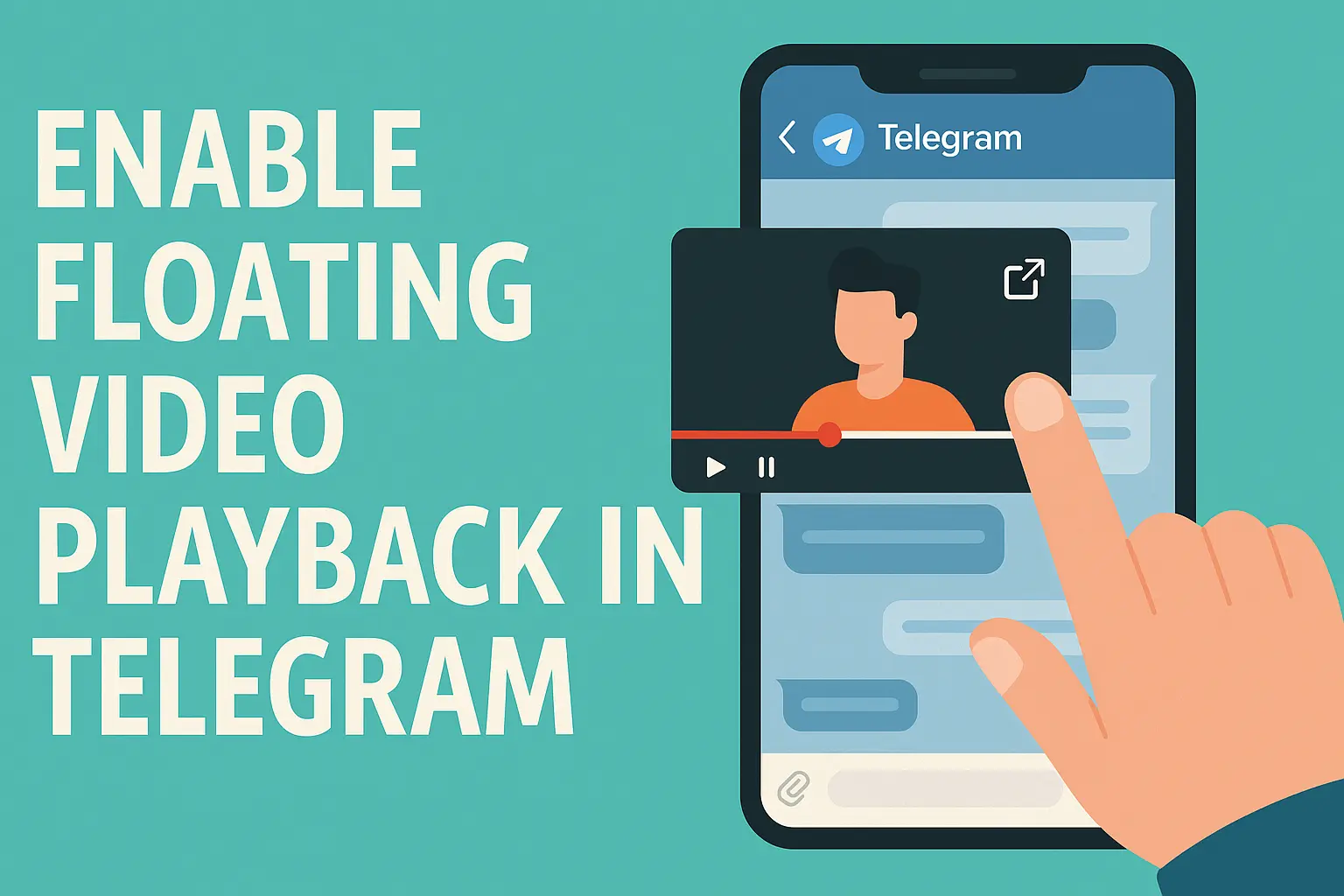
Picture-in-picture (PiP) lets a Telegram video keep playing in a small floating window while you read other chats, reply to messages or even use another app. It works on Android, iPhone, iPad and Telegram Desktop. The short version: open the video, tap the picture-in-picture button in the player, and the video shrinks into a window you can move around the screen. Below are the exact steps for each device, how to control the window, and what to check when PiP won't start.
What is picture-in-picture mode in Telegram?
Picture-in-picture is a small video window that stays on top of everything else. In Telegram it lets you:
- Keep watching while you chat. The video plays on while you open other chats, groups and channels.
- Keep watching outside Telegram. On phones that support it, the window stays on screen when you switch to another app.
- Place it where you want. You can drag the window to another spot and, on most devices, make it bigger or smaller.
Telegram first added PiP on iOS in 2016 for YouTube and Vimeo links, and later extended it to videos sent in chats. Telegram Desktop has had its own PiP player since 2020.
How to use picture-in-picture on Android
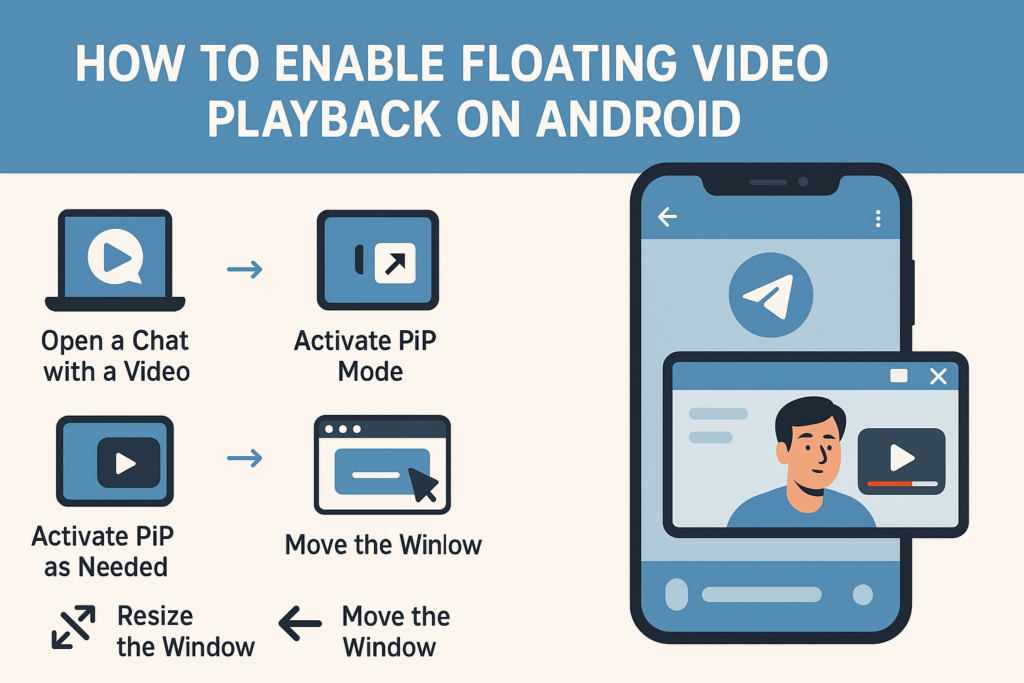
- Open the video. Go to the chat, group or channel with the video and tap it to open the full-screen player.
- Tap the picture-in-picture button. It is a small rectangle icon in the player's controls, usually at the top. Tap the screen once if the controls are hidden.
- Keep using your phone. The video shrinks into a floating window. Open other chats, or press Home and switch to another app.
The first time you use PiP outside Telegram, Android may ask you to allow it. If it doesn't, see the troubleshooting section below.
How to use picture-in-picture on iPhone and iPad
- Open the video in any chat or channel so it plays in the full-screen player.
- Tap the picture-in-picture button in the player controls.
- Carry on. The video moves into a floating window. Swipe up or press Home to go to another app and it keeps playing.
On iPhone, picture-in-picture outside an app needs iOS 14 or later; iPads have supported it for much longer. If the button isn't there, check that both iOS and Telegram are up to date.
How to use picture-in-picture on Telegram Desktop
- Click a video to open it in the media viewer.
- Click the picture-in-picture button in the player controls.
- The video opens in a separate small window that stays on top while you keep chatting. Drag it to move it, or drag its edges to resize it.
How to control the floating window
- Move it: drag the window to another part of the screen. On phones you can also slide it partly off the edge to hide it while the sound keeps playing.
- Resize it: pinch with two fingers on a phone, or drag the edges on desktop.
- Pause, play or close it: tap the window once to show its controls.
- Return to full screen: tap the expand button in the window's controls to go back to the normal player.
Tips for using picture-in-picture
- Keep the window clear of what you're typing. Drag it to the top of the screen when you reply, so it doesn't cover the keyboard or the message field.
- Use it for tutorials. PiP works well for following a step-by-step video while you do the steps in another app.
- Tablets and desktop are the best fit. On a bigger screen the window can stay a useful size without covering much.
- Mind your battery and data. A video keeps streaming while it floats, so close the window when you stop watching.
Troubleshooting: picture-in-picture won't start
- Update Telegram and your phone. Older versions may not show the PiP button, or may not support it for every type of video.
- Check your system version. Android needs version 8.0 or later for picture-in-picture outside apps, and iPhone needs iOS 14 or later.
- Allow picture-in-picture for Telegram (Android). Open your phone's Settings → Apps → Telegram and make sure Picture-in-picture is allowed. Some Android versions use "Display over other apps" for the same thing.
- Check iPhone settings. In Settings → General → Picture in Picture, make sure it is turned on.
- Try another video. Some videos, such as ones that are still downloading or in unusual formats, may not open in PiP until they finish loading.
Key Takeaways
- Open a video and tap the picture-in-picture button to shrink it into a floating window.
- PiP works on Android, iPhone, iPad and Telegram Desktop, inside Telegram and, on phones that support it, over other apps.
- Drag the window to move it, pinch or drag the edges to resize it, and tap it for controls.
- If it won't start, update Telegram and your phone and check that picture-in-picture is allowed in your system settings.
FAQ
What is picture-in-picture mode in Telegram?
How do I turn on picture-in-picture in Telegram on Android?
Can I use picture-in-picture in Telegram on iPhone?
Does Telegram Desktop support picture-in-picture?
How do I make the Telegram floating video bigger or smaller?
Why is picture-in-picture not working in Telegram?
Does the video keep using data in picture-in-picture?
Related articles
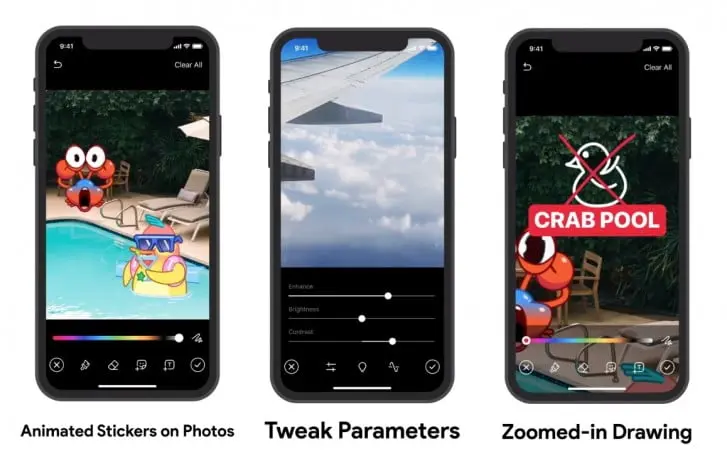
Telegram's new update with video editing capabilities and animated stickers released
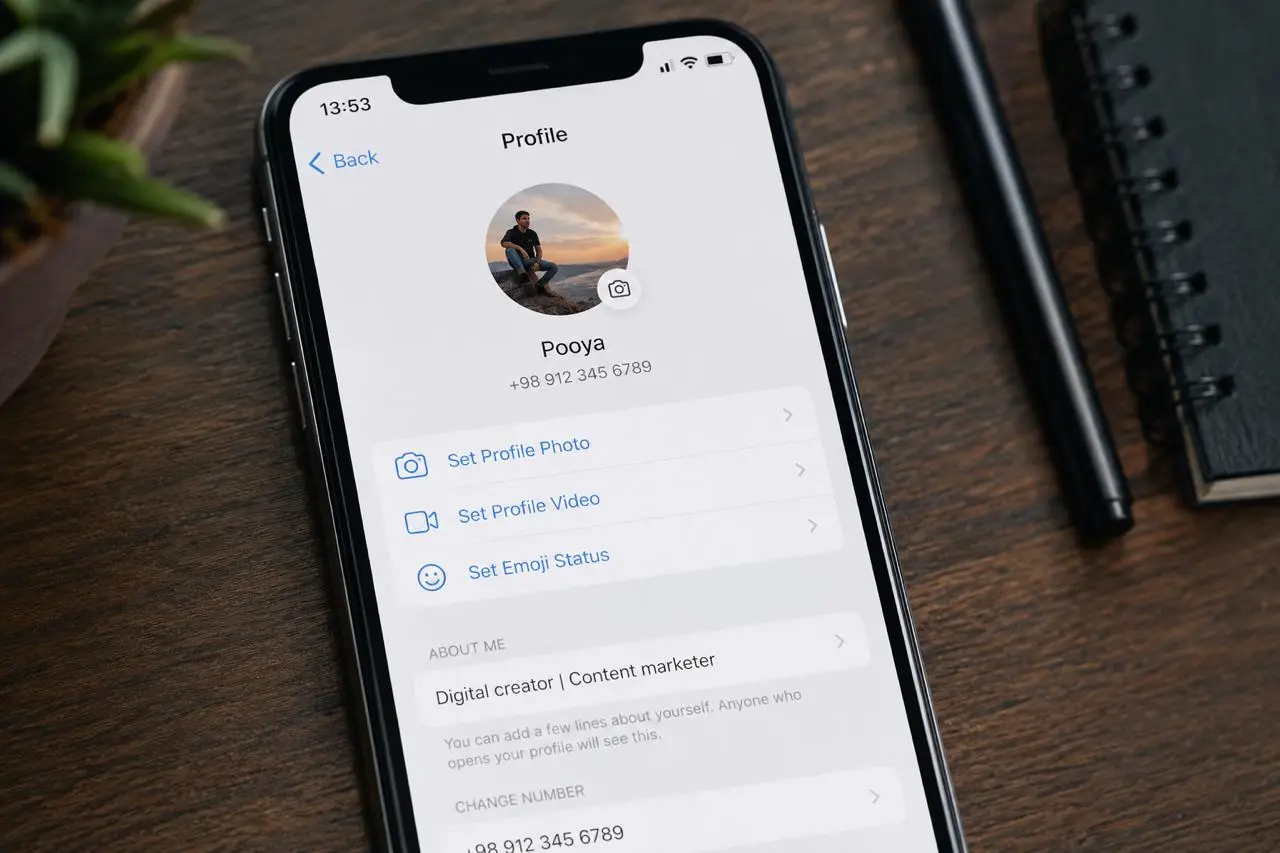
How to Set a Profile Picture on Telegram in 2026
Set, change, hide or delete your Telegram profile picture in 2026 — plus profile videos, emoji avatars, correc…

Buy Telegram Comments: What I Learned After Testing Them on My Own Channels
Telegram comments don't work like views or reactions. A channel can't hold a single comment on its own — every…

Buy Telegram views

How can I get Telegram subscribers?

How To Get Telegram Subscribers
Comments
No comments yet. Be the first to share your thoughts.