Article
How to Set a Profile Picture on Telegram in 2026
Set, change, hide or delete your Telegram profile picture in 2026 — plus profile videos, emoji avatars, correct sizes and privacy settings, explained simply.
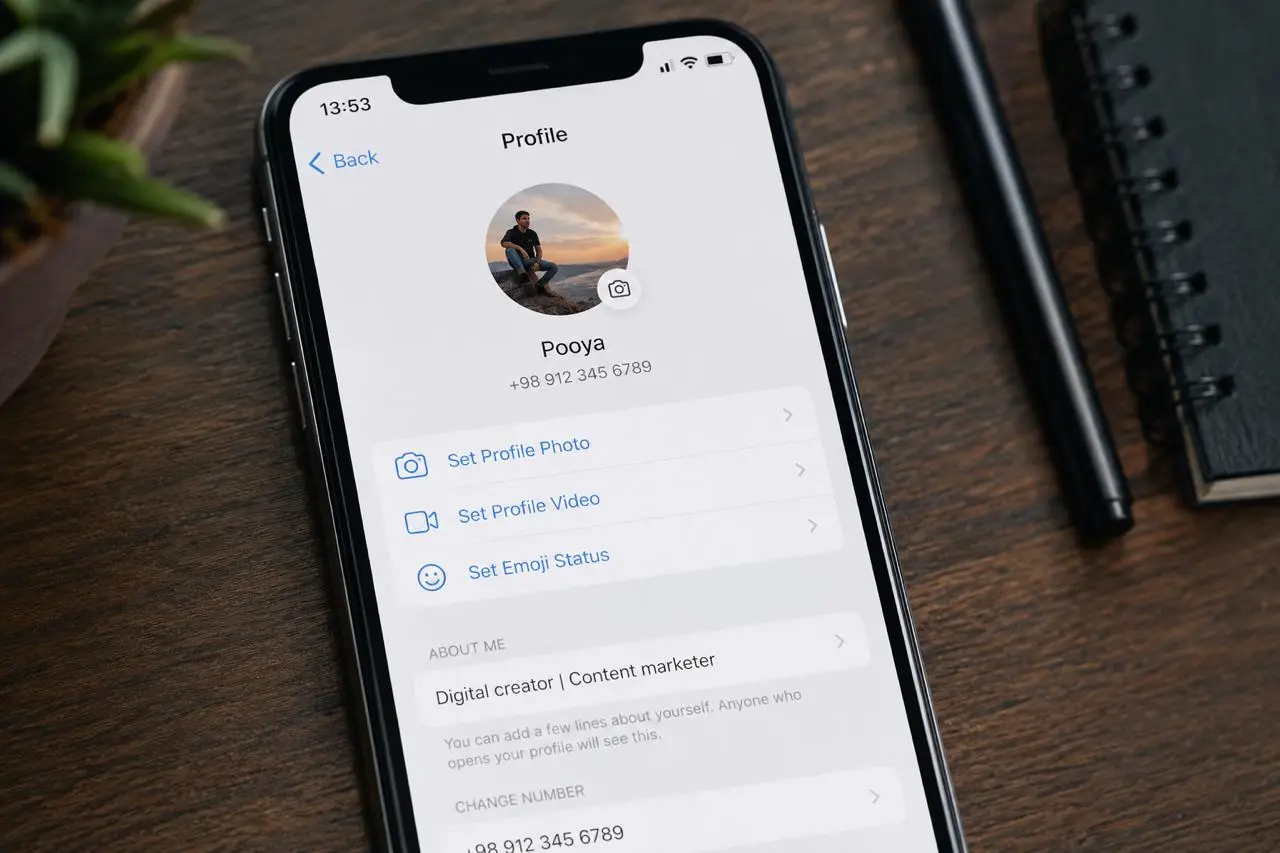
Your profile picture is the first thing people see next to your name — in the chat list, in group conversations, in the small circle beside every message you send. Telegram gives you more control over it than most messaging apps. You can keep several photos on your profile at once, use a short video instead of a still image, build an avatar out of an animated emoji, and decide fairly precisely who gets to see any of it.
This guide covers all of that, updated for 2026. Where something is documented by Telegram, I've said so. Where it's my own recommendation after years of using the app and writing about it, I've said that too.
How to Set or Change Your Telegram Profile Picture
The flow is close enough across Android, iPhone and Desktop that splitting it into three separate tutorials would just repeat the same four steps. Here's the short version:
Open Settings (the gear icon on iOS, the side menu on Android, the hamburger menu on Desktop).
Tap or click your current avatar — or the camera icon where your avatar would be if you don't have one yet.
Choose Set Profile Photo (or Change Photo, depending on your app version).
Pick an image from your gallery, take a new one with the camera, or use the built-in emoji and sticker maker.
Crop, then confirm.
The new picture syncs to every device you're logged in on, usually within a second or two, because Telegram stores it in the cloud rather than on your phone.
On Android and iPhone
The two are almost identical. Both let you crop and rotate the image before confirming, both let you switch to the front or rear camera, and both give you access to the emoji-based avatar maker from the same screen. Telegram redesigned its interface twice in the first half of 2026, so button labels and icon placement may not match older screenshots you find elsewhere — the underlying steps haven't changed, but the wording might.
On Telegram Desktop
On the desktop app, open Settings, hover over your avatar and click the camera overlay. You'll be able to upload an image from your computer and crop it in place. Desktop clients tend to receive newer profile features slightly later than mobile ones, so if you don't see the emoji avatar option there, check that the app is updated or set it from your phone instead — the result syncs either way.
How to Change or Delete an Existing Telegram Profile Picture
Open your profile, tap the current photo to open it full screen, and use the menu (three dots, or right-click on Desktop). You'll normally see two useful options:
Set as Main — promotes an older photo back to the top of the stack.
Delete — removes the photo from your profile entirely.
Deletion is permanent. Telegram doesn't keep a recycle bin for profile photos, and you can't re-download one after removing it, so save anything you might want again to your device first. If you delete every photo, contacts will see the default placeholder with your initials instead.
There's also a ceiling on how many photos you can keep stored on a profile at once. Telegram's API returns a specific error when you hit it, at which point you'll need to remove an older photo before adding a new one. Most people never get close.
I've changed my Telegram profile picture more times than I'd like to admit, and the one habit that's saved me repeatedly is keeping the original file. Twice I've deleted a photo, decided a week later it was better than the replacement, and had to dig through a backup to find it.
How to Add Multiple Profile Pictures on Telegram
Telegram stores your profile photos as a stack rather than replacing them. The newest one is your main avatar — the one shown in chats — and anyone viewing your profile can swipe through the rest.
This is genuinely useful. A lot of people keep a clear headshot as the main photo and leave a logo, a landscape shot, or an older picture behind it. You don't need any special setting to enable this; just add a new photo and the previous one moves down the stack.
One thing worth being clear about, because it gets misreported a lot: everyone who is allowed to see your profile photos sees the same stack. Telegram does not let you automatically show one photo to your colleagues and a different one to your friends. The only mechanisms that create a genuinely different view are the public profile picture and personal contact photos, both covered further down.
How to Use a Video as Your Telegram Profile Picture
Profile videos have been part of Telegram since Telegram introduced them in 2020, and they still work the same way. Instead of a still image, you upload a short video that loops when someone opens your profile.
To set one, go to the same Set Profile Photo screen, switch to the video tab, and either record something or choose a clip from your gallery. Telegram then asks you to pick which frame should be used as the static preview — that's the image people see in chat lists and message bubbles, where the video doesn't play. Choosing that frame carefully matters more than the video itself, because most people will only ever see the frame.
On the technical side, Telegram's API documentation specifies square MPEG-4 video for animated profile pictures, with a maximum of 1080×1080 and 800×800 given as the recommended resolution. Keep the clip short — two or three seconds of gentle movement reads much better in a small circle than a long clip with cuts in it.
How to Use Animated Emojis or Stickers as a Profile Picture
Telegram's Profile Picture Maker turns any sticker or animated emoji into an avatar, and it works for personal accounts, groups and channels alike. Telegram explicitly states that animated and custom emoji can be used for this by everyone, including accounts without Telegram Premium.
You'll find it on the same screen where you'd upload a photo — look for the emoji or sticker tab. Pick your sticker, then choose a background; Telegram generates a solid colour or a gradient behind it. Under the hood, the sticker is centred on a square canvas and sized to occupy no more than about two-thirds of it, which is why these avatars always look balanced even when the sticker itself is an odd shape.
Whether the animation actually plays depends on which app the person viewing your profile is using and how up to date it is. When it doesn't animate, Telegram falls back to a static frame. So pick a sticker that still reads clearly when frozen — a lot of animated emoji look like nothing much in a single frame.
Telegram Profile Picture Privacy Settings
All of this lives in Settings → Privacy and Security → Profile Photo. It's the setting people most often forget exists, and the reason behind a surprising share of "why can't my friend see my picture" questions.
Everyone
Anyone on Telegram who can find your account — including people who have your number but aren't in your contacts — can see your photos. This is the default.
My Contacts
Only people you've saved in your contact list can see your profile photos. Everyone else sees the placeholder, or your public photo if you've set one.
Nobody
Nobody sees your photos except the exceptions you explicitly add. Combined with an "always share" list, this is the tightest configuration Telegram offers, and Telegram itself describes this combination as the way to reach maximum profile picture privacy.
Exceptions
Under the main setting you'll find Always Share With and Never Share With. These override the general rule for specific people or groups. So you can set the base rule to My Contacts and still block one particular contact, or set it to Nobody and allow a short list of people through.
Exceptions take priority over the general setting, which is exactly where mix-ups happen. If someone can see your photo when they shouldn't, check the "always share" list before assuming the feature is broken. Our guide to Telegram profile photo privacy goes through the exception lists in more depth.
Public Profile Picture
This is the feature most guides still get wrong. Once you restrict who can see your real profile photos, Telegram unlocks the option to set a public photo — a separate image shown to everyone who can't see your main one. Telegram announced it alongside profile pictures for contacts in late 2022, and it's still how the feature works in 2026.
In practice, that means you can keep a personal photo visible only to friends and family while strangers see a neutral image — a logo, an illustration, a colour block — instead of an empty grey circle. It's the closest Telegram gets to "different photos for different people," and it's a two-tier system, not a per-group one.
There's one more source of confusion worth naming. Your contacts can set a photo for you in their address book, and only they will see it. They can also suggest a photo for you to adopt, which takes you a couple of taps to accept. So if someone tells you your profile picture looks different from what you set, they may simply have chosen one for you on their side.
I've also found privacy settings are easy to overlook entirely. You can spend twenty minutes picking the right photo, then wonder why a colleague still sees a placeholder, when the actual cause is a single dropdown you set months earlier and forgot about.
Why Your Telegram Profile Picture May Not Be Visible
Working through these in order solves almost every case:
Your privacy setting is restricting it. Check Profile Photo under Privacy and Security first.
They're on an exception list. A single entry in Never Share With overrides everything else.
One of you has blocked the other. Blocked accounts don't see profile photos.
They're seeing your public photo instead. That's the fallback doing its job.
The upload silently failed. A weak connection can leave the old photo in place. Reopen your profile and check.
The image was too small. Telegram rejects images below its minimum crop size.
The app is caching an old version. Restarting the app, or in stubborn cases logging out and back in, refreshes it.
They're on an outdated client. Emoji-based and video avatars in particular may not render on very old app versions.
How to Choose a Good Telegram Profile Picture
The main constraint is size. Telegram shows your avatar as a small circle almost everywhere it matters, so a photo that looks excellent in your gallery can lose everything that made it good once it's shrunk. That single fact drives most of the advice below:
Keep the subject recognisable at small sizes. If it's a portrait, the face should fill a good portion of the frame. Full-body shots and wide landscapes turn to mush.
Avoid heavy detail. Busy backgrounds and fine textures disappear at 40 pixels wide.
Use even lighting. Harsh shadows across a face read as noise when scaled down.
Favour contrast. The subject should separate cleanly from the background.
Centre what matters. Telegram crops to a circle, so anything near the corners is gone.
Go easy on text. Anything smaller than a couple of words becomes unreadable. If you're using a logo, use the icon version, not the one with a tagline.
Check it in both light and dark mode. A white-background logo that looks crisp on a light theme can float awkwardly on a dark one.
Start from a square image. It saves you fighting the crop tool.
From my own experience managing Telegram accounts and content, I'd take an instantly recognisable photo over a technically superior one every time. Resolution is rarely the problem. Composition almost always is.
What Size and Format Should a Telegram Profile Picture Be?
This is worth being precise about, because a lot of articles quote an "official" size that Telegram has never published.
What Telegram actually documents: for animated profile pictures, its API specifies square MPEG-4 video up to 1080×1080, with 800×800 recommended. For still photos, Telegram doesn't publish a required upload size to end users. What the API does show is that the server generates square cropped versions of your photo at 160×160, 320×320, 640×640 and 1280×1280, which tells you the largest size any client will ever display is 1280 pixels square. There is also a minimum — uploads below Telegram's internal crop threshold are rejected outright.
What I'd recommend in practice: a square JPEG or PNG at 1000×1000 or so. That's comfortably above every crop tier Telegram generates, small enough to upload instantly, and leaves headroom if Telegram raises the ceiling later. Anything past that is uploaded and then discarded during processing.
Format-wise, JPEG and PNG both work fine. Use PNG for logos and flat graphics with hard edges, JPEG for photographs.
And because the display is circular, the corners of your square image will never be seen. Compose with that in mind — keep the important content within an imaginary circle inscribed in the square.
Can AI Help You Create a Telegram Profile Picture?
Sometimes, yes — but for specific jobs rather than as a default.
AI image tools are genuinely useful when you want an illustrated or stylised avatar and don't have a photo you like; when you need to clean up or replace a distracting background on an otherwise good picture; when you're producing a consistent set of images for a brand across several platforms; or when you're preparing a channel or business avatar and want a few compositions to compare before committing.
They're less useful when recognition and trust are the point. If people need to know it's actually you — in a work context, in a community where you're a moderator, in any situation where someone is deciding whether to reply to your message — a real photograph does something a generated portrait can't. Generated faces still carry a slight uncanny quality that plenty of people notice without being able to name it, and in a niche where trust is already fragile, that's a real cost.
So use AI where it solves a concrete problem: background, composition, an illustrated style you actually want. Don't reach for it just because it's available.
Telegram Profile Picture Tips From Pooya
A few things I've picked up that aren't in any documentation:
Check the photo from a group chat, not just your profile page. The same image feels completely different when it's a large circle on your profile versus a tiny one next to a message in a busy group. I preview every change from both.
The static frame matters more than the video. If you're using a profile video, most people will only ever see the frame you picked. Choose it as if it were the whole avatar, because for the majority of viewers it is.
Update the picture when the profile changes, not on a schedule. There's no feature for rotating photos automatically, and there's no benefit in changing yours often. People recognise you by consistency. If you're also refreshing your Telegram profile name, that's the moment to reconsider the photo too.
For a business or channel, use the icon, not the full logo. I've lost count of how many channel avatars are unreadable because someone dropped a wide logo with text into a circle. Crop it to the mark.
Set a public photo before you tighten privacy. If you restrict visibility without one, everyone outside your contacts just sees a grey placeholder. A neutral public image looks far more deliberate.
Key Takeaways
Setting or changing your Telegram profile picture takes four steps and is nearly the same on Android, iPhone and Desktop, though exact labels differ by version.
Telegram keeps a stack of your old photos. Set as Main brings one back; deleting is permanent.
Profile videos and emoji or sticker avatars are both supported, and the emoji maker is available to all users, not just Premium.
Privacy lives in Settings → Privacy and Security → Profile Photo, with Everyone / My Contacts / Nobody plus exception lists.
Once you restrict visibility, you can set a public photo shown to everyone who can't see your real one.
Telegram doesn't publish a required size for still photos; a square image around 1000×1000 is a safe working target. Profile videos should be square, with 800×800 recommended.
Most "picture not showing" problems are privacy settings or exception lists, not bugs.
FAQ
How do I set a profile picture on the Telegram mobile app? Open Settings, tap your avatar or the camera icon, choose Set Profile Photo, pick an image from your gallery or take one, crop it, and confirm. It syncs to all your devices automatically.
Can I set or change my Telegram profile picture using the desktop app? Yes. Open Settings, hover over your avatar, click the camera overlay, and upload an image from your computer. Some newer avatar features arrive on mobile first, so if an option is missing, set it from your phone — the change appears on desktop too.
Why is my Telegram profile picture not visible to others? Usually a privacy setting. Check Settings → Privacy and Security → Profile Photo, then check your Never Share With list. Blocking, a failed upload, an outdated app version, or local caching can also cause it.
What types of images are best for a Telegram profile picture? Square images with a clear, centred subject, good contrast and minimal fine detail. JPEG for photos, PNG for logos and flat graphics.
What should I do if I can't upload a profile picture on Telegram? Check your connection, make sure the image isn't below Telegram's minimum size, try a different file format, and update the app. If you've stored a lot of profile photos, delete an older one and try again.
Can you use a video as a Telegram profile picture? Yes. Telegram has supported profile videos since 2020. You upload a short square clip and choose which frame is used as the static preview.
Can you use animated emojis as a Telegram profile picture? Yes. The Profile Picture Maker turns any sticker or animated emoji into an avatar, for accounts, groups and channels, and it's available without Telegram Premium.
Can I hide my Telegram profile picture from specific people? Yes. Under Profile Photo privacy, add them to Never Share With. That overrides your general setting for those contacts only.
Can I have more than one Telegram profile picture? Yes. Telegram keeps your previous photos on your profile as a stack that visitors can swipe through, with the newest as your main avatar.
Can people see my old Telegram profile pictures? Anyone who can see your profile photos can browse the older ones still stored on your profile. Delete them if you'd rather they weren't visible.
What is a public profile picture on Telegram? It's a separate image shown to people who aren't allowed to see your real profile photos. The option becomes available once you restrict visibility or add exceptions.
Why does someone see a different Telegram profile picture? Either they're seeing your public photo because your privacy settings restrict them, or they've set a personal photo for you in their own contacts — something only they can see.
Can I use a Telegram profile picture without showing it to everyone? Yes. Set Profile Photo visibility to My Contacts or Nobody, add exceptions for the people who should see it, and optionally set a public photo for everyone else.
Related articles
How to Hide Your Profile Picture in Telegram: Complete Privacy Guide for Profile Photo Control

How to Find, Copy and Share Your Telegram Profile Link
Find and copy your Telegram profile link on any device, share it without exposing your number, and fix it fast…
How to Delete Your Telegram Account: Complete Step-by-Step Guide
How to Create and Edit Your Telegram Bio Profile on Android: The Complete Stylish Guide
How to Delete a Telegram Group: Complete Guide for Removing Your Telegram Channel Forever

How to Enable Floating Video Playback in Telegram: A Step-by-Step Guide
Comments
No comments yet. Be the first to share your thoughts.