Article
How to Hide Your Profile Picture in Telegram: Complete Privacy Guide for Profile Photo Control
Telegram lets you decide exactly who sees your profile picture: everyone, only your contacts, or nobody, with exceptions for specific people or whole groups. You can even show a separate public photo to everyone who can't see your real one. The setting is in Settings → Privacy and Security → Profile Photo. This guide walks through it on Android, iPhone and desktop, and explains what other people see once your photo is hidden.
What Telegram profile picture privacy controls
The Profile Photo setting decides who can see the pictures on your profile. A few things are worth knowing before you change it:
- One setting covers every chat. It applies the same way in private chats, groups, channel comments and your profile page. There is no separate setting for groups.
- It covers all your profile photos, not only the current one. Older photos in your profile history follow the same rule.
- Other details have their own settings. Your phone number, last seen and online status, bio and date of birth are controlled separately in the same Privacy and Security menu.
- Nobody is notified. Telegram doesn't tell anyone that you changed who can see your photo.
How does Telegram compare to other messaging apps?
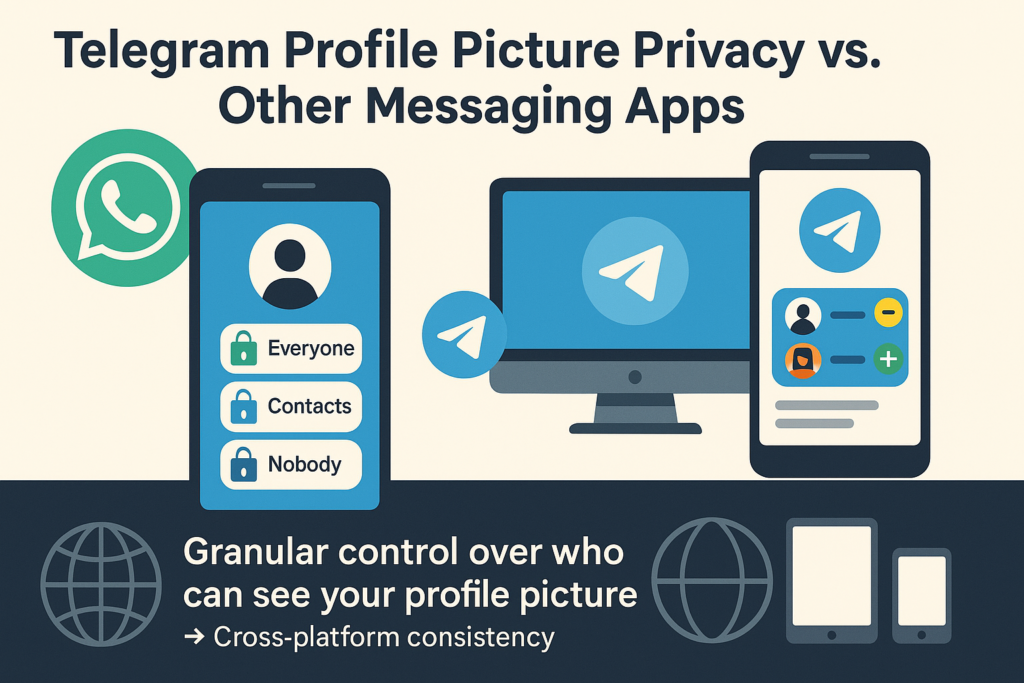
Most messaging apps now let you limit your profile photo to contacts, and WhatsApp also lets you exclude specific contacts. Telegram goes further in three ways:
- Exceptions in both directions. You can block specific people from seeing your photo, and you can also allow specific people even when your general setting is Nobody.
- Groups as exceptions. Instead of picking people one by one, you can add a whole group, and the rule applies to all its members.
- A public photo. People who can't see your real photo can see a different one you choose, instead of a blank placeholder.
Your privacy settings are stored in your Telegram account, not on one device, so they apply the same way on Android, iPhone, desktop and web.
How to hide your profile picture on Android
- Open Telegram and tap the menu (☰) at the top left.
- Tap Settings, then Privacy and Security.
- Tap Profile Photo (some versions say Profile Photos).
- Choose Everybody, My Contacts or Nobody.
- Under Exceptions, use Never Share With or Always Share With to add people or groups.
How to hide your profile picture on iPhone
- Open Telegram and tap the Settings tab at the bottom right.
- Tap Privacy and Security.
- Tap Profile Photo.
- Choose Everybody, My Contacts or Nobody.
- Add exceptions with Never Share With or Always Share With.
How to hide your profile picture on desktop
- In Telegram Desktop, open the menu (☰) and choose Settings.
- Click Privacy and Security.
- Click Profile Photo, choose who can see it and add any exceptions.
The change is saved to your account, so you only need to make it once on any device.
Exceptions and the public photo
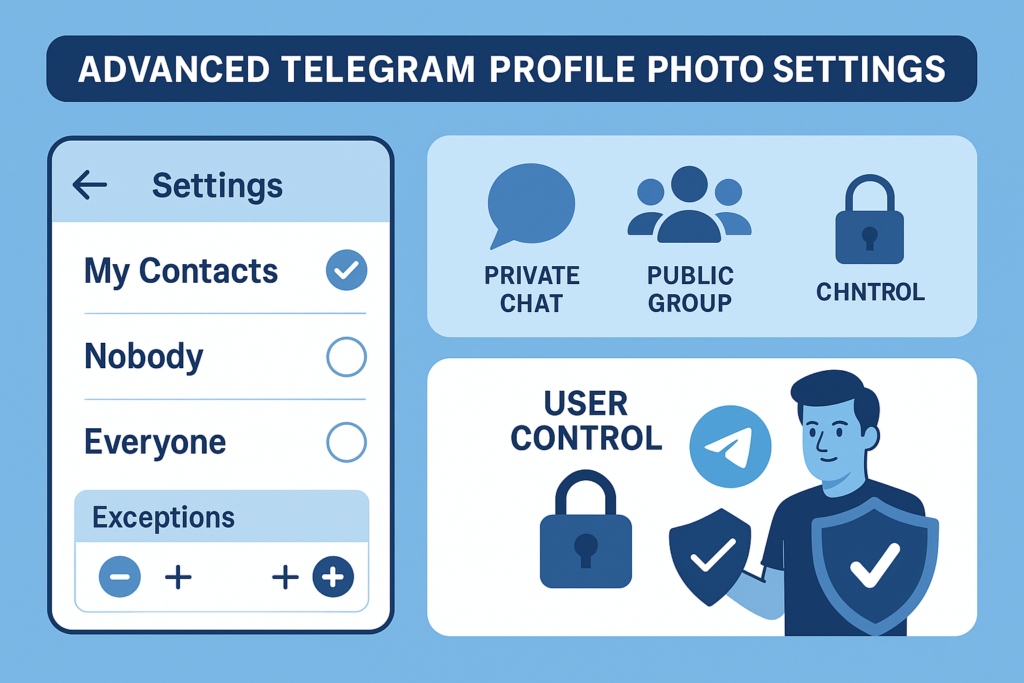
Never Share With and Always Share With
Exceptions let you make your general rule stricter or looser for specific people:
- My Contacts + Never Share With: your contacts see your photo, except the people on the list. Useful for a coworker or an ex who is still in your contacts.
- Nobody + Always Share With: nobody sees your photo except the people on the list. Useful if you only want family or close friends to see it.
- Everybody + Never Share With: everyone sees it except a few people you choose.
You can add a group as an exception, and the rule then covers everyone in that group. This is the quickest way to hide your photo from members of a large public group while keeping it visible to your contacts.
Set a public photo
If you limit who can see your real photo, you can add a public photo for everyone else. Open Profile Photo in Privacy and Security and choose Set Public Photo. People who can't see your main photo see the public one instead of a blank circle with your initials. This is handy if you want a real face for friends and a logo or neutral picture for strangers in public groups.
What others see when your photo is hidden
Someone who isn't allowed to see your photo sees either your public photo, if you set one, or a colored circle with your initials. They see this everywhere: in private chats, in groups and on your profile page. Changes apply right away, in both directions; if you later allow someone again, they see your photo straight away.
They can't tell whether you hid the photo from them personally or from everyone, because the placeholder looks the same either way. Keep in mind that hiding a photo now doesn't undo anything that already happened: if someone saved or screenshotted your picture earlier, they still have it, and photos you have sent in chats stay in those chats.
Set a photo for a contact, or suggest one
Telegram also works in the other direction. When you edit a contact, you can choose Set Photo for… to give that contact a picture that only you will see, which helps when someone has no photo or one you can't recognize. You can also choose Suggest Photo for… to send them a picture they can add to their own profile in two taps.
What people can still see when your photo is hidden
Hiding your profile picture doesn't hide everything. People in your chats and groups can still see:
- Your name, as you set it in your profile.
- Your username, if you have one. Anyone can find you by it.
- Your messages in any group you're in.
- Your phone number, bio, last seen and date of birth, unless you have restricted those separately.
If you want to be harder to identify, review those settings too. In particular, set Phone Number to Nobody and choose who can find you by your number.
Troubleshooting: someone can still see your photo
- Check Always Share With. The person may be on that list, directly or through a group you added.
- Check whether it's your public photo. If you set one, people without access see it, which can look like the setting isn't working.
- Check the general rule. If it's set to My Contacts and the person is in your contacts, they see your photo unless they're on Never Share With.
- Give it a moment. Their app may show a cached copy until it refreshes. Updating Telegram on your side and theirs usually clears it.
Best practices for Telegram profile picture privacy
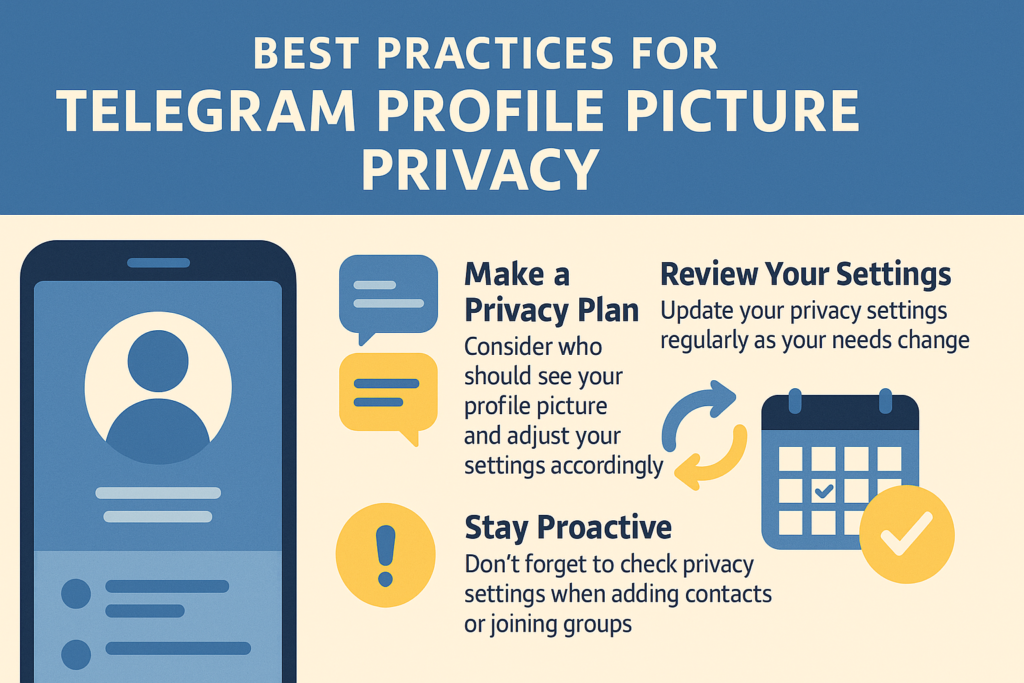
- Start from My Contacts. For most people, contacts only plus a few Never Share With exceptions is the right balance.
- Use a public photo if you're in public groups. Strangers see a neutral picture; people you know see the real one.
- Use groups as exceptions instead of adding people one by one.
- Review your settings every few months, especially after joining new groups or adding new contacts.
- Check the result. Ask someone you trust what they see, or look at your profile from a second account.
Key Takeaways
- Go to Settings → Privacy and Security → Profile Photo to choose Everybody, My Contacts or Nobody.
- Use Never Share With and Always Share With for exceptions; you can add whole groups.
- Set a public photo so people without access see a picture you chose instead of your initials.
- The setting applies in every chat and group, on every device, and changes take effect right away.
- Nobody is notified, and people can't tell whether the photo is hidden from them personally.
- Your name, username, messages and any details you haven't restricted stay visible.
FAQ
How do I hide my profile picture on Telegram?
Can I hide my Telegram profile picture from one person only?
What does someone see if I hide my profile photo from them?
Will someone know I hid my profile picture from them?
What is a public profile photo on Telegram?
Does hiding my profile photo also hide it in groups?
Does hiding my profile picture hide my old profile photos too?
Can I set a profile picture for a contact that only I see?
Related articles
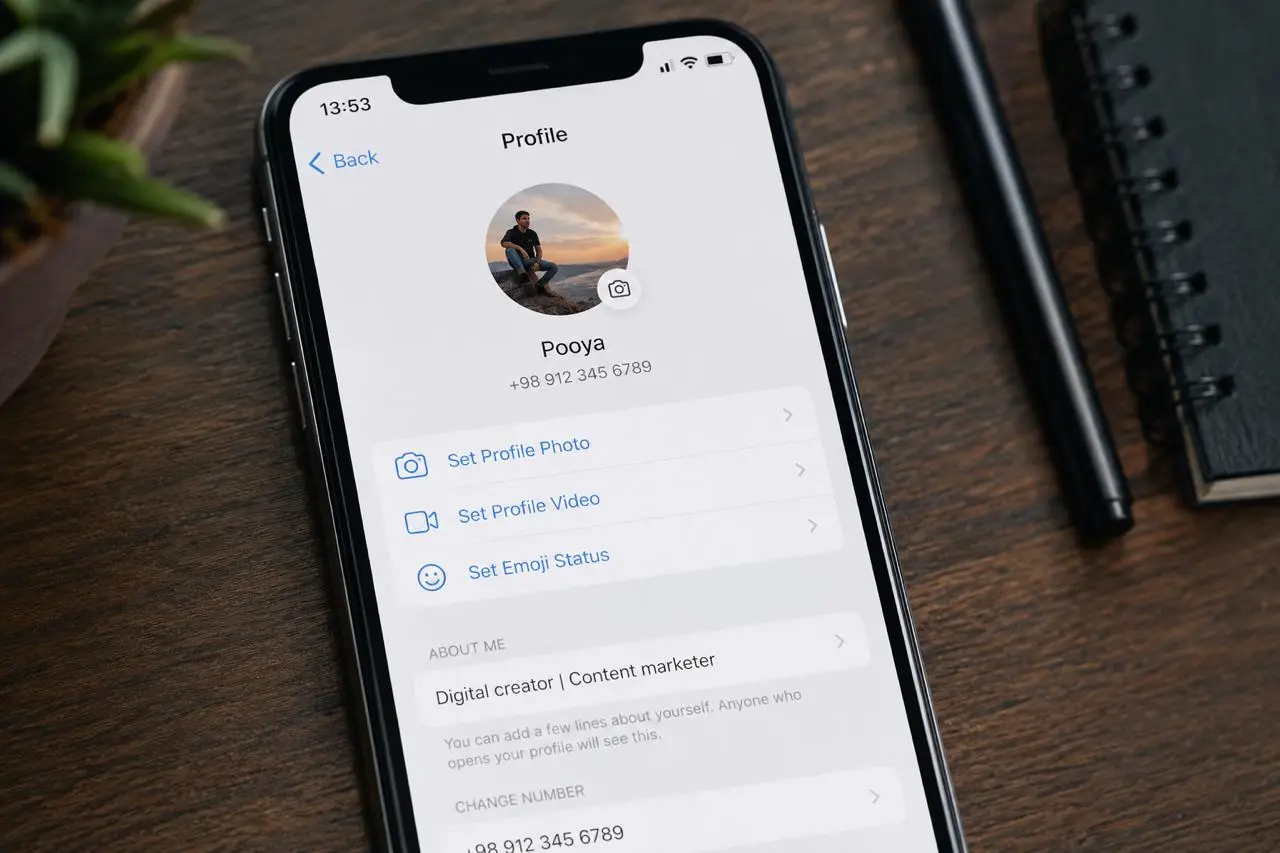
How to Set a Profile Picture on Telegram in 2026
Set, change, hide or delete your Telegram profile picture in 2026 — plus profile videos, emoji avatars, correc…

How to boost & buy Telegram members? A comprehensive Guide

Easily Update Your Telegram Profile Name in Minutes

Telegram Privacy & Transparency in 2025: What Every Channel Owner Should Know

Is Buying Telegram Post Views Safe? A Comprehensive Guide
What is Telegram: Your Ultimate Guide to Secure Messaging App Features and Privacy
Comments
No comments yet. Be the first to share your thoughts.