Article
How to Find, Copy and Share Your Telegram Profile Link
Find and copy your Telegram profile link on any device, share it without exposing your number, and fix it fast when it stops working.
I get asked some version of this question almost every week: "Where do I find my Telegram link?" The answer is short, but the details around it are where people get stuck. The link doesn't show up until you set a username. A phone-number link only works if your privacy settings allow it. And a link that worked last month can suddenly lead nowhere.
I'm Pooya Shafaei, and I've been running Telegram channels, groups and bots for years. Profile links are something I set up, share and troubleshoot constantly. This guide is only about your own profile link: how to find it, how to copy it on each device, how to share it without exposing your phone number, and what to check when it stops working.
What Your Telegram Profile Link Is (and What It Isn't)
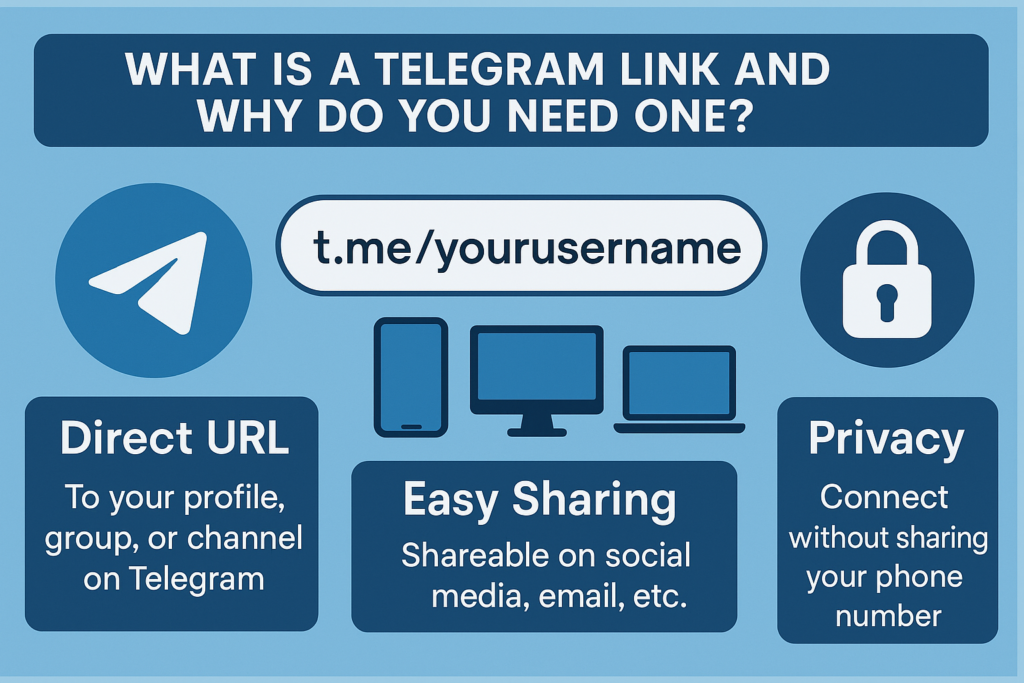
Your Telegram profile link is a short URL that opens a private chat with you. According to the official Telegram FAQ, once you have a username you can share it in either of these formats:
- t.me/yourusername: the standard format, and the one I recommend.
- yourusername.t.me: a subdomain version that opens the same chat.
When someone taps the link on a phone with Telegram installed, the app opens straight to a chat with you. On a computer without the app, they see a small preview page with an "Open in Telegram" button.
There's one thing your profile link is not: a link to a channel or group. Those links look almost the same, but they lead somewhere else. I explain the difference further down, because mixing them up is the most common mistake I see.
Step One: Set a Username (No Username, No Link)
Telegram only gives you a t.me link after you create a public username. If you open your settings and there's no @username under your name, that's why you can't find your link.
Telegram's own help text sums up the rules: you can use a–z, 0–9 and underscores, and the minimum length is 5 characters. Usernames aren't case-sensitive, so @YourName and @yourname point to the same account, although Telegram still shows the capital letters you chose.
To set one:
- Open Telegram and go to Settings.
- Tap Edit (on iPhone) or tap the Username row (on Android).
- Type the username you want. Telegram tells you immediately whether it's available.
- Save it. Your link is now live as t.me/ followed by that username.
Here's what I've learned about picking one:
- Treat it like a domain name. It ends up printed on cards, in bios and in old messages you can't edit. Changing it later breaks every copy of the old link.
- Avoid underscores you'd have to say out loud. A name you have to spell out as "john underscore smith" gets mistyped far more often than a clean one.
- Match your other handles if you can. People try your Instagram or X handle first when they search Telegram.
If the name you want is taken, you may find it offered on Fragment as a collectible username. The Telegram FAQ says collectible usernames work just like regular ones and are traded on a third-party platform. You don't need one to have a working profile link.
How to Copy Your Telegram Profile Link on Every Device
Telegram moves menu items around between updates, but the logic stays the same: your link lives on your username screen. Below are the paths I use on each platform.
On Android
- Open Telegram and tap the menu (☰) or your profile photo, then go to Settings.
- Tap the Username row under your account details.
- Below the username field, you'll see your full link (https://t.me/yourusername). Tap it to copy it to your clipboard.
On iPhone and iPad
- Tap the Settings tab at the bottom of the screen.
- Tap Edit in the top corner, then Username.
- Your link is shown under the username field. Tap it to copy.
On Telegram Desktop (Windows, macOS, Linux)
- Open the menu (☰) and click Settings.
- Click your profile or My Account, then Username.
- Your t.me link appears under the field. Click it to copy.
On Telegram Web
- Go to web.telegram.org and log in.
- Open the menu (☰), choose Settings, then click the edit (pencil) icon.
- Your link is displayed under the Username field. Click it to copy.
The Fastest Method: Type It Yourself
Most of the time I don't copy my link at all. If you know your username, your link is just t.me/ followed by it, with no @ sign. So @yourname becomes t.me/yourname. Typing it takes less time than opening settings, and it's the fix I suggest whenever someone says the copy option isn't working.
No Username? Share a Phone Number Link Instead
Some people don't want a public username at all. Telegram has another option for them: a phone number link. As Telegram explained when it introduced this feature, the format is t.me/+ followed by your full number in international format, for example t.me/+15551234567.
There's a catch that trips people up: the link only works if your privacy settings let others find you by your phone number. If you've set "Who can find me by my number" to My Contacts, strangers who open the link won't reach you. You can check this under Settings → Privacy and Security → Phone Number.
My advice: share a phone link only with people who already have your number. It reveals your number to anyone who sees the link. For anything public, like a bio, a website or a printed card, a username link is the safer choice.
Profile Link vs Channel Link vs Group Link
This is where I see the most confusion, especially from people who run a channel as well as a personal account. All of these links start with t.me, but they do different things:
| Link | What it looks like | What happens when someone opens it |
|---|---|---|
| Your profile | t.me/yourusername | Opens a private chat with you |
| Phone number | t.me/+15551234567 | Opens a chat with you, if your privacy settings allow it |
| Public channel or group | t.me/channelname | Opens the channel or group so people can join |
| Private invite | t.me/+AbCdEf123… | Invites people into a private channel or group |
Look at the last two rows of the table. Both a phone number link and a private invite link start with t.me/+. If what comes after the plus sign is only digits, it's a phone number. If it's a mix of letters and numbers, it's an invite link. I've seen channel owners paste an invite link into their "contact me" button by accident. They then wondered why people were joining the channel instead of messaging them.
If you run a channel, keep two separate links: your personal profile link for "contact me" or "support", and your channel link for "join" or "follow". Label them clearly wherever you post them.
Where and How to Share Your Profile Link
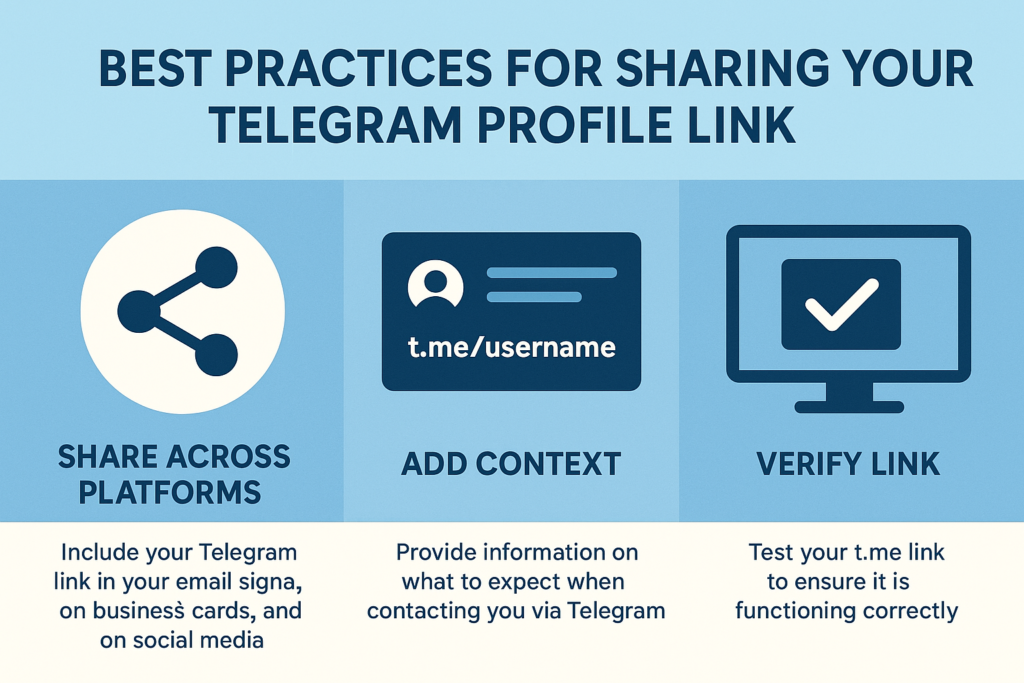
Finding the link is the easy part. Getting people to actually use it depends on where you put it and what you say next to it. These are the placements that have worked best for me:
- Social media bios. Put the full link, not just "@username". A plain handle makes people search for it, and they sometimes land on a look-alike account.
- Email signature. A line like "Fastest reply on Telegram: t.me/yourusername" gets used much more than a bare link with no context.
- Your website's contact section. Use a button labelled "Message me on Telegram" that points to your t.me link. The label tells visitors it opens a chat, not a channel.
- Chats and forums. Paste the t.me link rather than a screenshot of your profile, so people can tap it right away.
Before a link goes anywhere public, I always open it myself from a different device or a logged-out browser. It takes ten seconds and catches typos, a wrong account or an old username before anyone else runs into them.
One more habit worth having: tell people what to expect. "DM me for support" or "Message me for collaborations" gets better conversations than a link with no explanation.
Share Your Profile With a QR Code
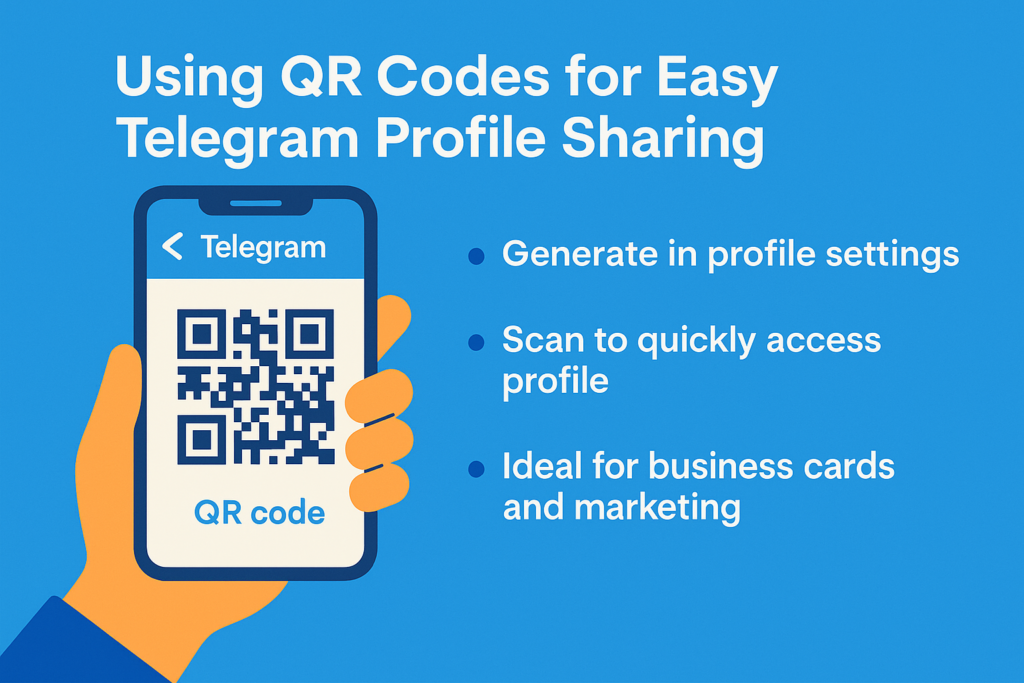
When I meet someone in person, I don't spell out my username. I show them a QR code. Telegram has a built-in QR code for your username, and Telegram's announcement of the feature says you can get it from Settings. You'll find it as a QR icon next to your username. You can also pick the colors and pattern, then share or print it.
The other person just points their phone camera at the code, and your chat opens. That makes it useful for business cards, event badges, flyers and presentation slides.
What if you have no username and your number is hidden from everyone? Telegram has thought about this too. It added temporary QR codes for exactly this situation. Someone can scan the code and add you without ever seeing your number. The code expires, which makes it a good option for one-off meetings.
Privacy: What People See When They Open Your Link
A username link doesn't reveal your phone number. What people see is controlled by your privacy settings, and the default is more private than most people expect. Per the Telegram FAQ, your number is visible by default only to people you've saved as contacts. The exception is anyone who already has your number saved in their own address book.
Before I share my link publicly, I check these settings under Settings → Privacy and Security:
- Phone Number: who can see it, and who can find you by it.
- Last Seen & Online: whether strangers can see when you're active.
- Profile Photos: who can see your photo.
- Groups & Channels: who can add you to groups. Once a link is public, this stops random people from adding you to spam groups.
A public link means anyone who has it can start a chat with you. For most creators and businesses that's the whole point. If you only want a smaller circle to reach you, share the link directly instead of posting it publicly.
Why Your Telegram Link Isn't Working
When someone tells me "your link doesn't open", the cause is almost always one of these:
- You changed your username. The old link stops working as soon as you change it, and every place you posted it is now broken. The old name also becomes free for someone else to claim.
- There's a typo or an extra character. An @ sign, a space, or a full stop copied along with the link is enough to break it. The link should contain t.me/ and the username only.
- It's a phone link and your privacy settings block it. Check "Who can find me by my number", as explained above.
- It's opening inside another app's browser. Apps like Instagram sometimes open links in their own built-in browser, which shows Telegram's preview page instead of the app. Tapping "Open in Telegram" usually fixes it.
- t.me is blocked on the network. Some countries and workplace networks block the t.me domain. If the person has Telegram installed, searching your @username inside the app still works.
- You shared the wrong account's link. If you use more than one account, check which one you're logged into before copying.
If the "copy link" option itself doesn't respond, restart the app or type the link manually as described earlier. Your link is only t.me/ followed by your username, so you never actually need the button.
Key Takeaways
- Your profile link only exists once you set a username: a–z, 0–9 and underscores, at least 5 characters.
- Find and copy it on the username screen on any device, or simply type t.me/ followed by your username.
- Phone number links (t.me/+number) work only if your privacy settings allow people to find you by number.
- A profile link opens a chat with you; a channel or group link opens the community. Keep them separate.
- Use Telegram's built-in QR code for in-person sharing, or a temporary QR code if you have no username.
- Changing your username breaks every old link, so choose it carefully and update your bios when you do.
FAQ
How do I find my Telegram profile link?
Why can't I find my Telegram link?
Can I share my Telegram profile without a username?
Does sharing my Telegram link show my phone number?
What happens to my link if I change my username?
What is the difference between a profile link and a channel link?
How do I get my Telegram QR code?
Related articles
How to Find and Join Telegram Groups and Channels in 2026
Every method I use in 2026 to find active Telegram groups and channels: Global Search, Similar Channels, the C…
Buy Telegram Post Shares: What Forwards Actually Do for a Channel
Yes, you can buy Telegram post shares, but a share is just a forward, and its value depends on who reads the f…
How to Set a Profile Picture on Telegram in 2026
Set, change, hide or delete your Telegram profile picture in 2026 — plus profile videos, emoji avatars, correc…
Easily Update Your Telegram Profile Name in Minutes
How to Find Telegram Downloaded Files on Android: Complete Guide to Locating Your Downloads

How to Add a Bot to a Telegram Group or Channel
How I add bots to Telegram groups and channels on Android, iPhone and desktop: the one-tap add links, which ad…
Comments
No comments yet. Be the first to share your thoughts.