Article
How to Use Topics in a Telegram Group: Setup, Permissions and Topic Tabs
What Topics are in Telegram groups, when they help, how to turn them on, how to manage pins, closed topics and permissions, and the five-topic setup I start every group with.
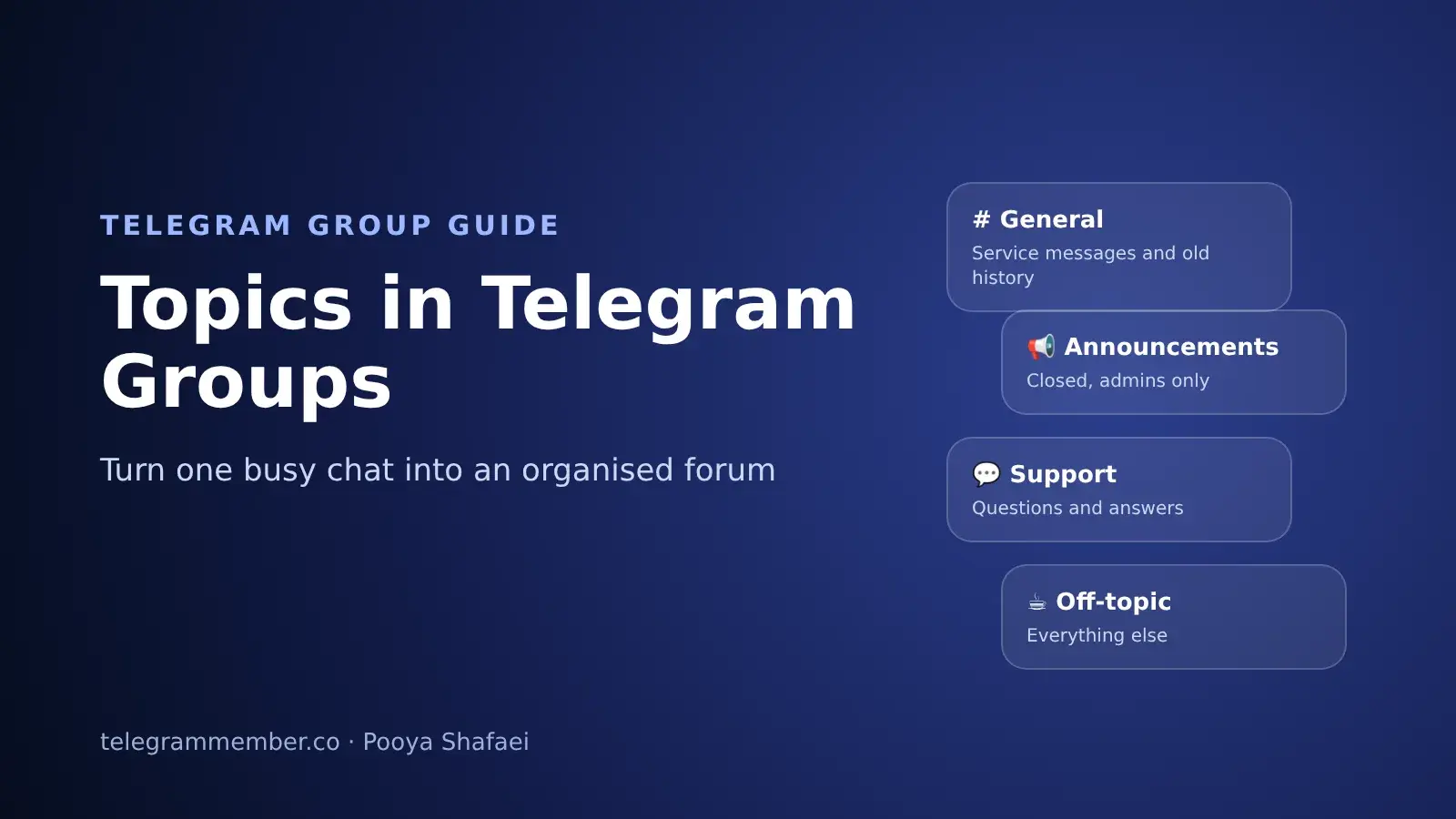
One of my groups reached a point where three conversations ran at once: support questions, trading ideas and off-topic chat. New members asked the same questions every day because the answers were buried under hundreds of messages. Turning on Topics fixed that in an afternoon. The group stayed one group, but every subject got its own space.
This guide explains what Topics are, which groups should use them, how to turn them on, how to manage permissions, and the setup that has worked for me.
What Are Topics in a Telegram Group?
Topics turn a large group into something like a forum. Instead of one long chat, the group is split into separate threads, each with its own messages, shared media and notification settings. Members open the topic they care about and ignore the rest.
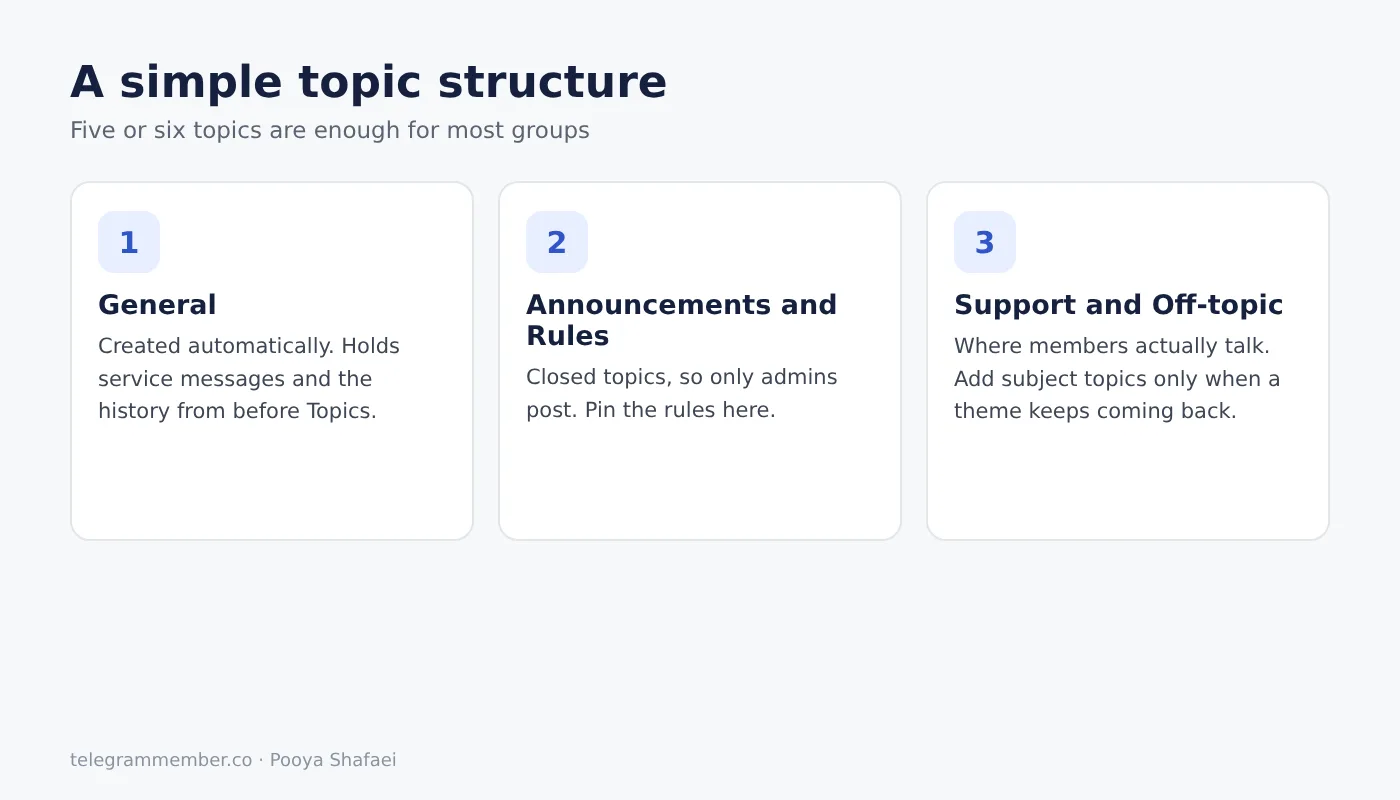
Telegram launched Topics in November 2022 for large groups and expanded them a month later in Topics 2.0, which made them available to groups with 100 or more members. Every group with Topics has a General topic that holds service messages and the chat history from before Topics were turned on.
Is Your Group a Good Fit for Topics?
Topics aren't for every group. In my experience they help when:
Members regularly talk about two or more different subjects at the same time.
The same questions come up again and again because old answers are hard to find.
You want to separate announcements, support and casual chat without running several groups.
They don't help much in a small, fast group where everyone talks about one thing. There, Topics only add clicks. If your groups are separate communities that just belong to the same brand, Telegram's Communities feature is the better tool; my guide to Telegram Communities explains the difference.
How to Turn On Topics
Open the group and tap its name.
Tap Edit, then Topics, and switch it on.
Choose how topics are shown. Since the June 2025 update, topics appear as tabs, either in a larger bar on the side or a minimal bar at the top of the chat.
Create your first topics with a name and an icon.
Only the owner can turn Topics on. If you haven't set up the group itself yet, start with my guide on creating a Telegram group and come back to this step once you have members.
Managing Topics: Pins, Closing and the General Topic
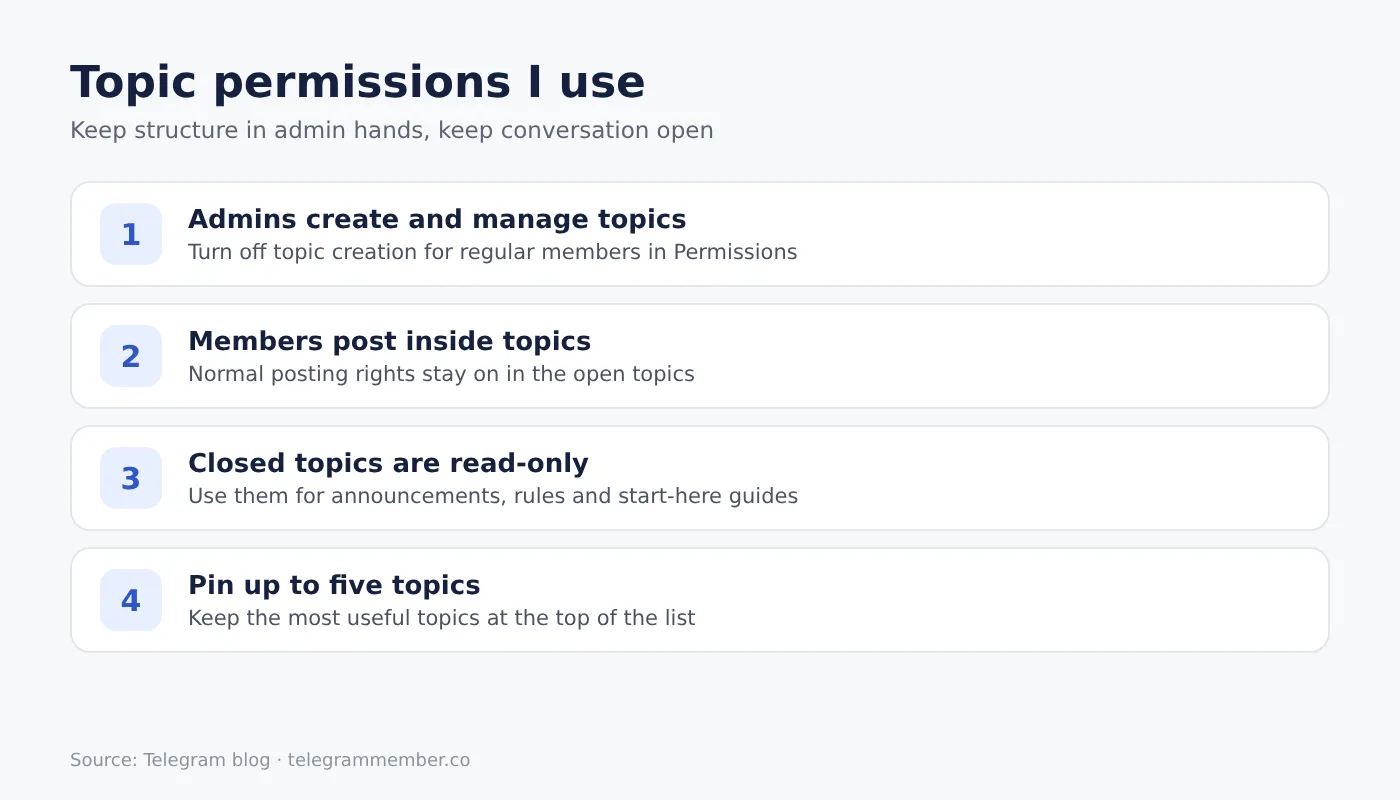
Pin the important ones. A group can pin up to five topics at the top, and each topic can have its own pinned messages.
Close topics you want read-only. A closed topic stays visible but members can't post in it, which works well for rules or announcements.
Rename or hide General. Admins can rename the General topic or hide it from the main list once the other topics are in use.
Who Can Create Topics: Permissions
By default, you decide in the group's Permissions whether regular members can create topics. I keep this off. When anyone can create topics, a group quickly ends up with forty half-empty threads and nobody knows where to post.
Instead, I let admins create and manage topics, and I give one or two trusted members admin rights limited to topic management. Here's how to add admins and choose their rights so they can manage topics without being able to ban members or change group info.
The Topic Setup That Works for Me
After running several groups with Topics, this is the structure I start with:
Announcements, closed, so only admins post.
Rules and start here, closed, with the rules pinned.
Support or Questions, where most real activity happens.
One or two topic areas specific to the group, for example "Signals" and "Analysis" in a trading group.
Off-topic, so casual chat has a place and doesn't leak into the others.
Five or six topics is plenty. I add new ones only when a subject keeps coming up in Off-topic for several weeks.
Common Questions From Members
When I switch a group to Topics, the same three things come up in the first week, so I answer them in the announcements topic straight away:
"Where did the chat go?" Nothing was deleted. The old messages are in the General topic, and new conversations happen in the topics.
"I get too many notifications." Each topic has its own notification settings, so members can mute the busy ones and keep alerts only for the topics they follow.
"I don't see the Topics option." This one comes from other admins. The switch only appears for the group owner, and only in groups with at least 100 members.
A two-line explanation in the announcements topic saves a lot of repeated questions, and it shows new members how the group is meant to be used.
Topics, Welcome Messages and Spam
Topics work best together with two other settings. A short welcome message can point new members to the right topic before they post anywhere. And because spam bots tend to post in whatever thread they land in, the settings from my guide on how to stop spam in Telegram groups matter just as much in a group with Topics.
Final Thoughts
Topics are the easiest way to keep a growing group organised without splitting it into several chats. Turn them on once your group has a few clear subjects, keep topic creation for admins, start with five or six topics, and close the ones that should be read-only.
Frequently asked questions
What are topics in a Telegram group?
How do I enable topics in a Telegram group?
How many members does a group need for topics?
Can members create their own topics?
What is the General topic?
How many topics can I pin?
Related articles

How to Stop Spam in Telegram Groups: Settings, Join Requests and AI Guardians
The eight settings I use to stop spam in Telegram groups, from permissions and slow mode to join requests, Agg…

How to Find and Join Telegram Groups and Channels in 2026
Every method I use in 2026 to find active Telegram groups and channels: Global Search, Similar Channels, the C…

How To Buy and Manage Telegram Reports?

Telegram Groups Followers (Increase Followers)

How to Create a Telegram Group: Your Complete Guide to Building Communities and Managing Group Chat

Telegram Ad Revenue Sharing: Eligibility, Setup, and Cashout (Step-by-Step)
Comments
No comments yet. Be the first to share your thoughts.